Online Image Tools
Every image tool on the site in one place — compress, convert, resize, crop and more. Free, in your browser, with nothing uploaded.
Most image jobs come down to a handful of tasks: making a file smaller, changing its format, changing its size or shape, or cutting out the background. Each tool here does one of those well. If a photo is too heavy to send, compress the image; if a form refuses the format, convert the image; if it has the wrong dimensions, resize the image or crop the image. For the jobs in between, pull the text out of an image, turn a logo into an SVG, make a favicon or remove the background from an animated GIF.
Everything runs in your browser, on your own device. Your images are never uploaded, there is no account to create, no watermark on what you download and no daily limit — in ten languages.
Everyday image jobs, done in seconds
Each tool does one thing well. Pick the one you need, drop in a file and get it back ready to use.
Photo Editor
Crop, adjust colors, add text and edit photos in one private browser workspace.
Image Pixelator
Pixelate a whole photo or just faces, text and number plates, with blur and black-box options.
Remove Color from Image
Pick any color in an image and make it transparent, with tolerance and smooth edges, then save as PNG.
Image Size & Resolution Checker
See an image’s width and height in pixels, file size, resolution and aspect ratio.
Image DPI Checker
Check an image’s DPI or PPI and how large it prints, with the effective resolution at your print size.
Make Image Low Quality
Make a photo low quality on purpose, with real JPEG artifacts, pixelation, grain, fewer colors or a deep-fried look.
Combine Images
Put two or more images together side by side, stacked or in a grid, or place one image on top of another.
Blank Image Generator
Create a blank image at any size: white, black, any hex color or transparent, as PNG, JPG or WebP.
WhatsApp DP Maker
Make a full WhatsApp DP without cropping your original photo. Add a blurred background, preview the circle and download a square JPG or PNG privately.
Compress Image
Cut file size for faster pages and lighter uploads, without visible quality loss.
Convert Image
Switch between HEIC, WEBP, PNG and JPG in one step.
- HEIC
- WEBP
- PNG
- JPG
Resize Image
Set exact pixel dimensions or scale a photo by percentage.
Crop Image
Crop freely, in a circle or to 1:1, 16:9, 9:16, 4:3, 3:4, 3:2, 2:3 or 4:5 — transparent PNGs stay transparent.
Remove Background
Remove backgrounds from photos or animated GIFs on your device. Refine with Erase and Restore, then download a transparent PNG or GIF.
Transparent PNG Maker
Turn a JPG or photo into a transparent PNG. The background is cut out on your device and the PNG keeps real transparency.
Circle Crop
Crop a photo into a circle and save a transparent PNG — for avatars and profile pictures.
Image to text
Pull the text out of a photo, a scan or a screenshot, ready to copy.
Image to SVG
Vectorize a logo or line drawing into an SVG that scales without pixels.
Image to ICO
Build a favicon .ico holding several sizes at once, from any image.
Favicon Generator
Turn a logo or image into a ready-to-install favicon set. Preview small icons, choose the spacing, and download named ICO and PNG files with a web manifest and HTML tags.
GIF tools
Make, compress, split, speed up and convert animated GIFs in your browser.
GIF Background Remover
Remove the background from an animated GIF, keep it moving, and download a transparent GIF or add a new color.
GIF Maker
Make an animated GIF from pictures or a video clip. Set the order, speed, size and loop.
Heart Locket GIF Maker
Make the "my beloved" meme: a heart locket that opens on your photo and a caption.
GIF Compressor
Reduce GIF file size, or fit a GIF under an exact size like 256 KB or 5 MB.
SVG to GIF
Convert an animated SVG to a GIF, keeping its CSS or SMIL motion, or a still SVG to a GIF.
GIF Splitter
Split a GIF into frames and download them as PNG or JPG images, or as a sprite sheet.
GIF to Emoji
Turn a GIF into a custom emoji for Discord, Slack or Twitch, sized and under the limit.
GIF Speed Changer
Speed up or slow down a GIF, or set one delay for every frame, without losing quality.
GIF to MP4
Convert a GIF to an MP4 video, usually many times smaller, with its timing kept.
Resize for a platform or task
Set exact pixel dimensions or scale a photo by percentage.
Resize Image to 1920×1080
Resize images to 1920×1080 Full HD online. Preview the 16:9 crop or padding, choose JPG, PNG or WebP, and download privately without signup.
Resize Image to 1080×1080
Make a 1080×1080 square image online. Crop to fill or keep the whole photo with padding. Resize multiple images and download JPG, PNG or WebP.
Resize Image to 512×512
Resize an image to 512×512 pixels for an icon or thumbnail. Check the square crop, keep PNG transparency and download without uploading your photo.
Resize Images for a Website
Resize website images for banners, blog posts and content areas. Choose dimensions, preview the fit and export JPG, PNG or WebP locally in your browser.
Facebook Post Image Resizer
Resize a Facebook post image to 1200×630 or 1080×1080. Preview the framing, choose an output format and download files individually or in a ZIP.
Instagram Photo Resizer
Prepare square posts, portraits, Stories or profile pictures with editable sizes and a preview.
Facebook Image Resizer
Switch between profile, cover, shared-post and Story canvases while keeping existing Facebook workflows.
LinkedIn Image Resizer
Prepare 1200 × 627 link-preview artwork, square posts or profile images for LinkedIn.
YouTube Thumbnail Resizer
Resize a still thumbnail to 1280 × 720 or 3840 × 2160, then inspect readability before uploading.
Passport Photo Resizer
Adjust an existing photograph to editable pixel dimensions; check the issuing authority’s requirements before use.
Resize Image to 1024×1024
Create an exact 1024 × 1024 square with a centered crop or padding, then review the downloaded pixels.
Instagram Story Resizer
Open a vertical 1080 × 1920 canvas for a still Story image and choose crop or padding.
Facebook Cover Photo Resizer
Prepare a wide 851 × 315 starting canvas for a Facebook cover and inspect the framing.
LinkedIn Banner Resizer
Prepare a 1584 × 396 personal-profile background image with editable framing.
Twitter / X Header Resizer
Resize a header to a 1500 × 500 starting canvas and keep essential content clear of the edges.
Image Stretcher
Stretch an image wider, taller or to an exact shape like 16:9, without cropping. Free, online, nothing uploaded.
Compress a specific format
Dedicated pages for the two formats people compress most: JPG photos, kept as JPG, and PNG graphics with their transparency.
Compress to a file-size limit
Choose a ready-made limit or set a custom budget in KB or MB.
Compress JPG to 50KB
Fit a JPG or JPEG under a strict 50KB upload limit.
Compress JPG to 100KB
Reduce a JPEG for a 100KB form or attachment limit.
Compress JPG to 200KB
Fit a photo under 200KB with room for useful detail.
Compress PNG to 100KB
Reduce PNG graphics toward 100KB while retaining transparency.
Reduce Image Size
Choose a custom KB or MB budget for JPG, PNG or WebP.
Compress Image for Email
Prepare lighter email attachments with an editable 1MB starting budget.
Compress Photo Online
Prepare a sharing copy with a 300KB target and a 1600px long edge.
WhatsApp Image Compressor
Create a lighter sharing copy with a 300KB target, a 1280px long edge and JPG selected.
Compress Image for Amazon
Prepare a product-photo copy starting at 500KB, a 2000px long edge and JPG output.
Compress Image for Shopify
Prepare a store image with a 300KB target, a 2048px long edge and WebP selected.
Compress Image for eBay
eBay listing photos as JPG, sized to a 1600px long edge for its zoom, from a 500KB starting budget.
Compress Image for WordPress
Prepare a Media Library copy with WebP output, a 200KB target and a 1600px long edge.
Compress Image for Google PageSpeed
Create a lighter test asset with WebP, a 150KB target and a 1280px long edge; measure the page afterward.
Compress Image for Government Upload
Start with an editable 200KB JPG target, then check the exact instructions for your government portal.
Compress Image for Online Form
Prepare a form attachment with a 100KB starting budget while retaining the source format initially.
Convert between the formats people actually need
The same converter, opened on the job you came for. Pick a pair and the output format is already set.
HEIC to JPG
Turn iPhone HEIC photos into JPGs that open anywhere.
PNG to JPG
Change PNG files to JPG and cut the file size.
WEBP to JPG
Turn .webp downloads into JPGs that upload anywhere.
WEBP to PNG
Turn .webp downloads into PNGs any app will open.
JPG to PNG
Convert a photo to lossless PNG for editing and design work.
JPG to WEBP
Make web images 25–35% lighter without visible loss.
PNG to WEBP
Make PNGs far lighter for the web and keep their transparency.
AVIF to JPG
Turn .avif images saved from the web into JPGs that open anywhere.
AVIF to PNG
Convert AVIF images to PNG and keep their transparency, with no further quality loss. Batch convert in your browser.
JFIF to JPG
Change .jfif images to .jpg with no quality loss: same pixels, same EXIF data, new extension. Batch convert in your browser.
JPEG to JPG
Change a .jpeg file to .jpg with zero quality loss.
Image to JPG
Convert PNG, WEBP, HEIC or AVIF to a JPG that works everywhere.
Image to PNG
Convert JPG, WEBP, HEIC or AVIF to lossless PNG, transparency kept.
Image to WEBP
Convert JPG, PNG, HEIC or AVIF to WEBP for lighter web pages.
Which image tool do you need?
Make a photo small enough to email or upload
Compress the image, or use Compress JPG to keep a photo as a JPG. For a big reduction, resize it first.
Open an iPhone photo on Windows or Android
Convert it with HEIC to JPG. A JPG opens on every device.
Get a format a website or form accepts
Convert any image to JPG, or change PNG to JPG to cut the file size as well.
Make a website load faster
Compare JPG to WebP and PNG to WebP for web delivery. This tool uses lossy WebP output: check quality and file size, and serve appropriate pixel dimensions.
Cut out a person or a product
Remove the background with AI and download a transparent PNG. For an animated GIF, use the GIF background remover instead.
Make a round profile picture
Crop the image into a circle for an avatar with transparent corners.
Hit exact dimensions for social media
Crop to the right shape, then resize to the exact pixels the platform asks for.
Turn several photos into one document
Combine them into a single PDF with Image to PDF.
Copy the text out of a photo or screenshot
Image to text reads it with OCR in your browser and puts it on your clipboard.
Make a favicon or a logo that scales
Build a multi-size .ico with Image to ICO, or trace a logo into a vector with Image to SVG.
Choose the right image format
Compare JPG, PNG, WebP and HEIC in the image-format guide. Keep transparency, compatibility and the actual file size in mind.
Prepare a portrait or product cut-out
The background guide explains clean edges, transparent PNGs, white JPGs and checks before sharing.
Formats these tools read and write
Most tools read JPG, PNG and WEBP, as well as HEIC photos from an iPhone; the converter also reads AVIF wherever your browser can decode it, and the GIF background remover takes animated GIFs. Photos come back as JPG, PNG or WEBP — no browser can create HEIC or AVIF files — while Image to SVG writes vector SVG, Image to ICO writes favicons, Image to text gives you plain text and the PDF tools write PDF.
Not sure which format to choose? JPG for photos that must open anywhere, PNG for screenshots, logos and anything transparent, WEBP for images on a website. The image converter switches between them in one step.
Frequently asked questions
Which image tool reduces file size the most?
What is the difference between compressing and resizing an image?
Do these image tools keep transparency?
Can I use the image tools on my phone?
Is there a limit on image size or the number of images?
From the blog
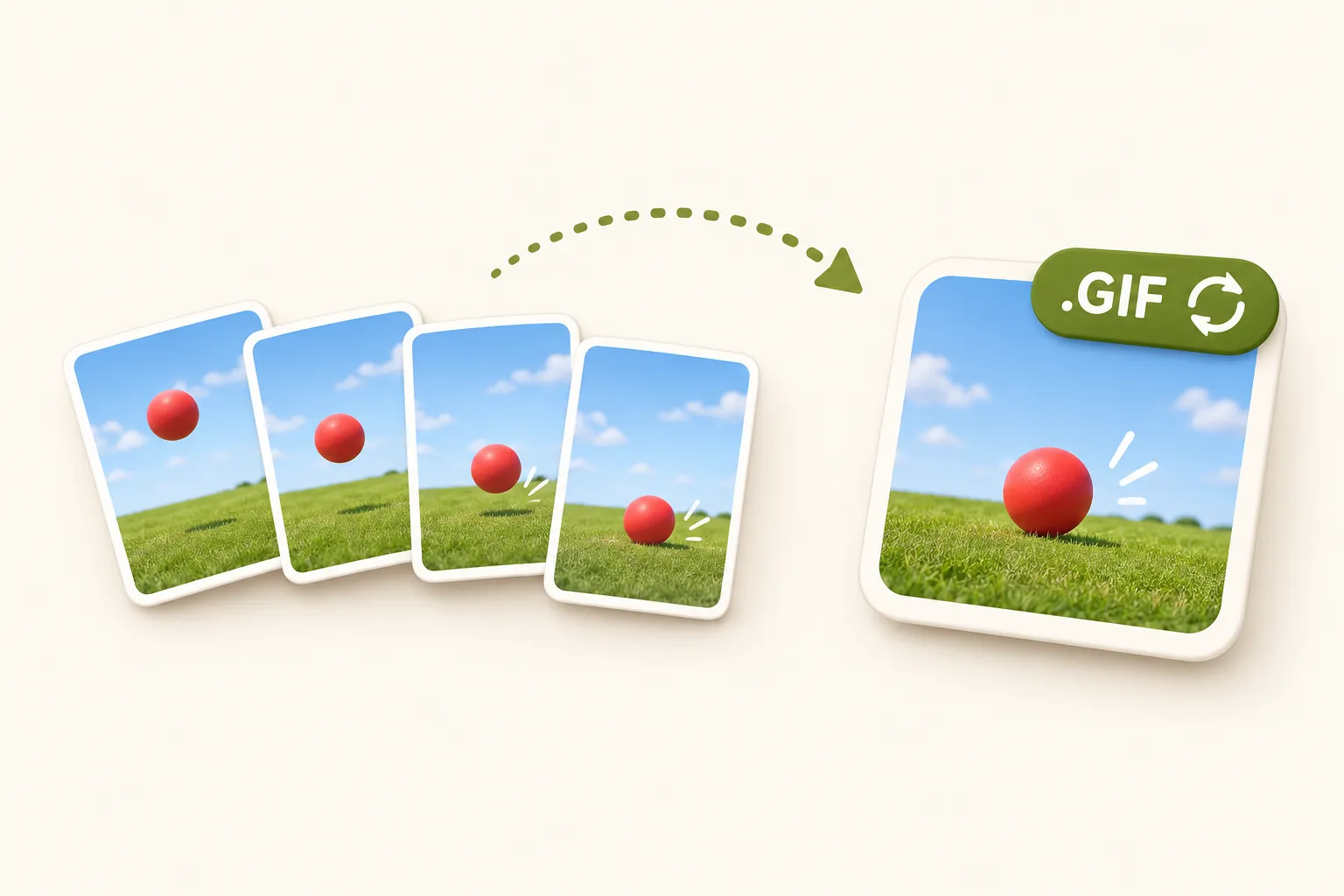
GIF maker
How to make a GIF from a video or photos, on any device
17 min read
Read the article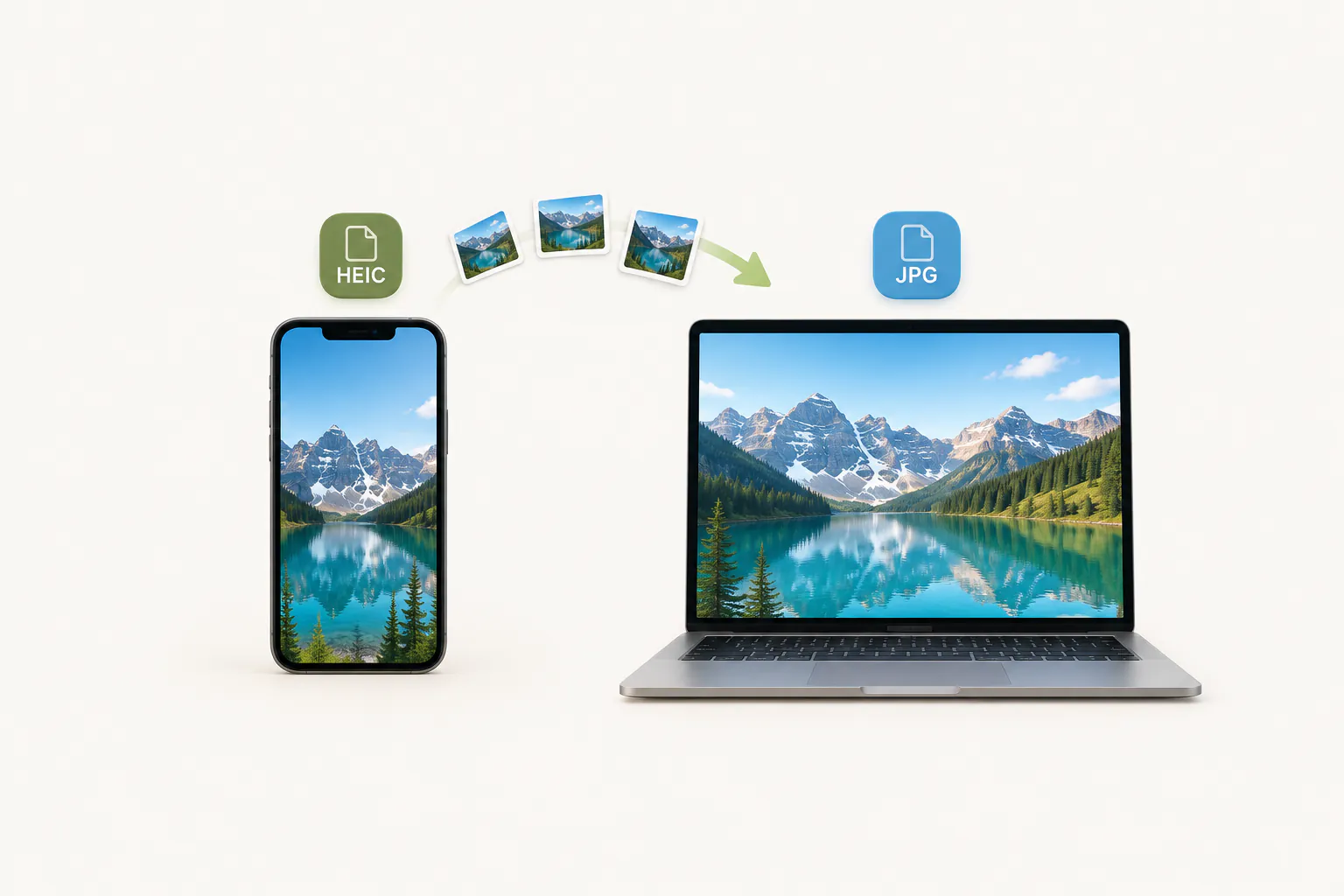
HEIC to JPG
How to convert HEIC to JPG on Windows, Mac, iPhone and Android
18 min read
Read the article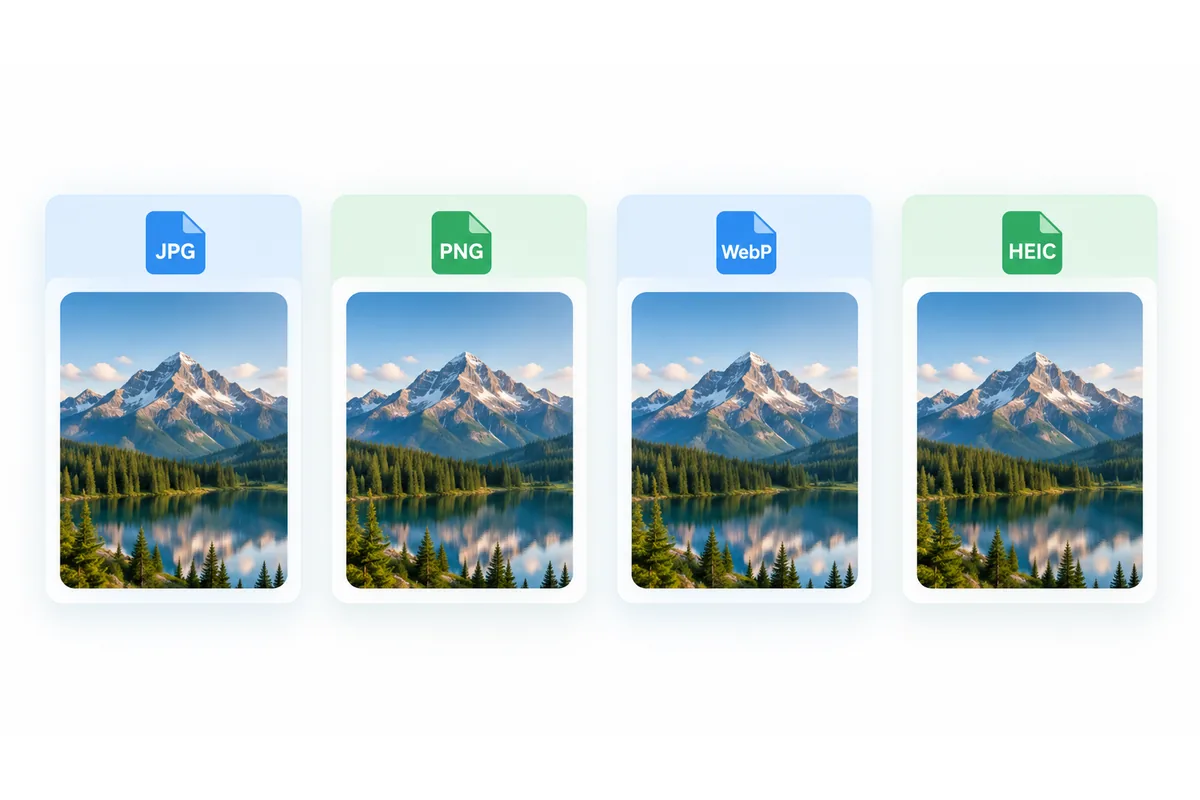
Image formats
JPG, PNG, WebP or HEIC: which image format should you use?
4 min read
Read the article