How to convert HEIC to JPG on Windows, Mac, iPhone and Android
Windows won’t open it, the upload form wants a JPG, and your friend on Android sees a blank file. Here is every free way to turn iPhone HEIC photos into JPGs, device by device, plus how to convert hundreds at once.
By Abdul BasitPublished Last updated 18 min read
In short
- On Windows, open the photo in Photos, choose Save as and pick .jpg as the file type.
- On a Mac, open it in Preview, then choose File → Export and set the format to JPEG.
- On an iPhone, set Settings → Camera → Formats to Most Compatible so new photos save as JPG.
- On any device, drop the files into a free HEIC to JPG converter, which also handles whole batches.
You transfer photos from your iPhone, double-click one on your PC, and… nothing. Windows can’t open it, your editing app rejects it, and the upload form wants a JPG. The culprit is HEIC, the space-saving format iPhones use by default. It is great for storage but frustrating everywhere outside Apple’s ecosystem.
This guide fixes that, mostly with free tools you already have. By the end of it, you’ll know how to convert HEIC to JPG on Windows, Mac, iPhone and Android, how to batch convert entire folders, and how to stop your iPhone from saving HEIC files in the first place.
What is HEIC, and why does your iPhone use it?
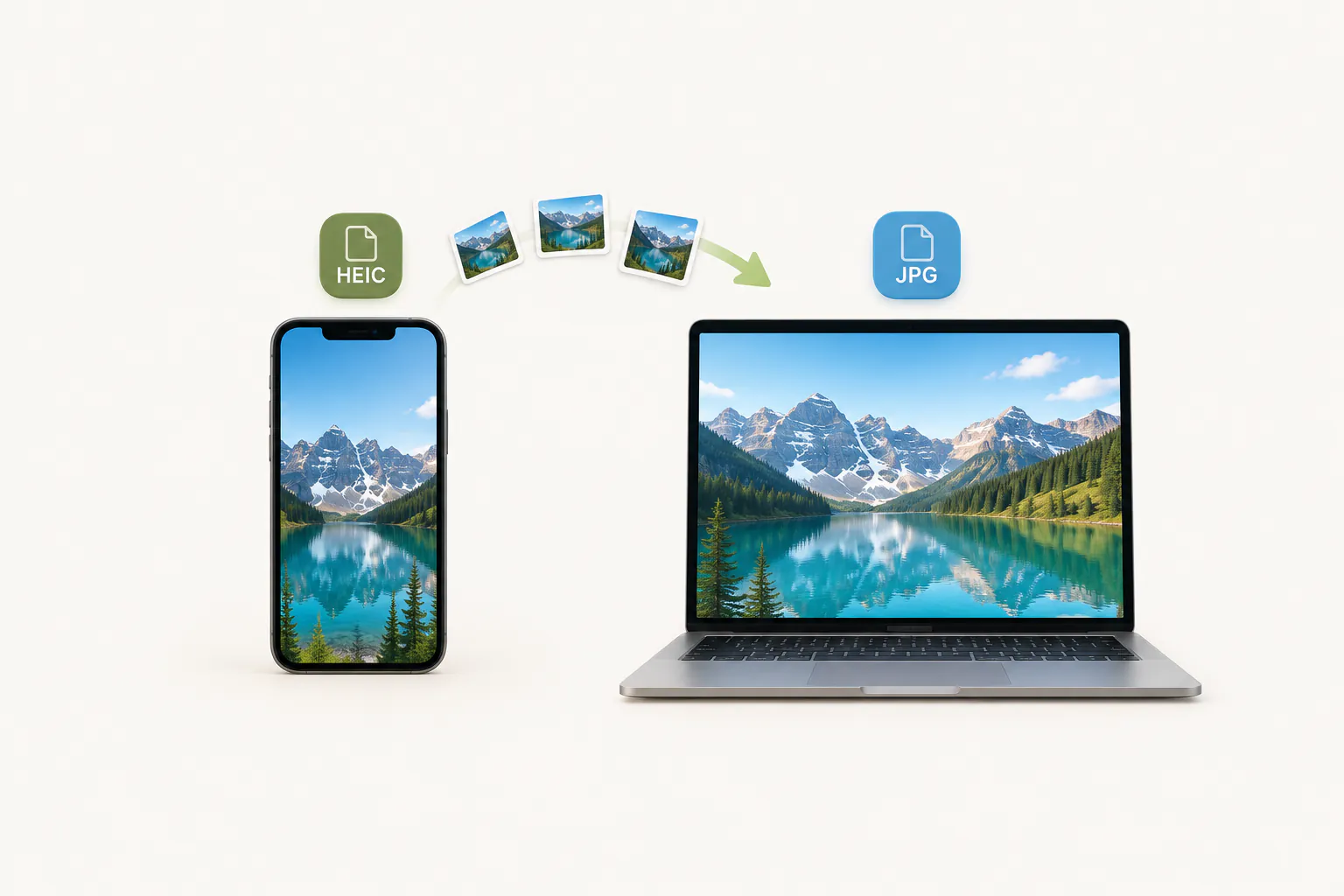
HEIC stands for High Efficiency Image Container. Apple made it the default for iPhone and iPad photos with iOS 11 in 2017, because it stores a picture at about the same visual quality as a JPG in roughly half the space. That means twice as many photos in the same storage, and smaller iCloud backups.
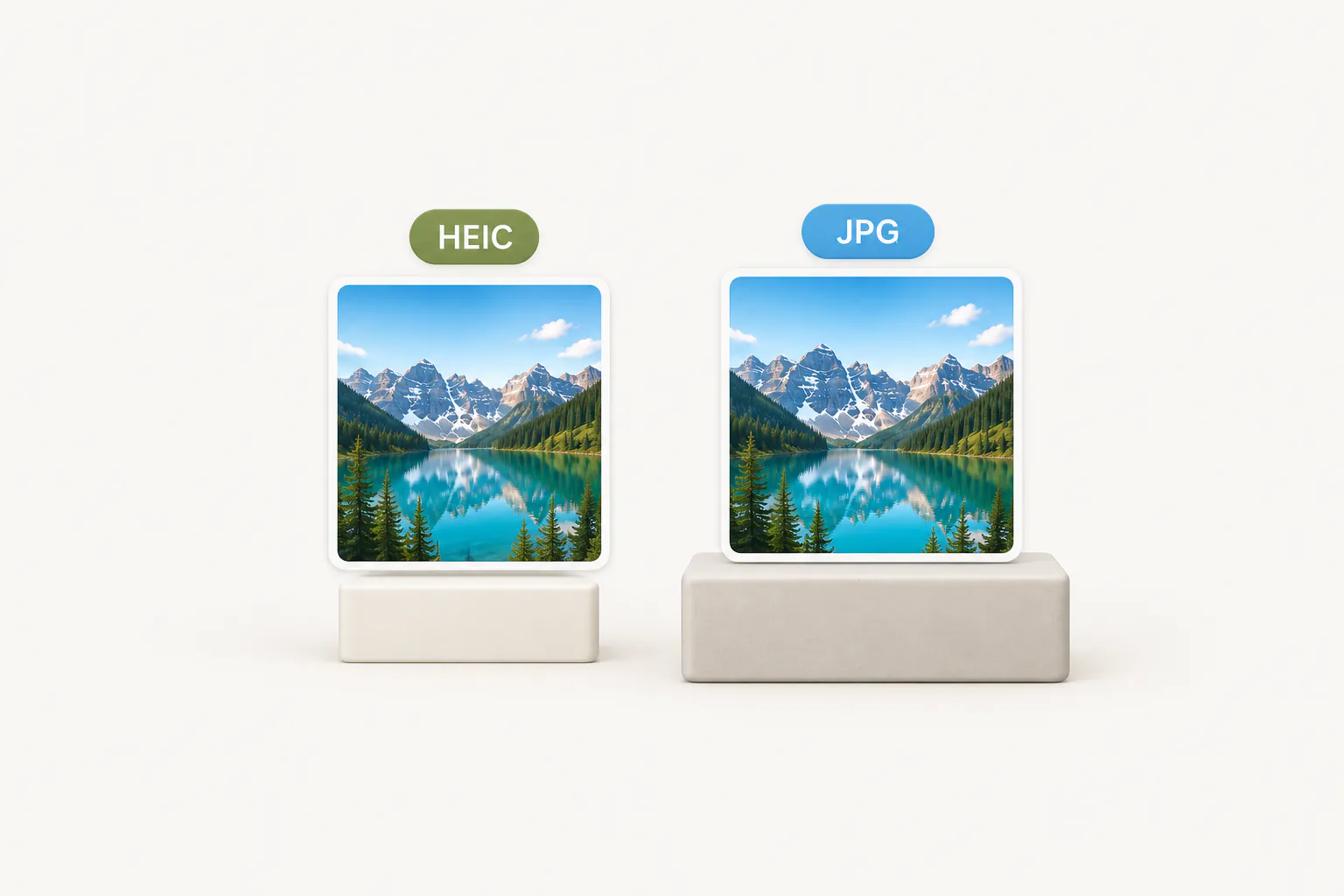
HEIF and HEIC are related but not quite the same. HEIF (High Efficiency Image File Format) is the container standard. HEIC is the name for HEIF files whose pictures are compressed with HEVC, also known as H.265, the same codec many phones use for video. That is what an iPhone saves, so the file ends in .heic. One HEIC can also carry extra images alongside the photo, such as the depth map behind Portrait mode.
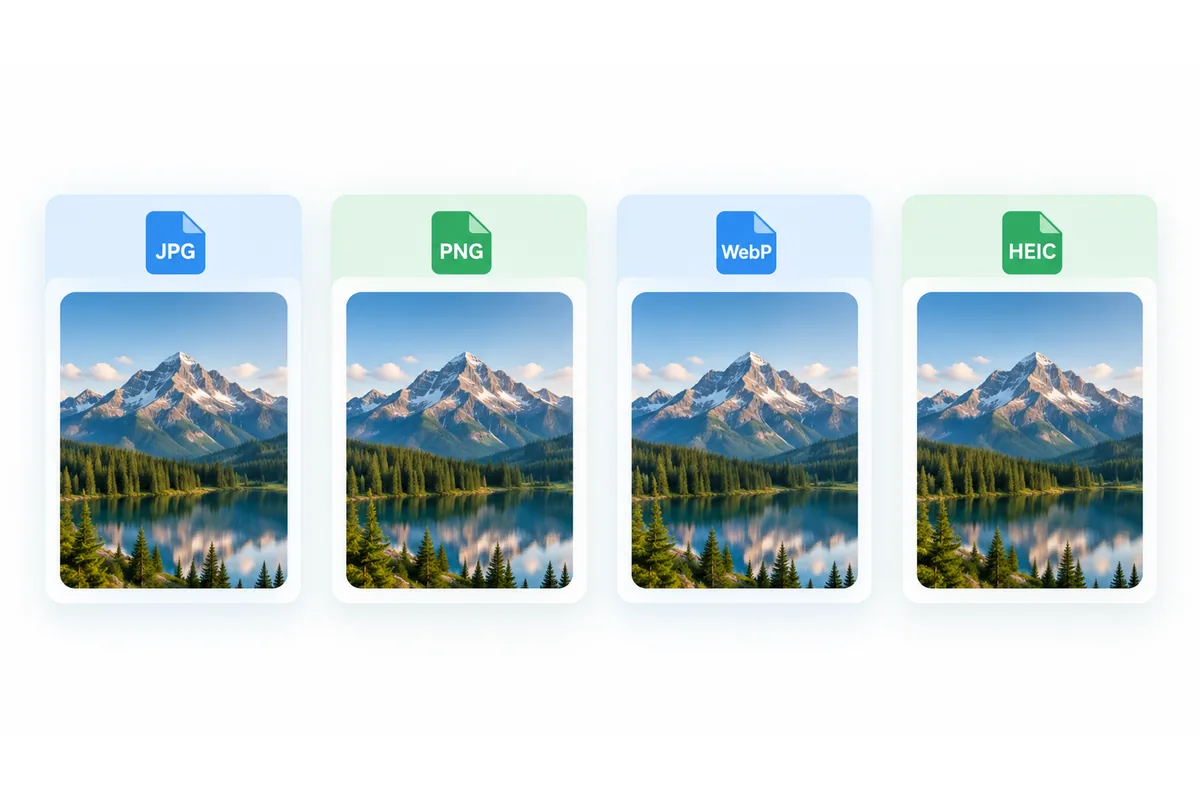
The catch is compatibility. HEVC is covered by patents, so not every company ships a decoder for free. Microsoft charges for its HEVC add-on, many apps and websites skip HEIC support entirely, and older software has never heard of it. JPG, by contrast, has opened everywhere since the 1990s. The image formats guide compares HEIC with JPG, PNG and WebP in more depth.
| Where you open it | HEIC | JPG |
|---|---|---|
| iPhone, iPad and Mac | Opens natively | Opens natively |
| Windows 10 and 11 | Needs Microsoft’s extensions | Always opens |
| Android phones | Usually in the gallery, often not in other apps | Always opens |
| Websites and upload forms | Often rejected | Almost always accepted |
| Typical file size | About half of a JPG | Baseline |
Which HEIC to JPG method should you use?
Every method below is free, or close to it. The right one depends on your device and how many photos you have.
| Method | Works on | Many files at once | Cost |
|---|---|---|---|
| Photos app or Paint | Windows 10 and 11 | No | Free, plus about $0.99 for HEVC if needed |
| Preview or Finder’s Convert Image | Mac | Yes | Free, built in |
| Files app’s Convert Image | iPhone and iPad (iOS 16 or later) | Yes | Free, built in |
| Most Compatible camera setting | iPhone and iPad | Future photos only | Free, built in |
| HEIC to JPG converter | Any browser: Windows, Mac, iPhone, Android, Chromebook | Yes, with a ZIP download | Free, no upload |
| IrfanView or XnConvert | Windows (XnConvert also on Mac and Linux) | Yes | Free for personal use |
| sips, ImageMagick or Python | Mac, Linux and Windows command line | Yes | Free |
How to convert HEIC to JPG on Windows 10 and 11
Windows can convert HEIC photos with its own Photos and Paint apps, but only once it can read the format. That depends on two Microsoft Store add-ons, and getting them right fixes most “can’t open HEIC” problems on a PC.
Before you start: the HEIF and HEVC extensions
- HEIF Image Extensions is free. It teaches Windows the HEIF container, and many Windows 11 PCs already have it.
- HEVC Video Extensions decodes the HEVC-compressed picture inside the file. It costs about $0.99 (€0.99 in Europe) and is rarely preinstalled, apart from on some manufacturers’ PCs.
Because HEIF is only the container, many iPhone photos still won’t display with the free extension alone. If Photos shows a blank image or asks for the HEVC Video Extension, that is the missing piece. On Windows 10, both usually have to be installed by hand. To see what you already have, open Settings → Apps → Installed apps and search for “HEIF” and “HEVC”.
Method 1: the Photos app, then Save as JPG
- Right-click the HEIC file and choose Open with → Photos.
- Select the three-dot menu (See more) at the top of the window and choose Save as.
- In the Save as type list, choose .jpg.
- Name the file, pick a folder and select Save. The original HEIC stays untouched.
This is the simplest way to convert HEIC to JPG on Windows 11 without extra software, but it handles one photo at a time. For a folder of photos, use one of the batch methods further down.
Method 2: open it in Paint and save as JPEG
- Open Paint, choose File → Open and pick the HEIC photo.
- Choose File → Save as → JPEG picture.
- Name the copy and select Save.
Paint is handy on Windows 10, where the Photos menus look different. It relies on the same extensions, though, so if Photos can’t show the file, Paint can’t either.
Method 3: convert HEIC to JPG online, nothing to install
Open the HEIC to JPG converter in Edge, Chrome or Firefox and drop your photos in. It decodes the HEIC inside the browser tab, so it works without the HEIF or HEVC extension, on any version of Windows, and on PCs where you can’t install apps, such as a work or school laptop.

- Add one photo or dozens. Each gets its own status and download, and finished files can be saved together as a ZIP.
- Photos are converted locally on your device and never uploaded. Only the page and its HEIC decoder (about 2.7 MB, downloaded once) come from the internet.
- JPG is selected by default, with PNG and WebP one click away.
Troubleshooting HEVC errors, blank thumbnails and Windows 7
- “HEVC Video Extension required”, or a blank image in Photos: install the paid HEVC extension, or convert in the browser instead.
- Blank thumbnails in File Explorer: install both extensions, then restart your PC. If the icons still don’t change, run Disk Cleanup and clear Thumbnails so Windows rebuilds them.
- Photos in your iCloud folder show only a name: they may not be downloaded yet. Right-click the folder and choose Always keep on this device.
- Windows 7 and 8: Microsoft’s extensions aren’t available, so Photos and Paint can’t read HEIC at all. A browser converter is the simplest fix.
- No right-click option: Windows has no built-in “convert to JPG” entry in the context menu. Third-party tools such as CopyTrans HEIC for Windows add one; install only software you trust.
To stop the problem at the source, change the two iPhone settings covered in the iPhone section below. New photos then arrive on your PC as JPGs.
How to convert HEIC to JPG on Mac
Macs open HEIC natively, so converting is a matter of choosing the right built-in tool. All three below keep the original and work the same on a MacBook Air, MacBook Pro or iMac.
Preview: File → Export
- Double-click the HEIC to open it in Preview.
- Choose File → Export.
- Set Format to JPEG and move the Quality slider towards Best for the cleanest result.
- Choose where to save it and click Save.
Finder: Quick Actions → Convert Image
On macOS Monterey (12) and later, Finder can convert without opening any app, and it handles several files at once.
- Select one or more HEIC files in Finder.
- Control-click (or right-click) and choose Quick Actions → Convert Image.
- Set Format to JPEG and Image Size to Actual Size, and tick Preserve Metadata to keep the date and location.
- Click Convert to JPEG. The new files appear next to the originals.
Photos app: File → Export
If the pictures live in your Photos library, select them and choose File → Export → Export Photos (the menu item shows how many are selected). Set Photo Kind to JPEG, pick the quality and size, then click Export. Avoid Export Unmodified Original, which gives you the HEIC files back.
How to convert HEIC to JPG on iPhone and iPad
An iPhone shows HEIC photos without any trouble, so the job here is either converting copies to send elsewhere or making the iPhone stop creating HEIC files.
Convert photos you already have in the Files app
- In Photos, select the pictures, tap Share and choose Save to Files.
- Open the Files app and go to the folder you saved them in.
- Touch and hold a photo, then choose Quick Actions → Convert Image. This needs iOS 16 or later.
- Choose JPEG and a size. Original keeps full resolution, and the JPG is saved next to the HEIC.
If you convert often, the Shortcuts app has a Convert Image action too. A shortcut that takes photos from the share sheet, converts them to JPEG and saves them to an album turns the whole job into two taps.
Convert in Safari
Open the HEIC to JPG converter in Safari, tap the box and choose Photo Library. Pick your photos, convert them and download the JPGs, which land in Files → Downloads. This works on an iPad too, and on iPhones too old for iOS 16.
Make your iPhone take JPG photos instead of HEIC
- Open Settings → Camera → Formats.
- Choose Most Compatible.
From then on, the camera saves photos as JPG and videos as H.264. Photos you already have don’t change, and there are trade-offs: JPGs take roughly twice the space, and on recent iPhones some video modes, such as 4K at 60 fps, 240 fps slow motion and HDR video, need High Efficiency. The Camera settings tell you when an option requires it.
Get JPGs automatically when you copy photos to a PC
Open Settings → Apps → Photos (Settings → Photos on iOS 17 and earlier), scroll to Transfer to Mac or PC and choose Automatic. When you import over a USB cable, the iPhone then converts photos to a compatible format such as JPG as they are copied. Keep Originals sends the HEIC files unchanged.
Sharing works in a similar way. When you send a photo by Mail or Messages to a device that can’t read HEIC, iOS may convert it to JPG for you. AirDrop to another Apple device keeps the HEIC.
Why your iPhone screenshots are HEIC
Screenshots ignore the Camera setting. Since iOS 26, they follow Settings → General → Screen Capture → Format instead: HDR saves screenshots as HEIF, with the .HEIC extension, while SDR saves them as PNG. If you need screenshots that open anywhere, switch the format to SDR. The HDR option only appears on iPhones with an HDR display.
How to convert HEIC to JPG on Android
Recent versions of Android can display HEIC, so the photo often opens fine in your gallery. The trouble starts when you try to upload it, edit it in another app or send it to a computer.
Google Photos and Google Drive
Both keep files in the format they were uploaded in, so an iPhone photo usually downloads as a .heic file again, whether from the app or from the website. Download it, then convert it in the browser as described below.
Samsung Gallery and Galaxy cameras
Galaxy phones save HEIF photos themselves when High efficiency pictures is turned on in the Camera settings; turn it off to go back to JPG. Some One UI versions also have a Convert HEIF images when sharing option in the Gallery settings, which sends a JPG copy whenever you share. On newer versions it may sit under Gallery Labs or be missing.
Any Android phone: a browser converter
Open the HEIC to JPG converter in Chrome, tap the box and pick the photos from your files or gallery. The conversion runs on the phone itself, which matters for personal photos, and the JPGs are saved to your Downloads folder.
On Chromebook, in the cloud and in editing apps
- Chromebook: the Gallery app can usually display HEIC but can’t save it as JPG. The online converter runs in Chrome, so it works on a Chromebook exactly as it does on any other computer.
- iCloud.com: when you download from iCloud Photos in a browser, open the download options and choose Most Compatible instead of Unmodified Original to get JPGs.
- Dropbox: the mobile app’s Camera Uploads settings can save HEIC photos as JPG. This only affects automatic uploads, not files you add by hand or ones already in Dropbox.
- OneDrive and Google Drive: both store the HEIC as it is. Download the file, then convert it.
- Canva: accepts HEIC uploads, so you can place a photo in a design and download it as JPG. The download takes the design’s size rather than the photo’s, so it suits one-off graphics more than archive copies.
- Adobe Photoshop, Adobe Lightroom and GIMP: all three open HEIC and export JPG. On Windows, Photoshop and Lightroom rely on the same Microsoft HEIF and HEVC extensions as the Photos app.
How to batch convert HEIC to JPG
Converting photos one by one is fine for two or three pictures. For a camera roll export of 200 photos, use one of these methods to bulk or mass convert HEIC to JPG in one go.
Any device: a batch converter in the browser
- Open the HEIC to JPG converter and drop in the whole selection, or click the box and press Ctrl+A (Cmd+A on a Mac) in the file picker.
- Leave JPG selected and convert. Every photo shows its own progress, and a failed one can be retried without restarting the rest.
- Download the JPGs one by one or all together as a ZIP.
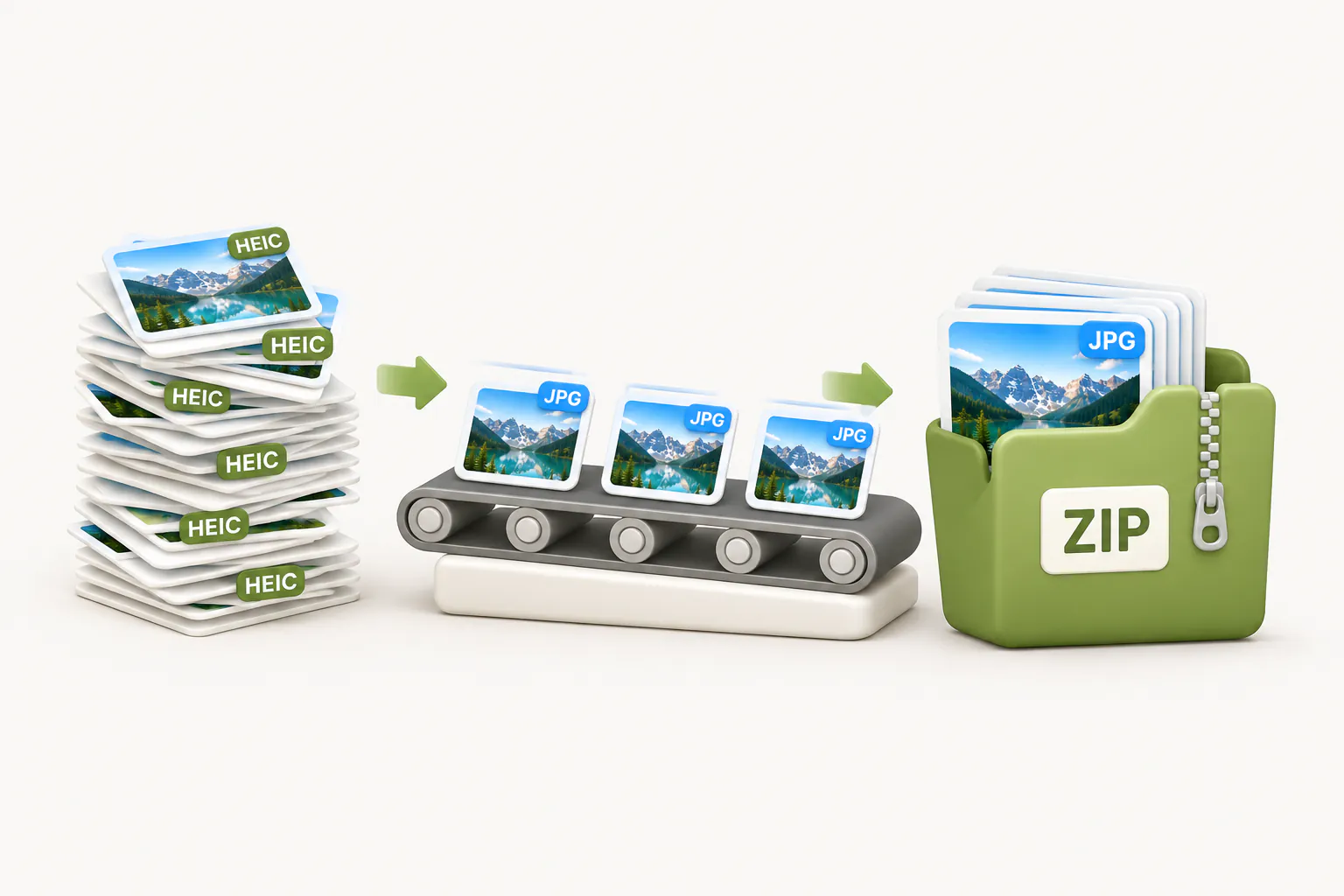
It is free and unlimited, with no sign-up and no cap on how many photos you convert. Very large batches of multiple photos simply take longer on older phones and laptops, because the work happens on your own device.
Mac: Finder, Preview or Terminal
Finder’s Quick Actions → Convert Image, described above, converts a whole selection in one go. In Preview, open all the photos together, click in the sidebar and press Cmd+A, then choose File → Export Selected Images, click Options and set Format to JPEG.
Want a one-click option that always outputs JPG? Build a Quick Action in Automator with the Change Type of Images action set to JPEG, and it appears in Finder’s right-click menu.
In Terminal, the built-in sips tool converts every HEIC in the current folder into a new jpg folder (use *.heic instead if your files have lowercase extensions):
mkdir -p jpg
for f in *.HEIC; do
  sips -s format jpeg -s formatOptions 90 "$f" --out "jpg/${f%.*}.jpg"
done
Windows: IrfanView, XnConvert or Photoshop
- IrfanView (free for non-commercial use): install the official plugins, then choose File → Batch Conversion/Rename, add the HEIC files, set the output format to JPG and click Start Batch. If it can’t open the files, add the HEIF and HEVC extensions.
- XnConvert (free for personal use): add files or a whole folder, set the Output tab to JPG and click Convert. It also runs on Mac and Linux.
- Adobe Photoshop: File → Scripts → Image Processor converts a folder to JPEG, as long as Windows has the HEIF and HEVC extensions.
Linux and developers: ImageMagick, libheif and Python
ImageMagick 7 converts a folder in place when it is built with HEIC support. On ImageMagick 6, which many Linux distributions still ship, drop the word magick:
magick mogrify -format jpg -quality 90 *.heicIf ImageMagick can’t read HEIC, install libheif’s command-line tools (libheif-examples on Ubuntu and Debian) and run heif-dec photo.heic photo.jpg, called heif-convert in older versions. FFmpeg is less dependable here: iPhone photos are stored as a grid of tiles, and older FFmpeg versions decode only one tile. In Python, the pillow-heif package adds HEIC support to Pillow:
from pathlib import Path
from PIL import Image
from pillow_heif import register_heif_opener

register_heif_opener()
for path in Path(".").glob("*.heic"):
    Image.open(path).convert("RGB").save(path.with_suffix(".jpg"), quality=90)
How to convert HEIC to PDF
Receipts, signed forms and whiteboard notes photographed on an iPhone often need to end up as a PDF, not a JPG. You don’t have to convert them twice.
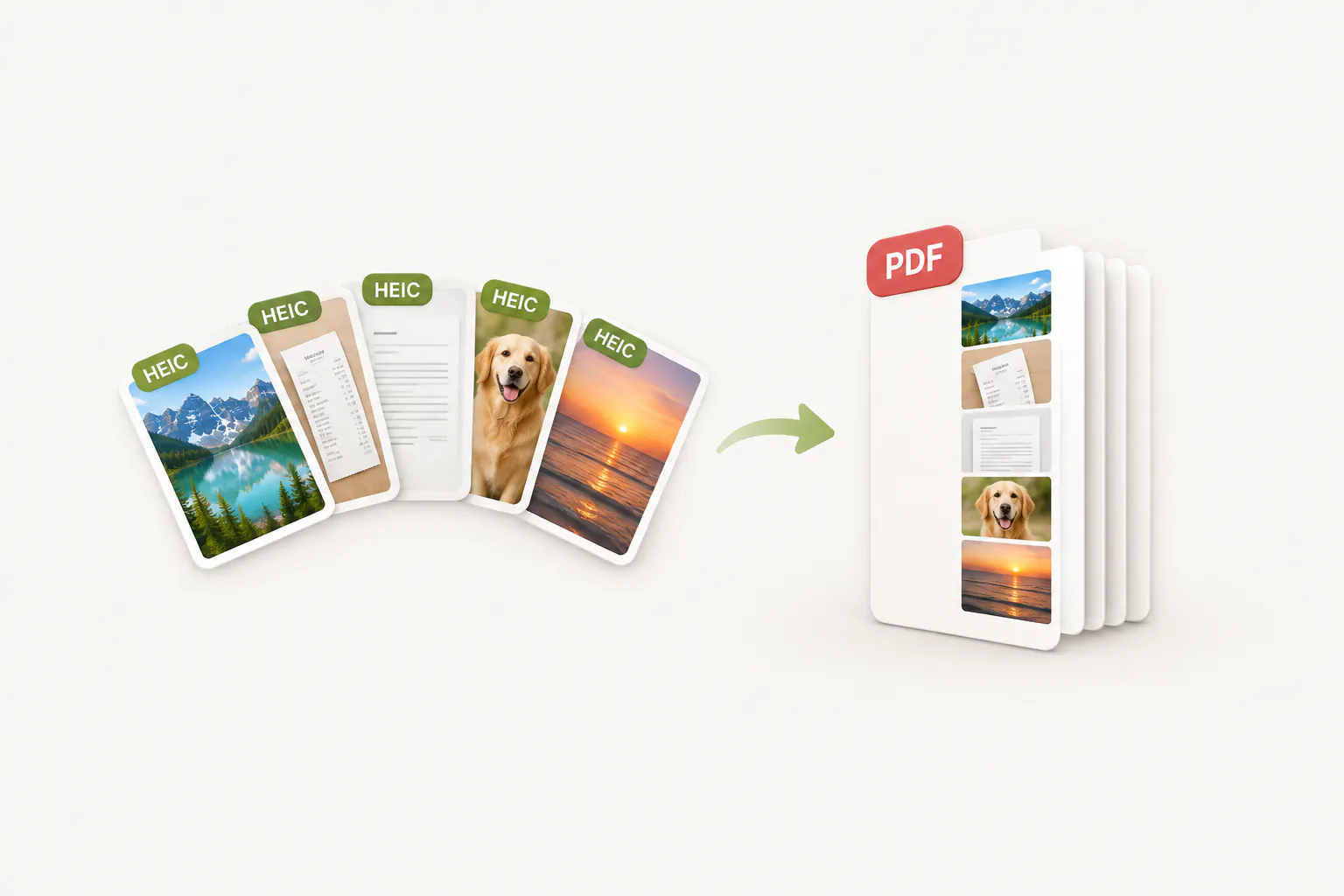
- Open Image to PDF and add the HEIC photos directly. JPG, PNG and WebP files can be mixed in.
- Put the pages in order with the arrows, and remove any you don’t need.
- Choose a page size, orientation and margin, then convert and download one combined PDF.
Like the JPG converter, it works on your own device. There are built-in routes too: on a Mac, open the photos in Preview and choose File → Print, then PDF → Save as PDF; on an iPhone, select the photos in the Files app and use Quick Actions → Create PDF; on Windows, open a photo in Photos and print it to Microsoft Print to PDF, which again needs the HEIF and HEVC extensions.
Does converting HEIC to JPG reduce quality?
Technically, a little. JPG is a lossy format, so converting compresses the photo again, once. In practice the difference is invisible at a high quality setting. Our converter saves at 92% quality and keeps the original width and height, so a 4032 × 3024 HEIC becomes a 4032 × 3024 JPG.
What does change is the file size. Expect the JPG to be roughly one and a half to two times larger, because JPG compression is less efficient than HEVC. That surprises people, but it isn’t a fault. If you need a smaller file for email or an upload limit, run it through Compress Image. It also accepts HEIC directly, so you can convert HEIC to JPG and reduce the size in one step. For forms with a strict KB limit, the online form compressor aims for an exact size.
| Detail | After converting to JPG |
|---|---|
| Width and height | Unchanged |
| Visible quality | Compressed once more; no visible loss at high quality |
| File size | Usually 1.5 to 2 times larger |
| Date, camera and GPS location (EXIF) | Kept by Preview, Finder and Photos on a Mac; removed by our browser converter |
| Live Photo motion and depth data | Not carried over: the JPG is the still photo only |
The quickest way to get your JPGs
For a single photo, use what your device already has: Photos or Paint on Windows, Preview on a Mac, the Files app on an iPhone. For a stack of photos, a PC without the HEVC extension, a Chromebook or an Android phone, the free HEIC to JPG converter does the job in your browser without uploading anything.
And if HEIC files keep coming back, set your iPhone camera to Most Compatible and Transfer to Mac or PC to Automatic. Need a different format? Image to PNG, Image to WebP and Image to JPG all accept HEIC photos too.
Frequently asked questions
Is HEIC better than JPG?
Are online HEIC to JPG converters safe?
Why are my iPhone screenshots HEIC?
Can I convert HEIC to PNG or WebP instead?
Why can’t I open HEIC files on Windows?
How do I convert HEIC to JPG without losing quality?
Can Google Photos or Google Drive convert HEIC to JPG?
Does AirDrop convert HEIC to JPG?
Can I convert JPG back to HEIC?
Should I convert all my HEIC photos to JPG?
About the author

Abdul Basit
Abdul Basit is an independent full-stack web developer based in Pakistan and a co-founder of Onyxstack. He builds and runs QuickImageFix and writes its guides to image compression, resizing, format conversion and PDF tasks.
Read the author profile