Crop Image Online
Drag a box over your photo and cut it out: freely, as a circle, or locked to 1:1, 16:9, 9:16, 4:3, 3:4, 3:2, 2:3 or 4:5.
Your file
Drag & drop an image, or click to browseTap to choose an image
JPG, PNG, WEBP or HEIC
Need several edits in one place? Open the Photo Editor to crop, adjust colors and add text before exporting.
Why use this tool
- No file size limit
- Nothing is uploaded
- No signup needed
Cropping decides what stays in a picture and what shape it ends up. Drag a box over the part you want to keep, move it, pull a corner to resize it, and cut. Lock the box to an aspect ratio when the result has to fit somewhere — 16:9 for a YouTube thumbnail, 9:16 for a Story, Reel or TikTok, 4:5 for an Instagram portrait post, 2:3 for a Pinterest pin, 3:2 or 4:3 for a print — or leave it free and trim exactly what you like. For a perfectly round profile picture, go straight to Circle Crop, which saves a PNG with transparent corners.
The crop is cut from the original file at full resolution, not from the preview on screen. PNG and WEBP files keep their transparency, so this is also the quick way to crop a transparent PNG online without a white box appearing behind it. Nothing is uploaded, nothing is watermarked and no account is needed.
How to crop an image
Add your image
Drop a JPG, PNG, WEBP or HEIC file into the box, or click to choose one. It opens with a selection already drawn over it.
Pick a ratio and frame the shot
Choose Free, Circle or one of the eight aspect ratios, then drag inside the box to move it and pull a corner to resize it. A rule-of-thirds grid helps with framing, and the size of the selection in real pixels updates as you go. Keyboard users can Tab to the box and move it with the arrow keys.
Crop and download
Press Crop Image. The cropped file appears with its new dimensions and file size, ready to download.
Crop to 16:9, 9:16, 4:3, 3:2 or another aspect ratio
An aspect ratio is the shape of a picture, written as width to height. 16:9 means 16 units wide for every 9 tall, whatever the pixel count, so a 1280 × 720 thumbnail and a 3840 × 2160 4K frame are both 16:9 ratio images. Choosing a ratio locks the selection to that shape: drag it as much as you like and it only grows, shrinks and moves — its proportions never change.
The ratios come in pairs. 16:9 is widescreen, and 9:16 is the same shape turned upright for full-screen phone video. 4:3 is the shape most phone cameras shoot, and 3:4 is that photo held upright. 3:2 is the classic landscape camera frame, and 2:3 the same frame in portrait. 4:5 is a portrait just taller than a square, the shape Instagram uses for portrait posts, and 1:1 is a square.
Picking a ratio redraws the selection in the middle of the picture, covering 90% of whichever side runs out first, so choose the ratio before you position the box. To keep as much of the photo as possible, drag the corners out to the edges. From a 4032 × 3024 phone photo, the largest 16:9 crop is 4032 × 2268, the largest 3:2 crop is 4032 × 2688, the largest 9:16 crop is 1701 × 3024 and the largest 4:5 crop is 2419 × 3024.
A ratio fixes the shape, not the pixel count. When a site asks for an exact size such as 1080 × 1920, crop to 9:16 here and then resize the image to 1080 × 1920: the shapes already match, so nothing is squashed or cut a second time. For a shape that isn't listed — 5:7 for a 5 × 7 in print, 1.91:1 for a landscape Instagram post or the √2 shape of A4 paper — use Free and watch the pixel readout until the numbers fit. To see an image’s exact pixel size and aspect ratio before you crop, use the image size checker.
Crop PNG online and keep its transparency
A PNG goes in and a PNG comes out. Transparent and semi-transparent pixels inside the selection stay exactly as they were, so a logo, icon, sticker or cut-out keeps its see-through background instead of picking up a white or black box. WEBP files with transparency behave the same way. PNG is lossless, so the pixels you keep are identical to the original: cropping a transparent PNG loses nothing.
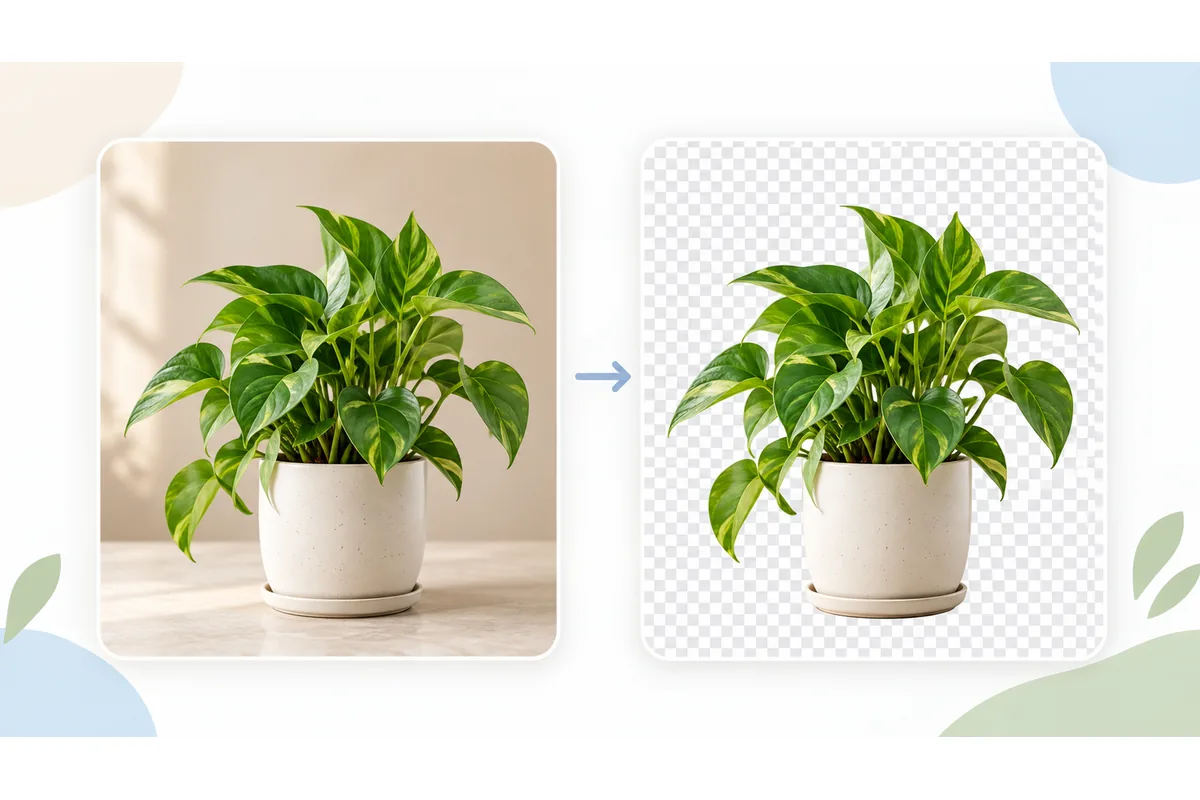
The checkerboard behind the preview shows where the transparent areas are, which makes this a handy transparent image cropper. Trim the empty margin around a logo or a product cut-out right up to its edges so it lines up properly on a slide or in a layout, leaving a few pixels of air where soft, anti-aliased edges fade out.
A cropped PNG is usually smaller than the original because it holds fewer pixels, but it can occasionally come out larger: the browser saves full 32-bit color, while some PNGs are stored with a 256-color palette. If that happens, run the result through Compress PNG. To make a background transparent in the first place, remove the background and then crop the PNG here — cropping alone never turns a white background see-through.
Crop for Instagram, TikTok, YouTube and Pinterest
Every platform has its own frame, and when a picture doesn't match it, the app crops it for you, usually straight through the middle, cutting off heads and captions. Cropping first means you choose what survives.
Instagram uses 1:1 for a square post (1080 × 1080), 4:5 for a portrait post (1080 × 1350), which takes up the most room in the feed, and 9:16 for a Story or Reel (1080 × 1920). For an Instagram story crop, keep faces and text away from the top and bottom, where the profile name and reply bar sit over the picture. The Instagram resizer and Instagram Story resizer produce those exact pixel sizes in one step.
TikTok, YouTube Shorts and Facebook Stories are 9:16 too. YouTube thumbnails, video covers and presentation slides are 16:9 — crop here, then use the YouTube thumbnail resizer to hit 1280 × 720. Pinterest favors tall 2:3 pins such as 1000 × 1500.
Profile pictures on Discord, X, LinkedIn, WhatsApp and most other sites are uploaded as a square and shown as a circle. Crop to 1:1 with the face in the middle and a little space around it, or choose Circle to see exactly what a round pfp crop keeps.
How to crop an image into a circle
Choose Circle under Aspect ratio: the selection locks to a square and is drawn as a circle, so you see exactly what will be kept. Drag it over the face or the logo, pull a corner to change its size, then press Crop Image.
The result is a PNG with real transparency outside the circle, so it sits cleanly on any background — a round profile picture, a team-page avatar, a circular logo or a sticker. JPG cannot store transparency, which is why a circle crop is always saved as a PNG, even from a JPG photo, and why it can be larger than the photo it came from. For a page that does only this, there is also Circle Crop.
Cropping, resizing and hitting an exact pixel size
Cropping removes pixels from the edges and leaves the rest untouched. Resizing keeps the whole picture and redraws it with a different number of pixels. To turn a landscape photo into a 1080 × 1080 square, crop to 1:1 first and then resize the square — resizing a rectangle straight into a square squashes whatever is in it.
The selection readout shows the crop's size in real pixels, so with Free you can trim to a size by eye, nudging the box with the arrow keys for the last few pixels. For an exact target, crop to the right shape and then type the width and height into Resize Image. Enlarging a small crop later does not add detail, so start from the largest original you have.
If you need a new shape but can't lose any of the picture, cropping is the wrong tool. Stretch the image to fill the shape by distorting it, or use the WhatsApp DP maker to fit the whole photo into a square over a blurred copy of itself. To keep two or more whole pictures in one frame, side by side or in a grid, combine the images instead.
Quality, formats and file details
No resampling happens: the selected region is copied at its original resolution, so a crop is exactly as sharp as the source. A crop covering a quarter of a 4000 × 3000 photo is still a 2000 × 1500 image.
The output keeps its format: JPG stays JPG, PNG stays PNG and WEBP stays WEBP. PNG is saved losslessly. JPG and WEBP are re-encoded at 92% quality, which you won't see in a photo — just avoid cropping the same JPG over and over, because every save adds a little compression. A HEIC photo from an iPhone is saved as a JPG, since browsers cannot write HEIC.
The new file is drawn fresh, so camera metadata such as EXIF details and GPS location is not carried over — worth knowing before you share a photo publicly. To hide a face or a license plate without cutting it out of the picture, pixelate just that part of the image instead. SVG, GIF and PDF files can't be opened here: export an SVG as a PNG from your vector editor first, and use PDF to PNG to turn a PDF page into an image you can crop.
Crop on iPhone, Android, Windows or Mac
Phones and computers can all crop with built-in apps: Photos on iPhone and Mac, Google Photos on Android, and Photos or the Snipping Tool on Windows. On a Mac, Preview crops any rectangle you draw with ⌘K.
This page is the better choice when you need a ratio your app doesn't offer, such as 4:5 or 9:16, when a transparent PNG must stay transparent, when you want the exact pixel size in front of you while you crop, or when you're on a work or shared computer where you can't install anything. It runs in any modern browser on phones, tablets and desktops, and the file never leaves your device.
Image ratios and what they're for
Each ratio is a button in the cropper. Pick it before you draw and the selection stays locked to that shape while you drag. The pixel sizes are common examples: crop to the ratio, then resize if a site wants exact numbers.
| Ratio | Shape | Example size (px) | Typical use |
|---|---|---|---|
| 1:1 | Square | 1080 × 1080 | Profile pictures, square posts, avatars, album and app art |
| 16:9 | Widescreen | 1920 × 1080 | YouTube thumbnails, slides, desktop wallpapers, TV |
| 9:16 | Vertical full screen | 1080 × 1920 | Stories, Reels, TikTok, YouTube Shorts, phone wallpapers |
| 4:3 | Standard landscape | 4032 × 3024 | Phone and compact-camera photos, iPad screens, 4:3 slides |
| 3:4 | Standard portrait | 3024 × 4032 | Upright phone photos, portrait tablet screens, 30 × 40 cm prints |
| 3:2 | Classic photo | 6000 × 4000 | DSLR and mirrorless photos, 4 × 6 in (10 × 15 cm) prints |
| 2:3 | Tall portrait | 1000 × 1500 | Pinterest pins, upright 4 × 6 in prints, posters and book covers |
| 4:5 | Portrait | 1080 × 1350 | Instagram portrait posts, 8 × 10 in prints |
| Free | Any rectangle | Whatever you draw | Screenshots, scans, documents, trimming edges |
| Circle | Round, from a square | 400 × 400 | Round profile pictures, avatars and circular logos, saved as PNG |
What people crop images for
Profile pictures
Crop to 1:1 or Circle so the face sits in the middle, rather than letting the site choose the framing.
Stories, Reels and TikTok
Turn a landscape photo into a 9:16 vertical frame and decide which part fills the phone screen.
Thumbnails and slides
Crop to 16:9 so YouTube and presentation software don't add black bars or cut off your subject.
Logos and transparent PNGs
Trim empty transparent space around a logo or cut-out without losing its transparent background.
Prints
Crop to 3:2 for 4 × 6 in prints or 4:5 for 8 × 10 in, so the lab doesn't trim the edges for you.
Screenshots and scans
Cut away browser bars, the desktop behind a window, or the scanner bed around a page.