Convert Image to PDF
Combine photos, scans and screenshots into one PDF — JPG, PNG, HEIC, WEBP or AVIF, in the order you choose. Free, in your browser.
Your file
Why use this tool
- No file size limit
- Nothing is uploaded
- No signup needed
A PDF is the format everyone can open and nobody can accidentally rearrange: it looks the same on every phone, computer and printer. That is why forms, schools, landlords and employers ask for documents as a PDF, even when what you have is a handful of photos taken with your phone.
This image to PDF converter turns those pictures into one PDF, one image per page. Add as many as you need, put them in order, pick A4, Letter or a page that fits each image, and download. It all happens in your browser: your images are not uploaded, and there is no account, watermark or limit.
How to convert images to PDF
Add your images
Drag the files into the box or click to pick several at once. JPG, PNG, WEBP, HEIC and AVIF can be mixed freely.
Put them in order
Each image becomes one page. Use the arrows to move a page up or down, and the cross to take one out. Add more at any time.
Choose the layout and convert
Pick the page size, orientation and margin, then press Convert to PDF and download the file.
Page size, orientation and margins
A4 is the standard paper size across Europe and most of the world; Letter is the standard in the US and Canada. Choose the one the PDF will be printed on, or the one the person asking for it uses. Fit to image makes every page exactly the size of its picture instead, which suits screenshots and on-screen reading. To check whether a photo has enough pixels to print sharply on A4 or Letter, use the DPI checker.
Orientation set to Auto turns each page to match its image: portrait for a tall photo, landscape for a wide one, so nothing is shrunk to fit the wrong way round. Choose Portrait or Landscape to force every page the same way.
The margin leaves white space around each image: none, small (10 mm) or large (20 mm). A small margin is the safe choice for printing, because most printers cannot print to the very edge of the paper.
What happens to image quality
JPG photos go into the PDF exactly as they are, byte for byte, so there is no quality loss and the PDF is only as large as the photos themselves. PNG images are kept lossless, so screenshots and text stay pixel-sharp.
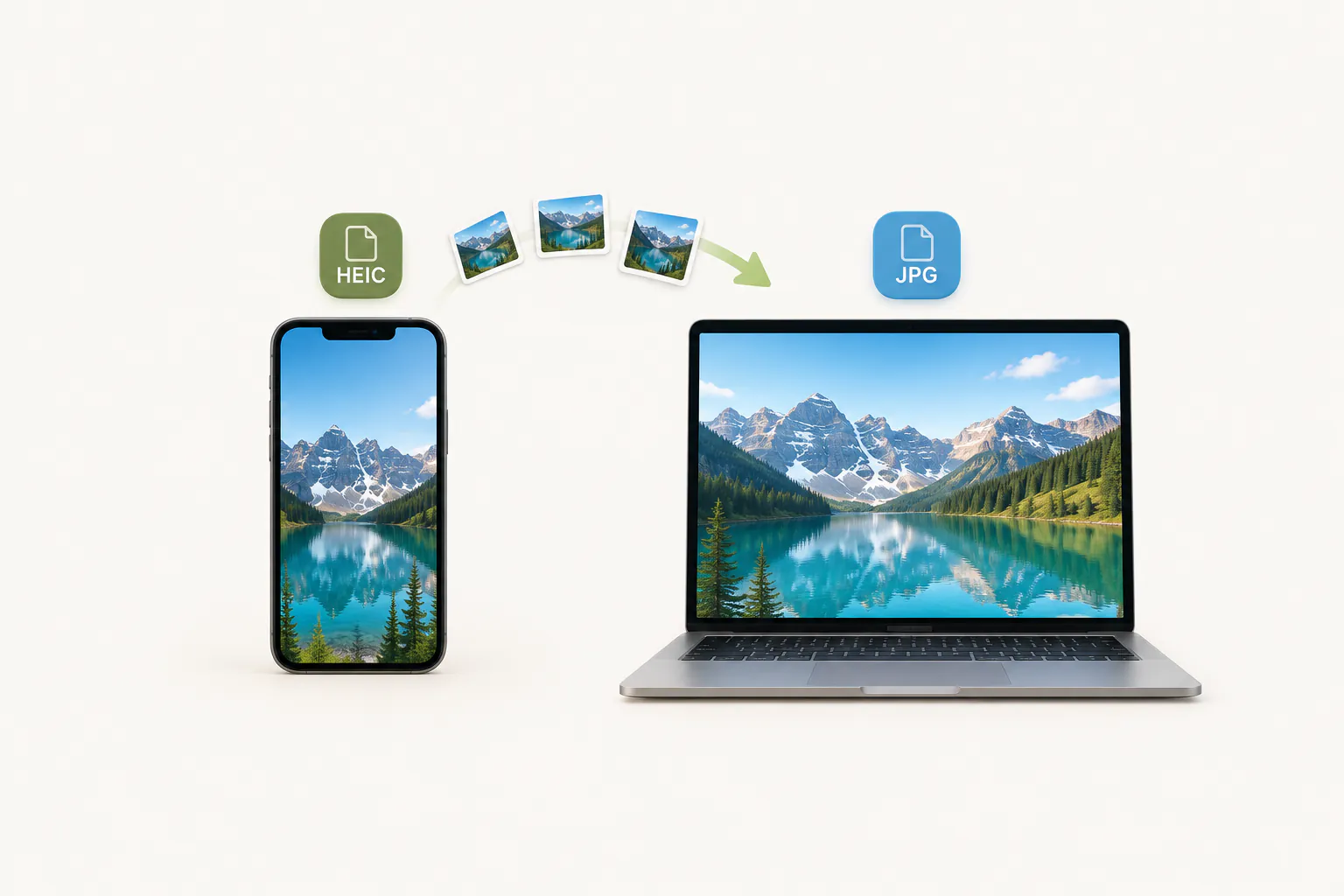
HEIC, WEBP and AVIF images are decoded by your browser and stored as high-quality JPG, because PDF has no support for those formats of its own. Phone photos taken on their side are turned upright first, since PDF readers ignore the rotation tag that phones rely on.
A PDF of images, not a text document
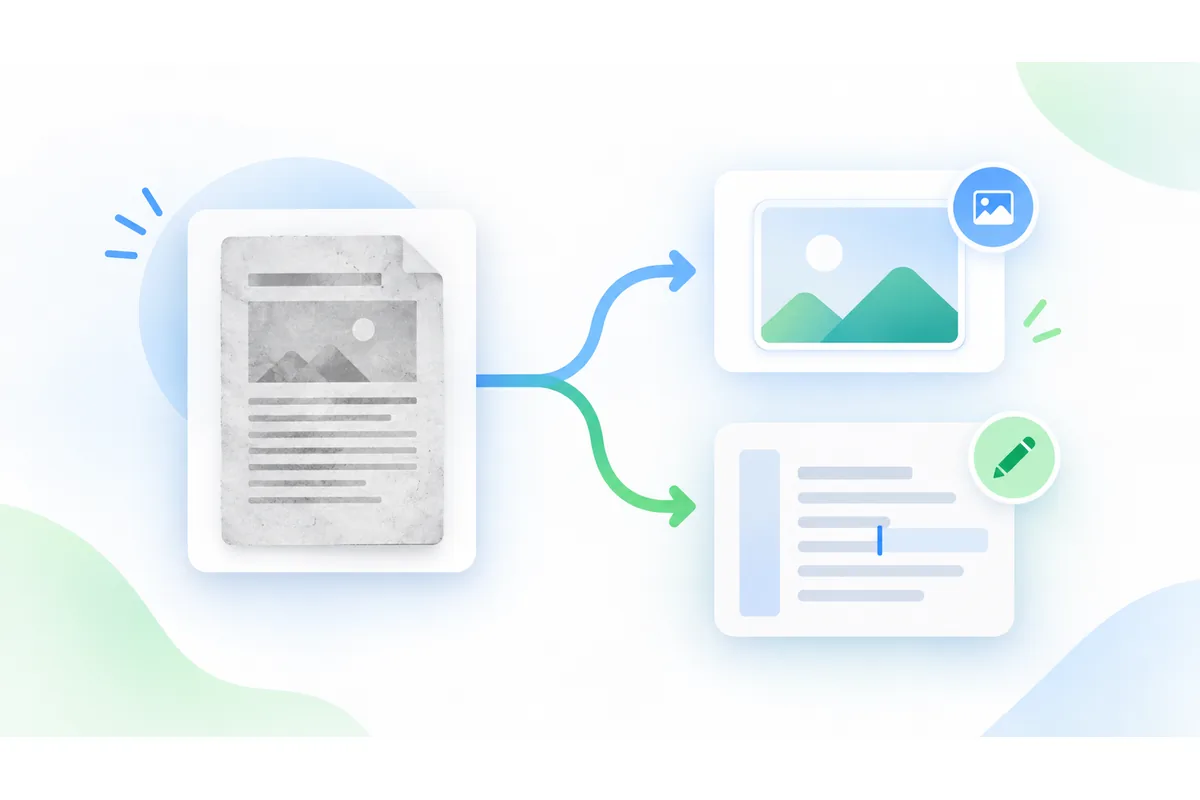
Each page is a picture. You can read, print, share and sign it, but the words in a photographed document are not selectable or searchable, because no text recognition (OCR) is done. For most forms and applications that is exactly what is wanted: a faithful copy of the paper. To get the words out of a photographed page as text you can copy, use Image to text. To go the other way, turn PDF pages back into images with PDF to JPG or PDF to PNG.
Add an image to a PDF
To add an image to a PDF you already have, first turn the image into a one-page PDF here, then join the two files with Merge PDF. Use Organize PDF afterwards if the new page has to sit somewhere other than the end. Both steps are free and run in your browser, so neither file is uploaded.
This adds the image as a new page. Placing a picture on top of an existing page, such as a logo in a letter’s corner, needs a PDF editor.
Which page size to choose
The page size decides how the PDF prints and how it looks on screen.
| Page size | Dimensions | Best for |
|---|---|---|
| A4 | 210 × 297 mm | Documents in Europe, Asia, Africa and Australia |
| Letter | 8.5 × 11 in | Documents in the US and Canada |
| Fit to image | Same as each image | Screenshots, slides and reading on screen |
What people turn into PDFs
Documents photographed with a phone
IDs, payslips, certificates and signed forms, combined into the single PDF an application asks for.
Homework and scanned pages
Several photographed pages of handwriting or a worksheet, in the right order, as one file to hand in.
Receipts and expenses
A month of receipt photos in one PDF for an expense claim or your accountant.
Screenshots and slides
Screenshots or exported slides gathered into a PDF that is easy to share and print.