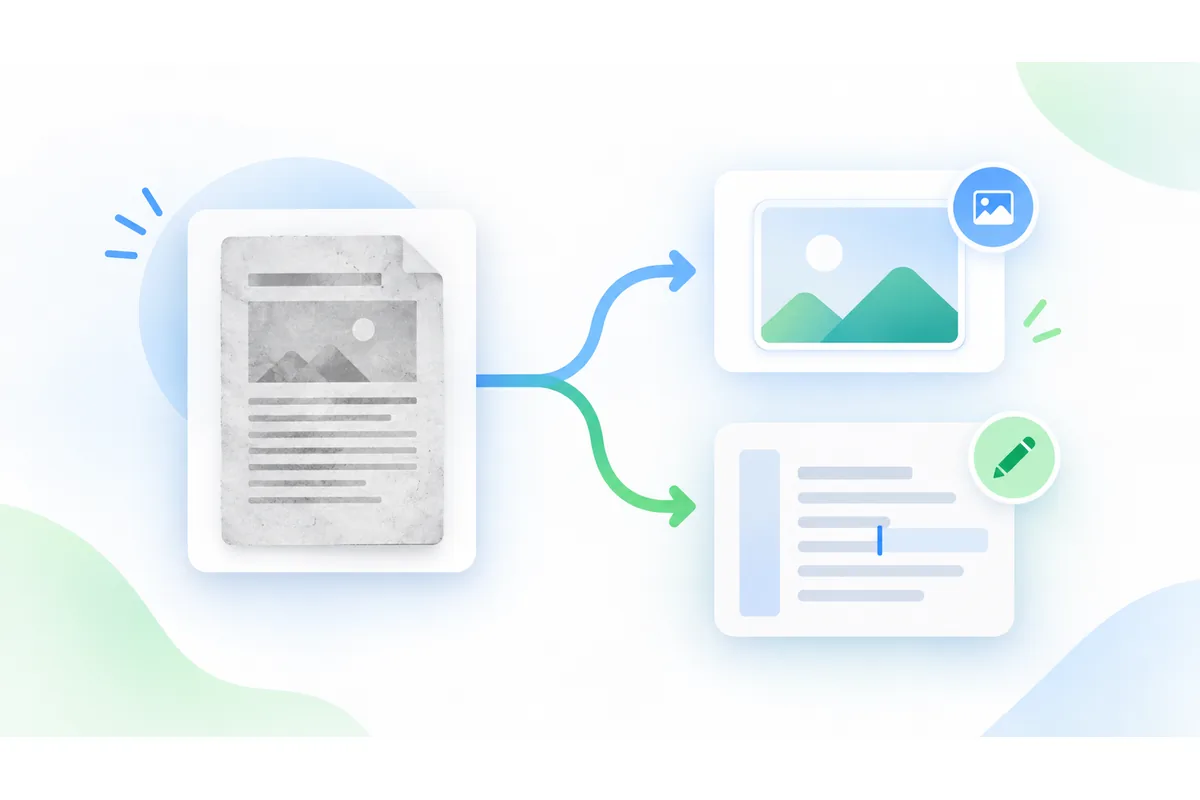
Extract Text from an Image (OCR)
Pull the text out of a photo, a scan or a screenshot and copy it. Recognition happens in your browser — nothing is uploaded.
Your file
Why use this tool
- No file size limit
- Nothing is uploaded
- No signup needed
Text trapped inside an image cannot be searched, corrected or pasted. A photographed invoice, a screenshot of an error message, a page of a book, a sign photographed abroad: the information is right there, and yet retyping it is the only way to use it.
Optical character recognition — OCR — reads those shapes and gives back words. This tool runs an OCR engine directly in your browser, hands the text back in a box you can edit, and puts it on the clipboard in one click.
How to extract text from an image
Drop in your image
A photo, a scan or a screenshot: JPG, PNG, WEBP and HEIC all work, including pictures straight from an iPhone.
Choose the language of the text
This is the step that matters most. It tells the engine which accents and which vocabulary to expect, and it makes far fewer mistakes.
Copy the result
The text appears in a box you can correct before copying it, or download as a .txt file.
Telling it the language changes everything
An OCR engine does not guess at isolated letters: it weighs what it sees against what it knows of a language. Without being told, é becomes e, ñ becomes n, and accented words degrade one at a time.
So the picker is set to the language of the page you are reading, and eight languages are offered. For text in another language, change it before you read — it is the single setting that makes the biggest difference to the result.
The first read in a language downloads its data, between 0.6 and 2.4 MB depending on the language. After that it stays in the browser and later reads start immediately.
What reads well, and what resists
Printed, sharp text reads very well: scanned documents, screenshots, book pages, invoices and receipts photographed flat in decent light. On that kind of image recognition is faithful, accents included.
What resists: handwriting, which no conventional OCR engine reads reliably; blurred or angled photos; white text on a dark background or sitting over a photograph; and heavily decorative typefaces.
The confidence score shown beside the result is the engine's own opinion of its reading. Below roughly 80%, read it over: that usually means a sharper or straighter photo would do much better. For text in a PDF, first convert the pages with PDF to PNG at 3× or 4×, then add the PNGs here.
Nothing is uploaded
The OCR engine and its language data are served by this site and run in your browser. Your image never reaches a server, and neither does the text that comes out of it.
That matters more than usual here. The images people put through OCR are rarely trivial: invoices, payslips, letters from an authority, prescriptions, identity documents. Those are exactly the papers not worth handing to a stranger's server to be read.
So there is no account, no queue and no daily limit, and the page keeps working if your connection drops after it has loaded.
What OCR reads best
What to expect from the image you give it.
| Kind of image | Expected result | What helps |
|---|---|---|
| Scan or screenshot | Excellent, accents included | Nothing in particular |
| Photo of a flat document | Good when sharp and lit | Shoot square on, avoid shadows |
| Handwriting | Unreliable | Retyping is still faster |
When people convert an image to text
A photographed invoice or receipt
Amounts and references recovered without retyping them into a spreadsheet.
A screenshot of an error
An error message made copyable, to paste into a search or a support ticket.
A book page or scanned document
A passage extracted to quote, translate or keep as text.
A sign or label while travelling
Text photographed and then pasted into a translator.