Transparent PNG Maker
Turn a JPG, PNG, WEBP or HEIC image into a transparent PNG. The background is removed on your device, with no account and no upload, and the PNG keeps the full size of your image.
Your file
Why use this tool
- No file size limit
- Nothing is uploaded
- No signup needed
Converting a file to PNG does not make anything transparent. PNG can store transparency, but something has to decide which pixels become see-through. This page does that step: an AI model finds the subject, removes everything behind it and saves the result as a PNG with an alpha channel, ready to place on any background.
It runs the same engine as Remove Background, set up for a transparent PNG as the finished file. The work happens in your browser, so the image is never uploaded, and there is no watermark, daily limit or paid download.
How to convert an image to a transparent PNG
Add your image
Choose a JPG, PNG, WEBP or HEIC file, or drop it on the page. Processing starts as soon as the image is added.
Let the background disappear
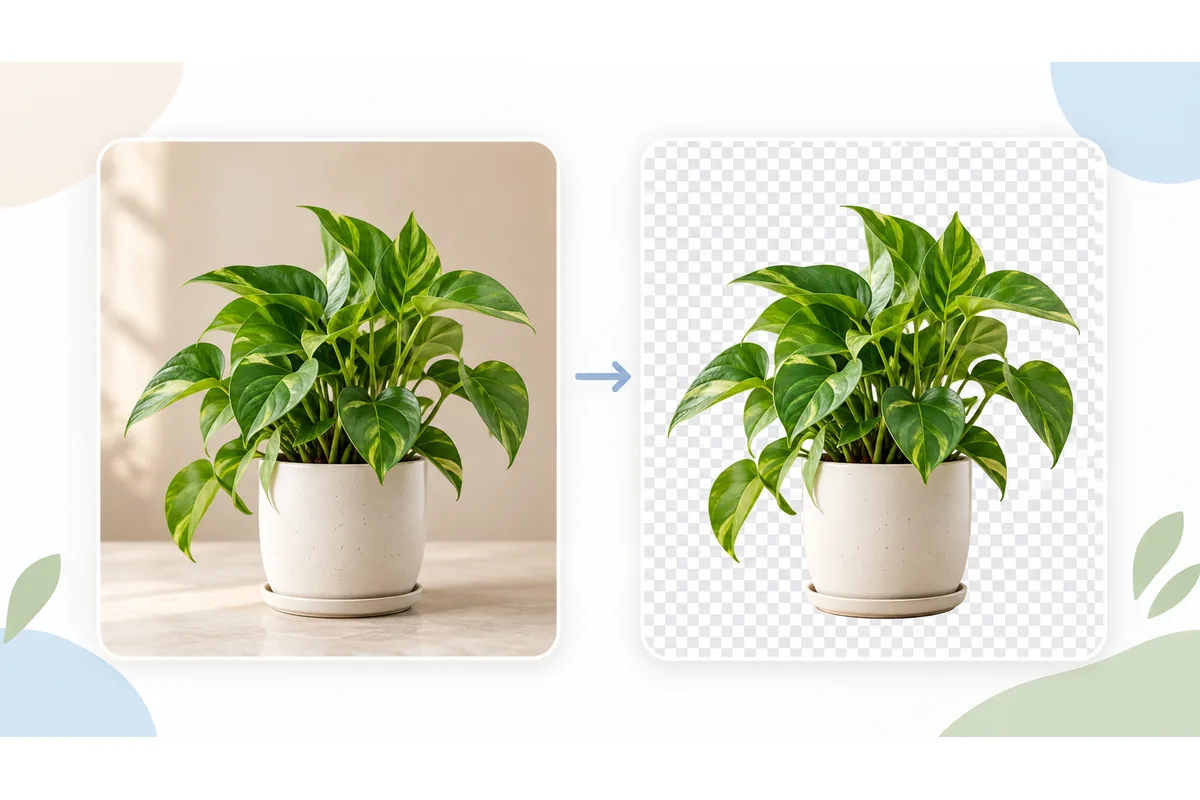
The model separates the subject from its background and makes the background pixels transparent. The checkerboard behind the preview shows which areas are now see-through.
Download the PNG
Check the edges, touch them up with Erase or Restore if needed, keep Transparent selected under Background and download your PNG.
Why converting to PNG is not enough
A JPG has no transparency at all: every pixel is a solid color, including the white or gray around the subject. Converting it to PNG copies those pixels exactly, so the background comes along. Renaming .jpg to .png changes even less, because the file is still a JPG inside.
Transparency lives in a fourth channel, called alpha, that stores how opaque each pixel is. For a transparent PNG, the background pixels need an alpha value of zero. That is what this tool writes, and what a plain format converter such as JPG to PNG cannot do.
Edges are not all-or-nothing. Hair, fur and soft outlines keep partial transparency, so the subject blends into a new background instead of showing a hard, jagged cut.
How to check that a PNG is really transparent
Here the result sits on a checkerboard: areas that show the gray and white squares are transparent, and everything covering them is part of the image. Switch between Original and Result to compare.
Be careful with "transparent PNG" files from image searches. Many have the checkerboard painted into the pixels, so it appears wherever you place them. A real transparent PNG shows whatever is behind it, such as a dark slide or a colored page.
Some viewers display transparent areas as white or black, which can make a correct file look wrong. Place the PNG on a colored background in your slide, document or design app to be sure.
Logos, signatures and white backgrounds
The model does not key out a single color. It finds the subject by its shape, which is why a logo on white, a product on a gray table and a person in a room all work the same way.
For a logo, start from the largest copy you have and crop close to it with Crop Image first. Then check enclosed areas such as the inside of letters: if background is still visible there, remove it with the Erase brush. On a logo with one flat background color, the color remover clears all of those enclosed areas in one click.
For a signature, sign in dark ink on plain white paper, photograph it in even light and crop tightly. Look at thin strokes at full size and bring back any faded part with Restore.
After the transparent PNG
Transparent PNGs can be large. Compress PNG makes the file smaller and keeps the transparency, and PNG to WEBP stores the same transparency in a lighter file for websites.
JPG has no alpha channel, so saving the cut-out as JPG fills the transparent areas with a solid color. If a flat background is what you want, choose White, Black or a custom color under Background before you download, and the PNG comes back on that color.
From the same image you can make a round profile picture with Circle Crop or a site icon with the Favicon Generator. For an animated GIF, the GIF Background Remover removes the background and keeps the animation.
Cropping and resizing a transparent PNG
Both Crop Image and the image resizer keep a PNG as a PNG, so the see-through background survives: crop away the empty margin around a cut-out, or scale a logo down to the size a site asks for, without a white box appearing behind it.
Do those steps after the background is gone. Cropping first can cut the model’s view of the subject’s edges, and resizing a small image up before removal gives it less detail to work from.
Ways to get a PNG, and which ones are transparent
Only removing the background creates transparency. Changing the format alone keeps the background.
| Method | Transparent background? | What happens |
|---|---|---|
| Rename .jpg to .png | No | The file is still a JPG inside, background included |
| Convert JPG to PNG | No | Same pixels in a lossless file, background included |
| Remove the background here | Yes | Subject kept, background pixels made transparent |
| Choose a color under Background | No, by choice | The cut-out is placed on white, black or your color |
| Save the cut-out as JPG | No | Transparent areas are filled with a solid color |
| Convert the PNG to WEBP | Yes | Transparency kept in a smaller file |
What a transparent PNG is used for
Logos on any background
Put a logo on a website header, a slide or a dark banner without a white box around it.
Stickers and overlays
Cut out a person, pet or object for a sticker, a thumbnail or a video overlay.
Product images
Place products on a brand color or a clean white background for a shop or a catalog.
Signatures and stamps
Add a signature or stamp to a document without the paper behind it showing.