Compress Photo Online Free
Create a lighter photo for everyday sharing. Start at 300KB with proportional resizing up to a 1600px long edge; adjust either setting before saving.
Your file
Drag & drop an image, or click to browseTap to choose an image
JPG, PNG or WEBP
Options
1 KB = 1,000 bytes; 1 MB = 1,000,000 bytes. The tool searches for a quality that fits and may reduce dimensions. Check the final size and target status.
Fewer pixels is the biggest saving of all. Leave the aspect ratio locked to scale without stretching.
Add a file to get started.
Why use this tool
No file size limit
Full-size photos and long documents, straight from your device.
Nothing is uploaded
Processed entirely in your browser. Your files never leave your device.
No signup needed
Open the tool and go. No account, no email.
Camera photos often contain more pixels than an everyday sharing copy needs. This photo compressor combines two practical starting settings: a maximum file size of 300KB and proportional resizing so that the longest side is no greater than 1600 pixels. The resize option is enabled initially and you can change its dimensions or turn it off. Smaller source photos are not enlarged by this preset, and the source image is not cropped.
These settings are a starting point for screen viewing, not a universal recommendation for printing, portfolios or detailed inspection. The target search can reduce dimensions further when needed to reach 300,000 bytes. Check the final size shown beside the preview and choose a more generous budget when important details become unclear. The purpose is to create a useful sharing copy while keeping your best original separately.
How to compress a photo online
Open your photo
Choose a JPG, PNG or WebP and keep the original.
Review the starting settings
300KB and a 1600px long edge are selected. Adjust the target or resize option as needed.
Compare and download
Check the preview, target status and final dimensions before saving.
Resize the long edge without stretching the photo
The longest side can be the width of a landscape photograph or the height of a portrait. A 4000 × 3000 image starts at 1600 × 1200; a 3000 × 4000 image starts at 1200 × 1600. A source already measuring 1200 × 900 keeps those starting dimensions. One scale factor is applied to both sides, with rounding to whole pixels, so the preset preserves the shape rather than stretching a face or object.
The fields become populated after you select a file. You can edit them with the aspect ratio locked or disable resizing if you want the target search to start from the original dimensions. Even then, a strict byte budget may require automatic scaling. Use Resize Image when exact pixel dimensions are the priority. Review the final dimensions rather than assuming the starting fields describe the finished download.
Use the 300KB budget as a quality decision
JPEG and WebP compression can discard information to create smaller files. The compressor tries settings, measures the bytes and searches for a higher quality that still fits the maximum. A detailed landscape, a smooth studio portrait and a night photograph may need different tradeoffs at the same budget. The result shows whether the target was reached; if it was missed, the available download is a best attempt rather than a compliant 300KB file.
Inspect faces, hair, foliage and gradients instead of judging quality from a percentage alone. Look for softened edges, blocks or lost texture at the intended viewing size. If the image is for a stricter form, Compress JPG to 200KB opens that specific limit. If you need room for several photos in a message, Compress Image for Email explains how to budget for the whole group of attachments.
Supported photos and output choices
This page accepts JPG, JPEG, PNG and WebP. It keeps the supported input format initially, and offers JPG, PNG or WebP output after the image is opened. For a photograph without transparency, compare JPEG when broad file compatibility matters. A PNG photograph can contain many distinct colors, so reducing its palette may change gradients. PNG and WebP can retain transparency; switching to JPG places transparent regions on a white background.
Use Image to JPG when format conversion is your main task, including preparing a supported JPEG from a different source. HEIC and AVIF are not direct inputs on this page and need their corresponding conversion tools first. Keep the format required by the destination rather than choosing a small file it cannot read. Changing a filename’s extension does not change the encoding or make an unsupported photo compatible.
Keep an original and review each sharing copy
Compression works locally in your browser without signup, payment or an image upload to a processing server. Select one photo, wait for the result and download a separate copy. There is no batch processing or automatic replacement of photos in your library. On a phone, keep the tab open while the image is processed; very large sources may use more memory and take longer than smaller pictures.
If a source already meets the byte target and its format and dimensions need no change, it is returned untouched, including its metadata. Otherwise you receive a newly encoded copy. Avoid repeatedly compressing that copy, because repeated JPEG saves can accumulate damage. Return to the original for another attempt and keep it for future edits or printing. A clear, appropriately sized photo is a better outcome than the smallest file with missing detail.
What the photo preset does
These are starting resize dimensions; the target search may reduce them further.
| Original | Starting dimensions | Resulting shape |
|---|---|---|
| 4000 × 3000 | 1600 × 1200 | Landscape retained |
| 3000 × 4000 | 1200 × 1600 | Portrait retained |
| 1200 × 900 | 1200 × 900 | No automatic enlargement |
Features for everyday photo sharing
Free photo compression
Prepare a sharing copy without a subscription.
No account required
Choose a photo and start without registering.
Privacy in the browser
Your source is processed on your own device.
Proportional mobile resizing
Portrait and landscape photos use the same long-edge rule.
Clear before-and-after sizes
See the savings and actual output dimensions before downloading.
Frequently asked questions
- What settings does the online photo compressor start with?
- It starts with a 300KB maximum and resizing enabled up to a 1600px long edge. Smaller sources are not enlarged. Both the size target and resize controls can be changed.
- Does compressing a photo keep exactly the same quality?
- Not necessarily. Lossy encoding can remove detail and resizing reduces pixels. Inspect the copy and use a larger allowance when necessary. An already-fitting source with no other changes is returned untouched.
- Can I compress portrait photos without making them look stretched?
- Yes. The starting resize preserves proportions for portrait and landscape photos. Keep the aspect ratio locked when editing the dimensions, and review the final width and height.
- Can I compress photos for free on my phone without signup?
- Yes. Select a supported image in your mobile browser, review the result and download it without an account or payment.
- Are my photos stored, and which formats can I use?
- The tool processes images locally without uploading them to our servers. It accepts JPG, JPEG, PNG and WebP; convert HEIC or AVIF first with the corresponding conversion tool.
From the blog
All articles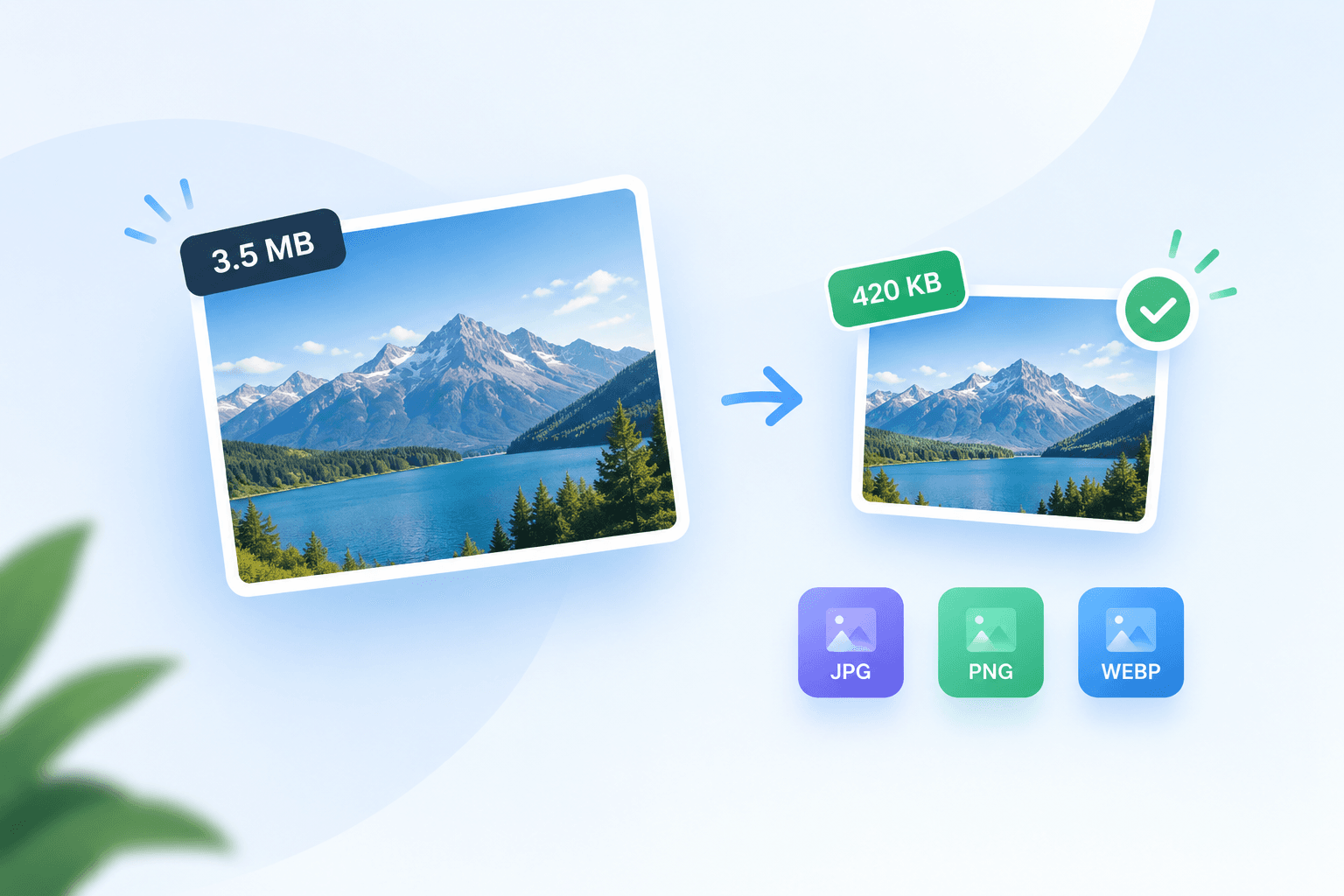
Related tools
Compress Image for Email
Prepare lighter email attachments with an editable 1MB starting budget.
Compress JPG to 200KB
Fit a photo under 200KB with room for useful detail.
Image to JPG
Convert PNG, WEBP, HEIC or AVIF to a JPG that works everywhere.
Resize Image
Set exact pixel dimensions or scale a photo by percentage.
Instagram Photo Resizer
Prepare square posts, portraits, Stories or profile pictures with editable sizes and a preview.
WhatsApp Image Compressor
Create a lighter sharing copy with a 300KB target, a 1280px long edge and JPG selected.