Free Image Resizer
A free image resizer: set exact pixel dimensions or scale a photo by percentage. JPG (JPEG), PNG, WEBP and HEIC, resized in your browser.
Resize for a platform or task
Your file
Need several edits in one place? Open the Photo Editor to crop, adjust colors and add text before exporting.
Why use this tool
- No file size limit
- Nothing is uploaded
- No signup needed
Set the width and height you need and the image is redrawn at that size. Keep the aspect ratio locked and one dimension follows the other, so nothing is stretched; unlock it to force an exact box. Or switch to percentage and scale the whole thing by half, by a quarter, or up.
Resizing is the most effective way to make an image lighter: a 4000 px photo displayed in an 800 px column is carrying twenty-five times more pixels than it needs. Everything runs in your browser, so nothing is uploaded and nothing is stamped on the result.
How to resize an image
Add your image
Drag a JPG, PNG, WEBP or HEIC file into the box, or click to browse. Its current dimensions appear as soon as it loads.
Enter the size you want
Type a width and height in pixels. Leave Lock aspect ratio on and the second field follows automatically. To scale instead, turn on Scale by percentage and enter a figure.
Resize and download
Press Resize Image. The result shows the new dimensions and file size, ready to download.
Resizing, scaling and cropping are not the same thing
Resizing changes how many pixels an image has. The whole picture stays; it is redrawn larger or smaller.
Scaling by percentage is resizing with the arithmetic done for you — 50% halves both sides, which quarters the pixel count and usually more than quarters the file size.
Cropping removes part of the picture to change its framing or its shape. If you need a square profile photo out of a rectangular shot, resizing will squash it; crop it to 1:1 first, then resize the square.
Locking the aspect ratio keeps the original proportions. Unlock it only when a system demands exact dimensions and you accept the distortion, or when the image is already the right shape. When distortion is the goal (a background, banner or meme that must fill an exact frame), the image stretcher starts unlocked and stretches each side separately. To bring several pictures to one height without distorting any of them, combine them into one image side by side.
Making an image smaller, and making it bigger
Scaling down is safe. Pixels are averaged together, detail is condensed, and the result often looks sharper on screen than the original did at that size.
Scaling up cannot invent detail. The browser interpolates between existing pixels, so an enlarged image gets softer the further you push it. Going up by 150–200% is usually acceptable; beyond that, the softness shows.
Resize before you compress. Cutting the dimensions removes far more weight than any quality setting will, and compression then works on an image that is already the right size.
Resizing a batch of photos to one size
Add several photos at once and the same settings apply to all of them. With the aspect ratio locked, only the side you typed is shared: enter a width of 1200 and every photo comes out 1200 pixels wide, each with the height its own proportions give it, so a mix of portrait and landscape shots is never squashed. The size fields show the numbers for one file in the batch, named just below them.
Turn off the ratio lock when every file has to be the same exact box, such as a row of 800 × 800 shop thumbnails, and choose how a picture of another shape fills it. When the batch is done, download the files one by one or together as a ZIP.
Resize a JPEG, WebP or transparent PNG
To resize a JPEG image, add it and type the new width or height; it comes back as a JPEG at a high quality setting, so one resize does not visibly degrade it. Repeating resize-and-save cycles on the same JPEG is what slowly softens a photo, so resize from the original each time.
Resize WebP files the same way. The result stays WebP, with transparency kept if the original had it, so you do not have to convert to PNG or JPG first.
To resize a transparent PNG or a transparent WebP, keep the output as PNG or WebP. The see-through areas stay see-through at the new size. Saving as JPG would fill them with white, because JPG has no transparency.
Change image resolution or zoom out an image
How to change the resolution of an image depends on what “resolution” means to whoever asked. For screens and upload forms it means pixel dimensions, such as 1920 × 1080, and that is exactly what this resizer changes. For printing it often means DPI, which is only a label saying how many pixels fill one inch; the same 3000-pixel photo prints 10 inches wide at 300 DPI or 20 inches at 150 DPI. To print at a set size, multiply inches by the DPI you want and resize to that many pixels.
To zoom out an image, so the whole subject fits with space around it instead of filling the frame, set the size you need and choose Fit inside. The full picture is scaled down to fit and the leftover area becomes padding: transparent in PNG and WebP, white in JPG. It is the opposite of a crop, which zooms in by cutting the edges away. To see an image’s current width, height and resolution before you change it, open it in the image size checker.
What format you get back
The output keeps the format you put in: a JPG comes back as a JPG, a PNG as a PNG with transparency intact, a WEBP as a WEBP. HEIC is the exception — no browser can write it, so a HEIC photo is saved as a JPG.
Images up to 16,384 pixels on a side are supported, which is well beyond anything a consumer camera produces. Fixed sizes have their own pages: the X (Twitter) header, the LinkedIn banner, passport photos, 512×512 icons and 1024×1024 squares.
Common image sizes in pixels
The dimensions people ask for most often. Type them straight into the width and height fields.
| Where it's used | Size | Shape |
|---|---|---|
| Instagram post | 1080 × 1080 | 1:1 |
| YouTube thumbnail | 1280 × 720 | 16:9 |
| Facebook cover photo | 820 × 312 | Wide banner |
| Facebook profile picture | 170 × 170 | 1:1 |
| X / Twitter profile picture | 400 × 400 | 1:1 |
| Twitch profile picture | 256 × 256 | 1:1 |
| Discord server icon | 512 × 512 | 1:1 |
| Spotify playlist or artist image | 3000 × 3000 | 1:1 |
| Small avatar or app icon | 200 × 200 | 1:1 |
| US passport photo at 300 dpi | 600 × 600 | 1:1 |
| Online shop product photo | 1000 × 1000 | 1:1 |
| 5 × 7 in print at 300 dpi | 1500 × 2100 | Portrait |
| 8 × 10 in print at 300 dpi | 2400 × 3000 | Portrait |
| Full HD wallpaper | 1920 × 1080 | 16:9 |
When to resize an image
Uploading to social media
Every platform has a size it prefers. Matching it means the platform does not re-compress your image on the way in.
Speeding up a web page
Serving an image at the size it is actually displayed is the single biggest saving available on most sites.
Meeting a form's requirements
Passport, visa and exam portals often specify exact pixel dimensions and reject anything that misses them.
Emailing or messaging photos
A 12-megapixel photo is overkill on a phone screen. Half the width is a quarter of the pixels.
Frequently asked questions
How do I resize an image without losing quality?
Can I resize an image to exact dimensions like 600 × 600?
How do I resize a photo to 5 × 7, 8 × 10 or a size in cm?
How do I resize an image by percentage?
Will resizing make the file smaller?
Can I make an image bigger?
Is this an AI image resizer?
Does the resizer take HEIC files from an iPhone?
Are my photos uploaded anywhere?
Is image resizing free, and is there a daily limit?
From the blog
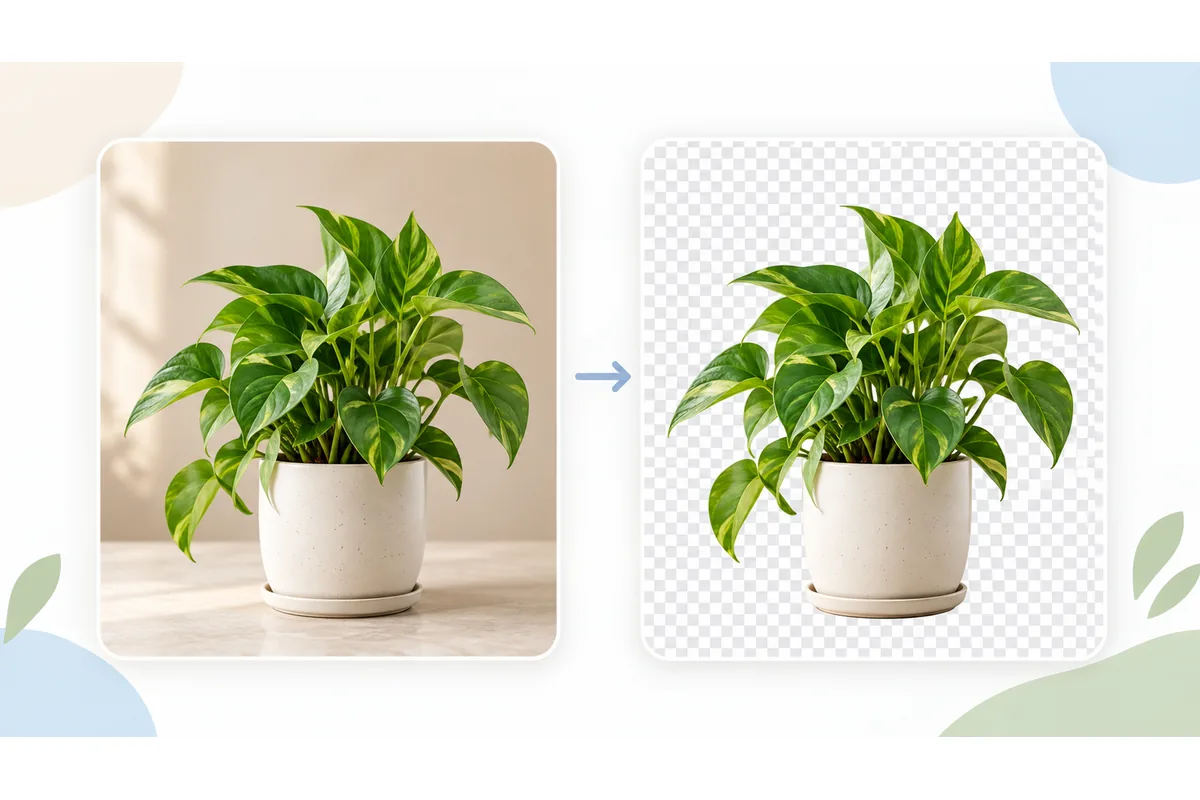
Background removal
How to remove image backgrounds and refine transparent PNGs
5 min read
Read the article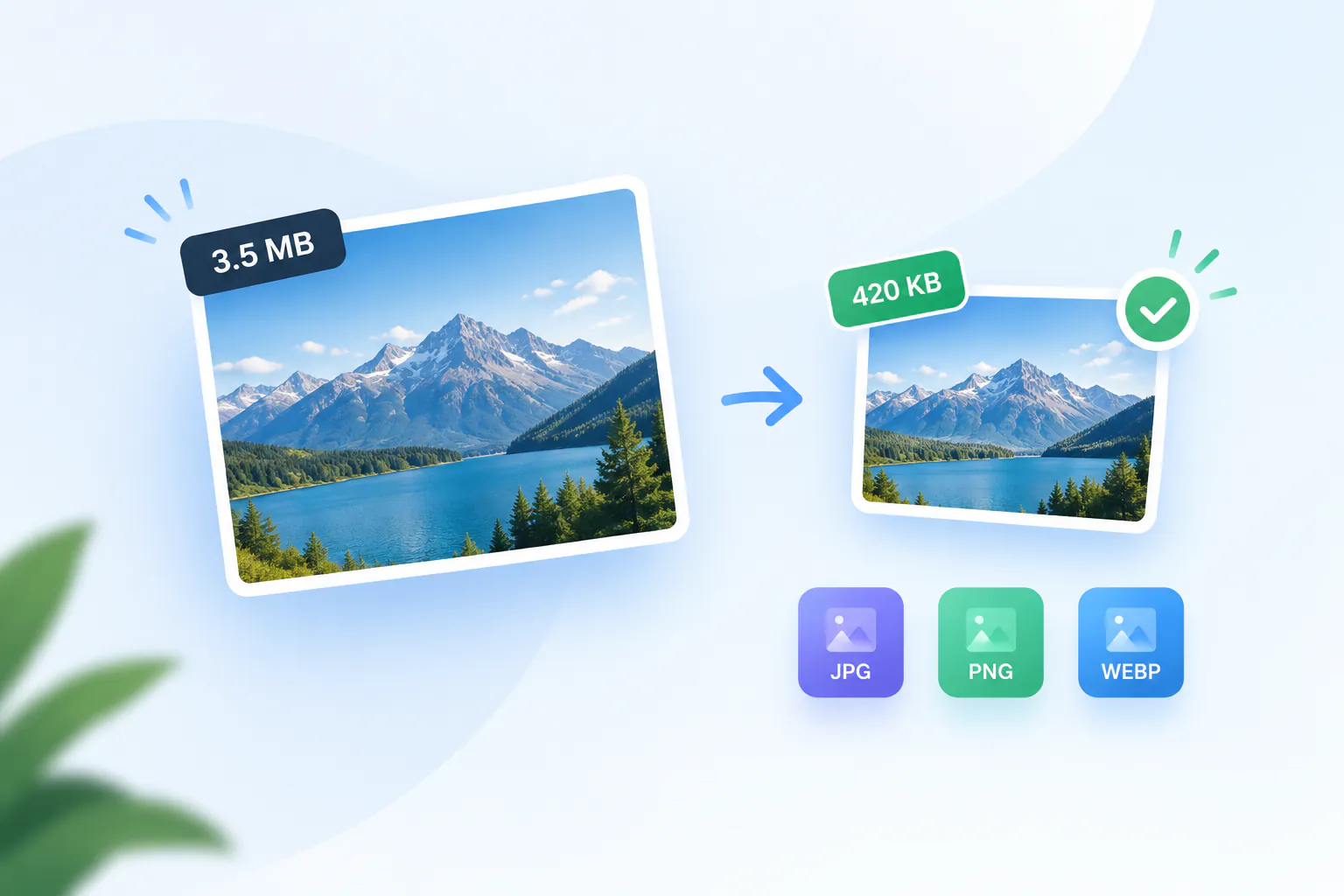
Image compression
How to reduce image file size: KB, pixels and quality
4 min read
Read the article
Related tools
Instagram Photo Resizer
Facebook Image Resizer
LinkedIn Image Resizer
YouTube Thumbnail Resizer
Passport Photo Resizer
Image Stretcher