How to make a GIF from a video or photos, on any device
A step-by-step guide to turning a video clip, a handful of photos or a ready-made template into an animated GIF, with the settings that decide how it looks and how big the file gets.
By Abdul BasitPublished Last updated 17 min read
In short
- From a video: trim it to the 2 to 6 seconds you need, take about 10 frames per second, and keep the width at 480 pixels or less.
- From photos: add the pictures in the order they should play, show each one for 0.5 to 1.5 seconds, and set the GIF to loop forever.
- From a template: pick an effect such as the heart locket, add your photo and caption, and download the finished animation.
- What moves in the picture decides the file size more than anything else. A camera pan can be 50 times larger than a still shot with one small moving object.
To make a GIF, you choose a short clip or a set of pictures, put them in order as frames, decide how long each frame stays on screen and whether the animation loops, then export the result as a .gif file. You can do all of that in a browser, with the camera roll tools on most phones, or in Photoshop. This guide covers each route, then the settings and file-size limits that cause most GIF problems.
Three ways to make a GIF
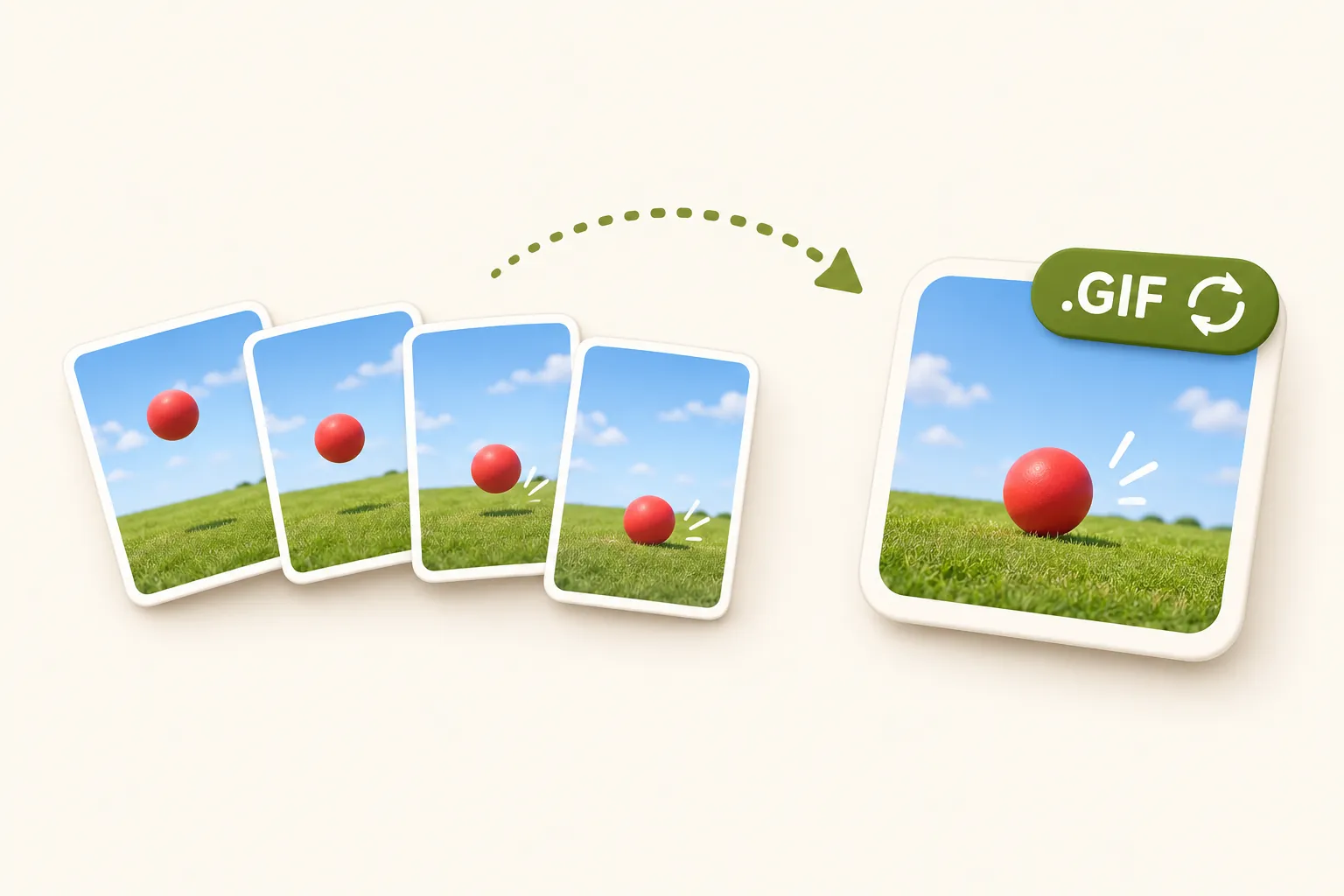
Every GIF starts from one of three things: footage you already have, a set of still pictures, or a template that does the animating for you. Pick the row that matches what you have.
| You start with | Good for | Where to make it |
|---|---|---|
| A video clip or screen recording | Reaction GIFs, product demos, short tutorials, funny moments | GIF maker in any browser, Photoshop, or a phone’s own tools |
| Photos, screenshots or drawings | Slideshows, before-and-after, step-by-step, stop motion | GIF maker, Samsung Gallery, Google Photos or Photoshop |
| A template or effect | Memes, greetings, custom emoji, animated logos | Heart locket GIF maker, GIF to emoji, SVG to GIF |
Whichever you choose, the result is the same kind of file: a stack of still frames, each with its own display time and its own palette of up to 256 colors, plus a note telling the viewer how many times to loop. The illustration at the top of this guide shows the idea, and that structure explains almost every setting further down.
How to make a GIF from a video
Turning a video into a GIF means sampling stills from a few seconds of footage. The free video to GIF maker on this site does it in the browser, so the clip never leaves your phone or computer, which matters for screen recordings of work apps and private family videos.
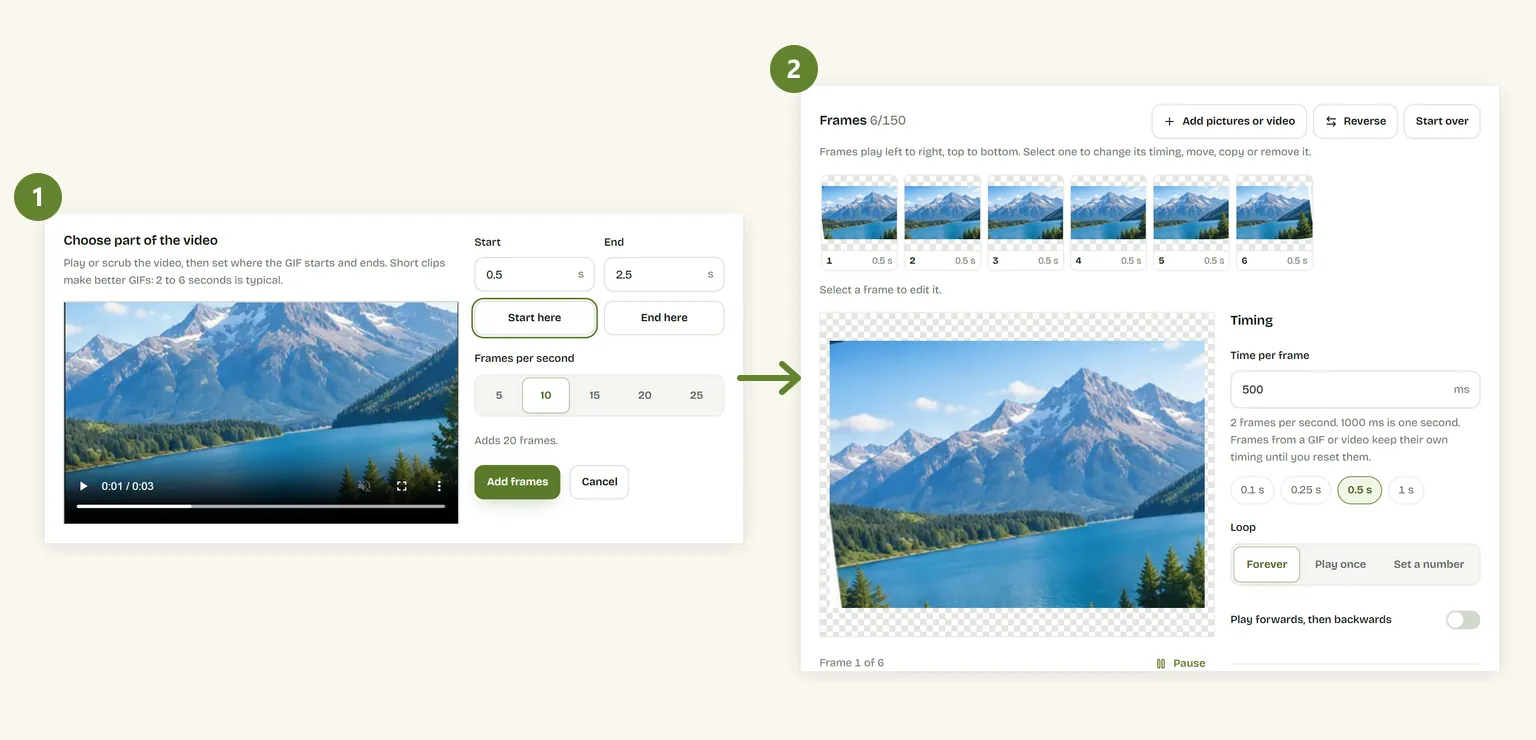
- Open the GIF maker and drop in an MP4, MOV or WEBM file, or tap to choose one from your phone.
- Play or scrub through the video, then press Start here and End here to mark the part you want. Two to six seconds is the usual length for a GIF.
- Choose the frames per second. Ten is smooth enough for most clips; use 15 to 25 only for fast motion such as sport or gaming, because each step up adds frames and file size.
- Press Add frames. The frames appear in a strip, where you can delete the slow start, duplicate a frame to hold a moment, or reverse the whole clip.
- Set the width (480 pixels suits most chats and web pages) and choose Loop forever.
- Press Make GIF, check the preview and its file size, then download it.
Pick a clip where the camera stays still if you can. A locked-off shot of someone reacting compresses far better than a handheld shot of the same moment, because only the moving parts of each frame have to be stored again. The size test further down puts numbers on that.
Turning a screen recording into a GIF
Record your screen with the tool you already have (Xbox Game Bar with Win+Alt+R on Windows, Shift+Command+5 on a Mac, or Screen Recording in the Control Center on an iPhone), then treat the recording like any other video. Before you start, shrink the window or zoom in on the part that matters, because a 640-pixel-wide GIF of one dialog box reads better than a full desktop squeezed into the same width. Screen recordings suit 8 to 12 frames per second: menus and cursors do not need more.
How to make a GIF from photos or images
A set of still images becomes a GIF the same way a flip book works: each picture is one frame, shown for a set time before the next. Holiday photos, product shots from several angles, the steps of a recipe or a series of drawings all work.
- Add your JPG, PNG, WEBP or HEIC pictures to the online GIF creator. You can add more at any time; new pictures join the end of the strip.
- Put them in order: select a frame and use Move earlier or Move later, or Reverse to flip the whole sequence.
- Set the time per frame. For a photo slideshow, 500 ms to 1.5 seconds gives people time to look; for stop motion, 80 to 150 ms makes movement look continuous.
- Choose a shape. Like the first frame keeps your first picture’s proportions; square suits chats and profile pictures, and tall 9:16 suits stories.
- Choose Show the whole picture to fit every image inside the frame, or Fill the frame to crop the edges so nothing is letterboxed.
- Pick the loop, press Make GIF and download.
Photos taken seconds apart make the smoothest animations, so burst shots are ideal. For stop motion, keep the camera on a stand and lock the exposure, otherwise the brightness flickers from frame to frame. If one picture needs straightening or trimming before it goes in, crop it first and add the cropped copy.
How to make a GIF on iPhone and Android
Phones can make simple GIFs with their own apps. What each one can do depends on the brand, so the options below stick to what Apple and Samsung document, and say where a feature comes from third-party guides instead. For full control over speed, size and colors on any phone, the browser route works the same as on a computer.
On iPhone: Live Photos, Loop and Bounce
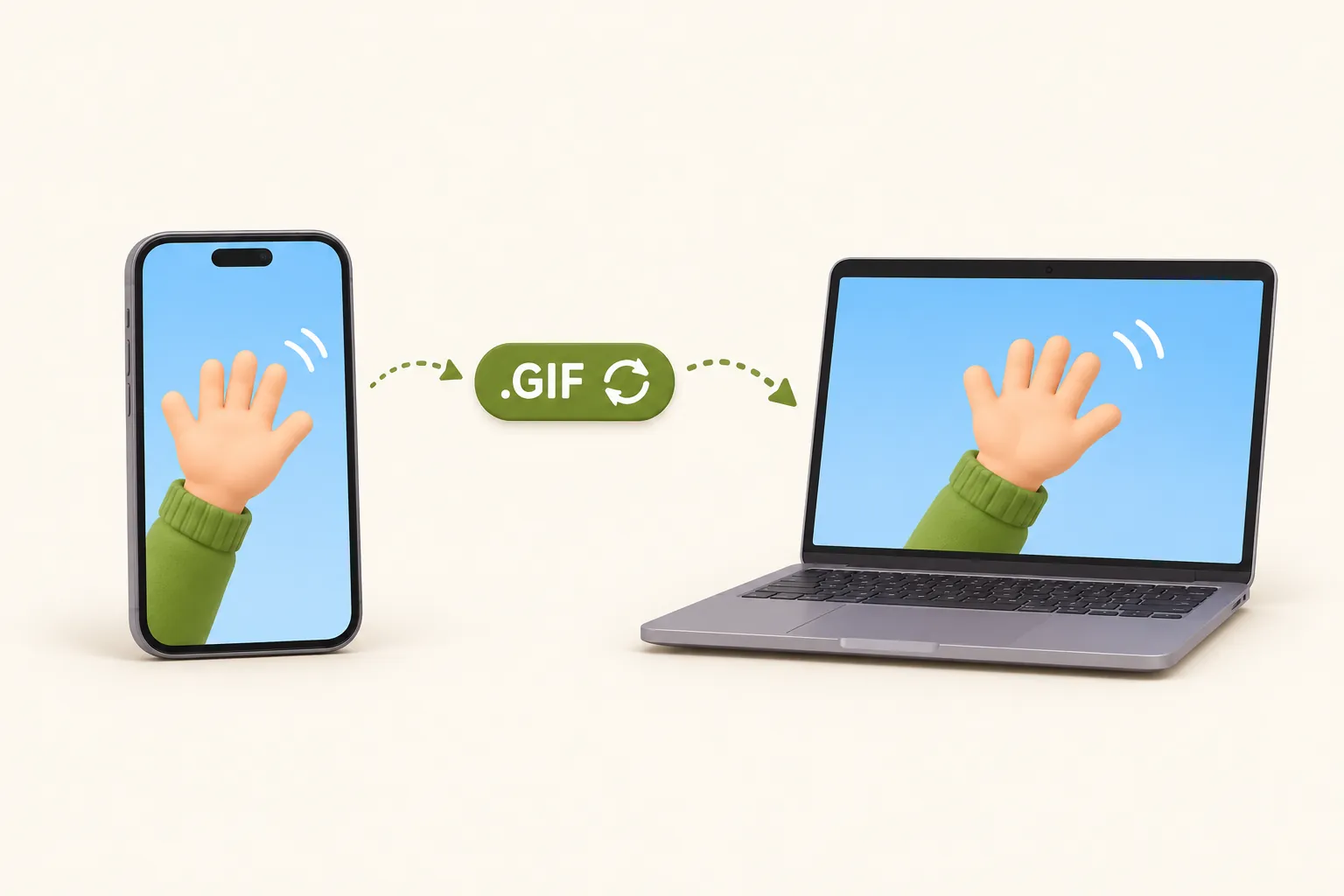
If you take Live Photos, you already have short clips. Apple’s instructions: open a Live Photo in the Photos app, tap the Live button near the top of the screen, and choose Loop or Bounce. Loop replays the moment from start to finish; Bounce plays it forwards and then backwards. Apple notes that editing the photo in a third-party app can remove the effect.
A Loop or Bounce looks like a GIF in your library, but apps often send it as a short video. To get an actual .gif file, guides from 9to5Mac and others describe the Make GIF action in Apple’s Shortcuts app, which turns a Live Photo, burst or video into a GIF; search the Shortcuts gallery for “GIF” to find it. The other option is to open the GIF maker in Safari, tap to choose a video, and use the same steps as on a computer.
On Android: Samsung Gallery and Google Photos
On a Samsung Galaxy phone, Samsung’s support pages give this route: open Gallery, select the photos, tap More, choose Create GIF, adjust the speed and order, then save. The camera can also capture a GIF when you swipe the shutter button, an option set under Swipe shutter button in the camera settings. Menu names vary a little between models and One UI versions.
Google Photos on Android has an Animation option in its Create menu that joins a set of photos into a looping animation; tech sites such as PhoneArena describe it, and Google has moved it around between app versions. Neither Gallery nor Google Photos lets you set colors or an exact width, so if the file has to meet a size limit, make it in the browser instead.
Make a fun GIF from a template
Templates do the animating for you: you supply a photo or a caption, and the motion is already designed. They are the quickest way to make a GIF for a message, a birthday or a group chat.
- The “my beloved” meme: the heart locket GIF maker puts your photo in a red locket that swings open beside a caption, or beside a second photo.
- Custom emoji: turn a GIF into a Discord or Slack emoji, squared, resized and fitted under each platform’s limit (256 KB on Discord, 128 KB on Slack).
- Animated logos and icons: if the animation is an SVG, convert the SVG to a GIF so it plays in places that do not support SVG, such as email.
How to make a GIF in Photoshop
Photoshop builds GIFs from layers, which suits designers who want to edit individual frames. The steps below use the frame animation timeline in current versions.
- Load the pictures as layers with File › Scripts › Load Files into Stack. For a video, use File › Import › Video Frames to Layers and choose the range.
- Open Window › Timeline, then choose Create Frame Animation in the middle of the panel.
- In the Timeline panel menu, choose Make Frames From Layers. Each layer becomes one frame.
- Set each frame’s delay from the small menu under its thumbnail, and set the loop at the bottom of the panel to Forever.
- Export with File › Export › Save for Web (Legacy). Choose GIF, set the colors (128 is a good start), turn dithering on or off, check the file size in the corner of the preview, and save.
Photoshop gives frame-by-frame control, at the cost of a subscription and a dozen steps. For putting pictures or a clip in order and getting a clean, small GIF, the browser tool covers the same settings in a minute.
GIF settings: frame rate, size, colors and looping
Five settings decide how a GIF looks and how large it is. Here is what each one does, and a starting point for common uses.
| Kind of GIF | Width | Frames per second | Colors | Length |
|---|---|---|---|---|
| Reaction GIF for chat | 320–480 px | 10–12 | 128–255 | 2–4 s |
| Product demo | 480–640 px | 10–15 | 255 | 3–6 s |
| Screen recording | 640–800 px | 8–12 | 64–128 | 5–10 s |
| Photo slideshow | 480–800 px | 1–2 | 255 | 1 s per photo |
| Custom emoji | 128 px or less | 10–15 | 64–128 | 1–3 s |
Frame rate and frame delay
A GIF has no frame rate as such. Each frame carries a delay, stored in hundredths of a second, and the frame rate follows from it: a delay of 100 ms is 10 frames per second, 50 ms is 20. Because of the hundredths, 30 frames per second cannot be stored exactly; a delay of 30 ms plays at about 33 fps and 40 ms at 25.
Very short delays backfire. Browsers have long treated a delay of 0 or 10 ms as a mistake and slowed it to about 100 ms, so a GIF meant to race along can crawl. Twenty milliseconds is the shortest delay that reliably plays fast, and the GIF maker never writes anything shorter. To retime a GIF you have already made, use the GIF speed changer, which changes only the delays, not the pictures.
Dimensions and number of frames
File size grows with the area of each frame and with the number of frames. Width is the setting people most often get wrong: a GIF shown in a chat bubble or a blog column rarely appears wider than 480 pixels, so anything larger is weight nobody sees. The number of frames is length multiplied by frame rate, so 4 seconds at 15 fps is already 60 frames. The GIF maker holds up to 150.
Colors: the 256-color limit and dithering
Each GIF frame can use at most 256 colors, chosen for that frame. That is plenty for screenshots, cartoons and logos, but a photo has thousands of shades, so skies, skin and shadows get squeezed into steps called banding. Dithering hides the steps by scattering dots of neighboring colors, which looks smoother and makes the file larger, because the noise compresses badly.
Use fewer colors (64 or 128) for flat artwork and screen recordings, where they are rarely missed. Keep 255 and try dithering only when a photo shows visible bands.
Looping
A GIF can loop forever, play once, or repeat a set number of times. Forever is what people expect in a chat or on a web page. Play once suits a reveal that should stop on its last frame, such as an animation inside a slide. For a smooth loop from a clip that jumps at the end, use “play forwards, then backwards”, the same idea as the iPhone’s Bounce.
What makes a GIF file big: a size test
To see which settings matter most, we made the same 3-second clip with this site’s GIF encoder, changing one setting at a time. One version is a slow camera pan across a detailed landscape, so every pixel changes in every frame, like most phone footage. The other holds the same picture still with one small object moving across it, which is what screen recordings and tripod shots look like.
| Settings (3 seconds) | Camera pan | Still shot, one moving object |
|---|---|---|
| 480 px, 10 fps, 255 colors | 2.1 MB | 42 KB |
| 480 px, 10 fps, 128 colors | 1.7 MB | 37 KB |
| 480 px, 10 fps, 64 colors | 1.3 MB | 28 KB |
| 480 px, 10 fps, 255 colors, dithered | 2.6 MB | 47 KB |
| 320 px, 10 fps, 255 colors | 1.1 MB | 23 KB |
| 640 px, 10 fps, 255 colors | 3.4 MB | 64 KB |
| 480 px, 5 fps, 255 colors | 1.0 MB | 37 KB |
| 480 px, 20 fps, 255 colors | 4.4 MB | 46 KB |
| Same frames as animated WebP | 420 KB | 18 KB |
Three things stand out. First, content beats settings: the still shot is 50 times smaller than the pan at identical dimensions, because the encoder only stores pixels that change. Second, on footage that moves, frame rate scales the size almost exactly: double the frames, double the file. Third, cutting colors from 255 to 64 saved 38 percent, while dithering added 23 percent. Your own numbers will differ with the footage, but the order of these levers holds.
How to make a GIF smaller
Work down this list in order and stop once the GIF fits. The first steps save the most and cost the least quality.
- Trim the clip. Cut slow starts and endings; every second you remove is a second you do not store.
- Lower the frame rate. Going from 20 to 10 frames per second roughly halves a moving clip.
- Crop to the action. Less moving background means fewer changed pixels per frame, which was the biggest factor in the size test.
- Reduce the width. 480 pixels is enough for most places a GIF is shown; 320 for chat.
- Use fewer colors, and switch dithering off unless the GIF shows banding.
- Compress what is left. The GIF compressor can fit a finished GIF to a target size such as 256 KB or 5 MB, trading a little detail for a much smaller file.
If the GIF is still too large after all that, the honest answer is that GIF is the wrong format for this clip. A short MP4 or WebP keeps far more quality at a fraction of the size, as the comparison below shows. For still images that are too heavy, the guide on reducing image size without losing quality covers JPG, PNG and WebP.
Transparent GIFs: how they work and how to make one
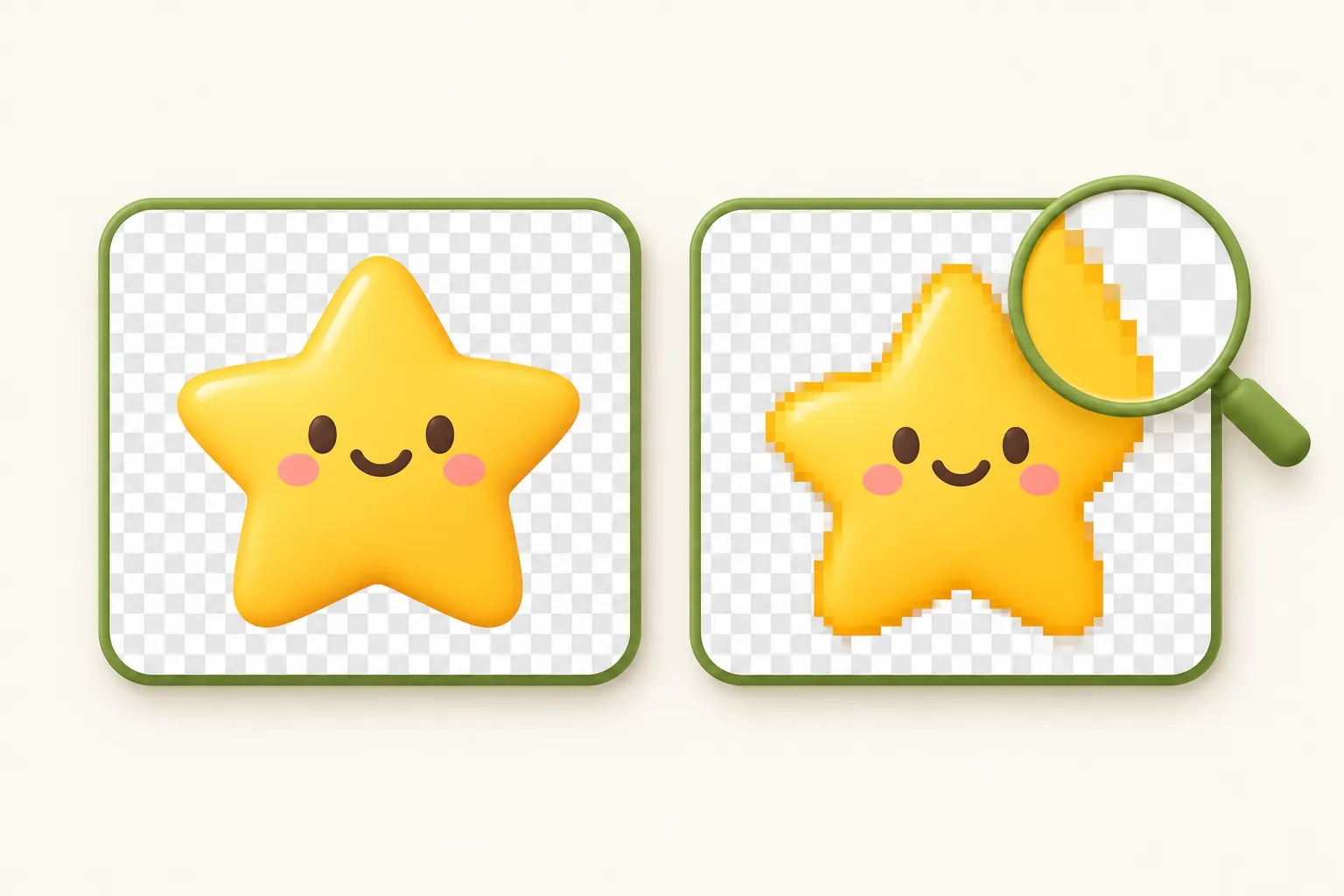
A GIF can mark one color in each frame’s palette as transparent. A pixel is either fully see-through or fully solid; there is nothing in between. That works well for stickers, icons and cut-outs with crisp edges, and it is why soft edges look rough.
Smooth edges in a photo or a PNG are built from half-transparent pixels that blend into whatever is behind them. A GIF has to round each of those to solid or clear, so curves look stepped, and the solid ones keep the color of the background they were cut from. That is the white or dark halo you see when a GIF made on white is placed on a dark page.
- To make a transparent GIF from pictures, start from PNG cut-outs and choose Transparent as the GIF maker’s background.
- To make an existing animation transparent, use the GIF background remover, which clears the background frame by frame and can also fill it with a new color.
- To avoid halos, cut the image out against a color close to the page it will sit on, or keep shapes crisp and skip soft shadows.
For still images with transparent backgrounds, and why PNG handles soft edges better than GIF, see the guide to transparent backgrounds.
GIF vs MP4 vs animated WebP
GIF dates from 1987 and its animation and transparency from 1989. It survives because it plays everywhere without a play button. The newer formats are smaller and look better, but neither is accepted everywhere a GIF is.
| GIF | MP4 video | Animated WebP | |
|---|---|---|---|
| Colors | Up to 256 per frame | Millions | Millions |
| Transparency | On or off per pixel | No | Smooth, with soft edges |
| Sound | No | Yes | No |
| Size in our test | 2.1 MB | 184 KB | 420 KB |
| Plays without a click | Everywhere | Only when the page or app autoplays it | Modern browsers and many apps |
| Accepted by upload forms and emoji | Almost always | Rarely | Sometimes |
Choose GIF for chats, emoji, email and anywhere that asks for one. Choose MP4 for anything longer than a few seconds, anything with sound, and for social networks, many of which turn uploaded GIFs into video anyway. To switch a finished GIF, the GIF to MP4 converter keeps the exact frame timing; it turned our 2.1 MB test GIF into a 184 KB MP4. Choose animated WebP for your own website when you need transparency or a smaller file. The image formats guide covers WebP in more depth.
Common GIF problems and how to fix them
| Problem | Usual cause | Fix |
|---|---|---|
| File is too large to upload or send | Too many frames, too wide, or a moving camera | Trim, lower the frame rate and width, then compress |
| Playback looks choppy | Too few frames per second for the amount of motion | Rebuild at 12 to 15 fps from the original clip |
| Plays far too slowly | Frame delays below 20 ms, which browsers slow down | Set every frame to 20 ms or more |
| Bands of color in skies or skin | The 256-color limit | Keep 255 colors and turn on dithering |
| Only the first frame shows | The app shows a still preview, or some Outlook versions for Windows, which show only the first frame | Make the first frame meaningful on its own |
| Uploaded GIF arrives as a video | The platform converts GIFs to MP4 | Nothing to fix, it still loops. Share it as a file attachment if the recipient needs the .gif itself |
| White or black edges on a transparent GIF | Half-transparent edge pixels rounded to solid | Cut out against the page’s background color, or remove the background again |
| Need one still picture from a GIF | GIF frames are not separate files | Split the GIF into frames and save the one you want as PNG or JPG |
Frequently asked questions
Can I make a GIF for free without a watermark?
How long can a GIF be?
What is the best frame rate for a GIF?
How do I make a GIF transparent?
Why is my GIF file so big?
Can a GIF have sound?
How do I make a GIF on my iPhone?
About the author

Abdul Basit
Abdul Basit is an independent full-stack web developer based in Pakistan and a co-founder of Onyxstack. He builds and runs QuickImageFix and writes its guides to image compression, resizing, format conversion and PDF tasks.
Read the author profile