Convert Image Format
A free image format converter for HEIC, WEBP, PNG and JPG. Drop a file in, pick what you want out, download it — nothing is uploaded.
Your file
Need several edits in one place? Open the Photo Editor to crop, adjust colors and add text before exporting.
Why use this tool
- No file size limit
- Nothing is uploaded
- No signup needed
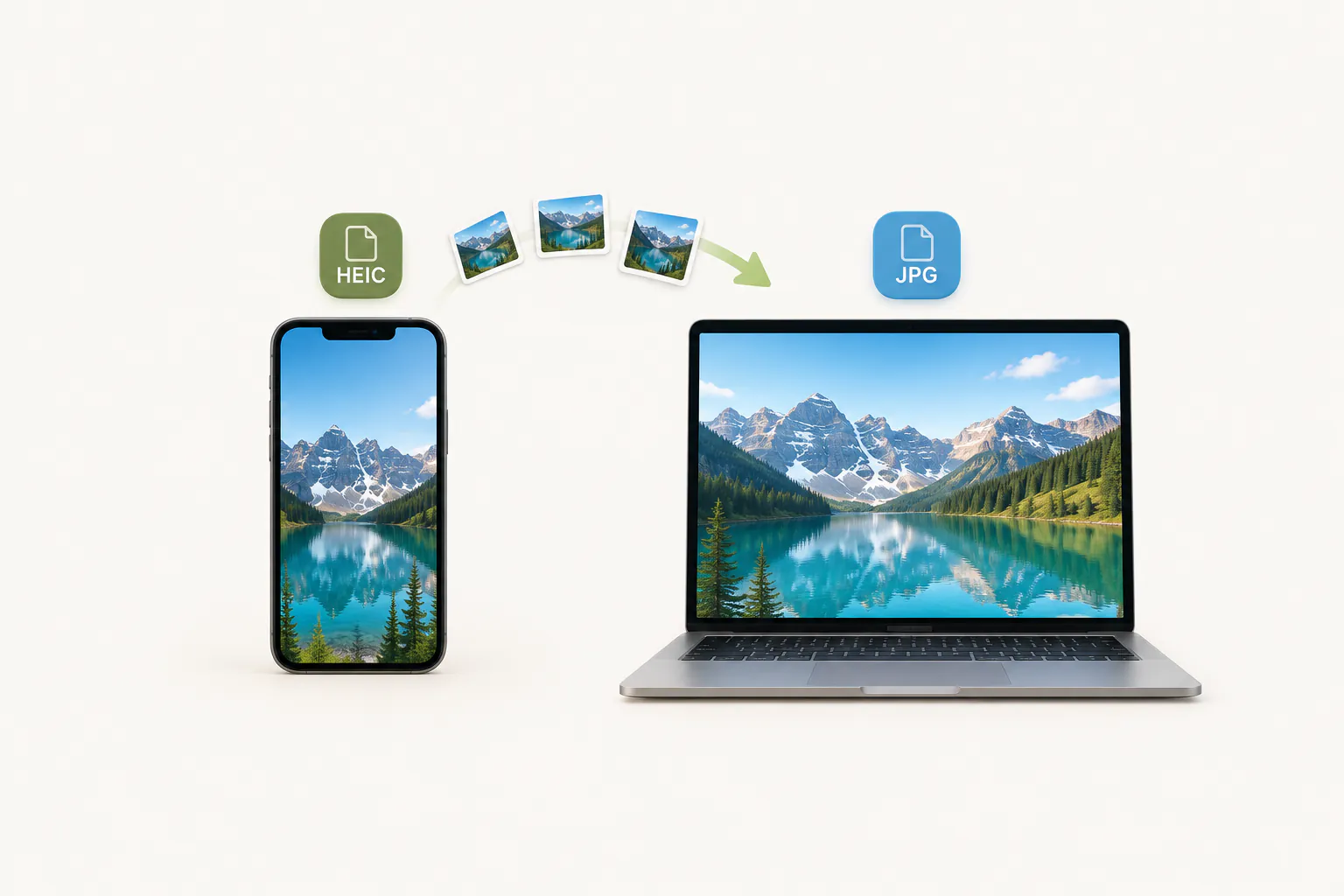
Image formats exist for different jobs, and the one your camera, your phone or a website hands you is often not the one the next tool will accept. iPhones save HEIC that Windows will not open. Websites serve WEBP that design software refuses. Upload forms demand JPG. This converter moves an image between HEIC, WEBP, PNG and JPG in a single step.
The conversion happens in your browser with the Canvas API, so your file is never uploaded, there is no queue and no size cap, and what you download has no watermark on it. HEIC is decoded on the way in; because no browser can write HEIC, JPG, PNG and WEBP are the formats you can convert to.
How to convert an image
Add your image
Drag a HEIC, WEBP, PNG or JPG file into the box, or click to browse. Files are identified by their contents, so a renamed or mislabelled file still works.
Pick the output format
Choose JPG, PNG or WEBP. JPG for photos and anything that must be widely accepted, PNG when you need transparency, WEBP when you want the smallest file for a web page.
Convert and download
Press Convert Image. The converted file appears with its new size next to the original, ready to download.
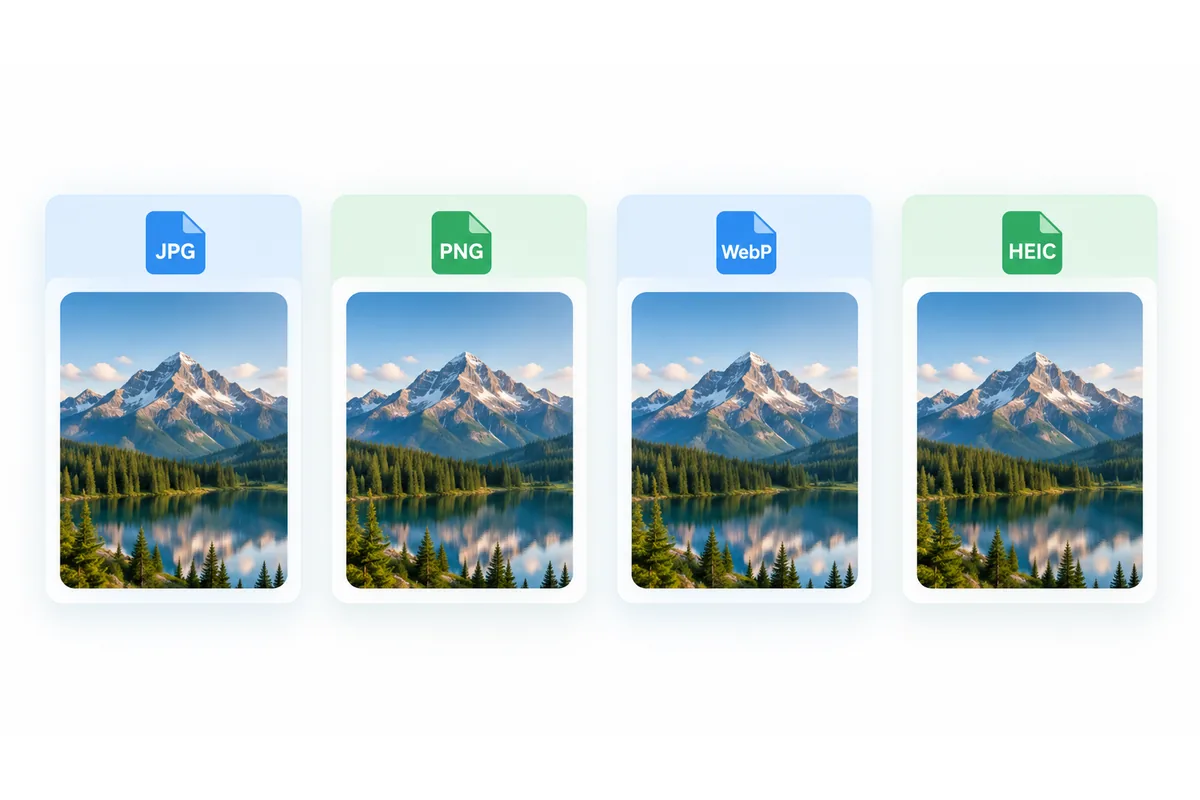
Which image format should you choose?
JPG is the safe default for photographs. Every device, app and upload form accepts it, and its lossy compression keeps photos small. It cannot store transparency, and each re-save degrades it slightly.
PNG is lossless and supports transparency, which makes it right for logos, icons, screenshots, diagrams and anything with sharp edges or flat color. The cost is size: a PNG photograph is typically several times the size of the same image as a JPG.
WEBP was built for the web and is supported by every current browser. It does both lossy and lossless compression, keeps transparency, and is usually 25–35% smaller than an equivalent JPG or PNG. The catch is that older desktop software and some upload forms still reject it.
HEIC is what modern iPhones and iPads shoot by default. It stores roughly the quality of a JPG in about half the space, but support outside Apple's ecosystem is patchy — which is why converting HEIC to JPG is the most common conversion people need.
What conversion does to your image
JPG and WebP conversion uses lossy compression and can change fine detail. PNG stores the decoded pixels without further lossy compression, but cannot restore detail already missing from the source. Check the output before sharing.
Converting to JPG or WEBP re-encodes the image with lossy compression at a high quality setting, so the result is visually identical but not bit-for-bit the same. Converting to PNG is lossless, although converting a lossy original to PNG cannot restore detail that was already discarded — it simply stores what is there without losing more.
Transparency survives a conversion to PNG or WEBP. Converting a transparent image to JPG fills the transparent areas with white, because JPG has no alpha channel to store them in.
Metadata does not survive. EXIF tags — camera, lens, date and GPS coordinates — are dropped. Worth knowing before you convert a photo you rely on for that information, and useful before posting one publicly. Common one-step conversions have dedicated pages: JPG to PNG, WebP to JPG, AVIF to PNG and JFIF to JPG.
HEIC, WEBP, PNG and JPG compared
The short version of which format does what.
| Format | Compression | Transparency | Best for |
|---|---|---|---|
| JPG | Lossy | No | Photos, uploads, anything that must open everywhere |
| PNG | Lossless | Yes | Logos, icons, screenshots, graphics with sharp edges |
| WEBP | Lossy or lossless | Yes | Web pages, where the smallest file wins |
| HEIC | Lossy | Yes | iPhone and iPad photo storage — read only here |
Common reasons to convert an image
HEIC won't open on Windows
iPhone photos copied to a PC often show as blank icons in File Explorer. Converting to JPG makes them open anywhere.
A form only accepts JPG or PNG
Application portals, government sites and marketplaces tend to allow two formats and reject everything else.
You saved an image from a website
Right-clicking an image on a modern site usually gives you a WEBP file that older software will not open.
You're optimizing a web page
Serving WEBP instead of JPG or PNG typically cuts a quarter to a third off the weight of your images.