Convert HEIC to JPG
Turn iPhone and iPad HEIC photos into JPGs that open on Windows, Android and everywhere else. Free, in your browser.
Your file
Need several edits in one place? Open the Photo Editor to crop, adjust colors and add text before exporting.
Why use this tool
- No file size limit
- Nothing is uploaded
- No signup needed
Since iOS 11, iPhones and iPads have saved photos as HEIC by default. It is a good format — roughly half the size of a JPG at the same quality — but support outside Apple's own software is still patchy. Copy a HEIC file to a Windows PC, attach it to a form or send it to someone on Android and it often will not open at all.
This converter reads the HEIC file and writes a JPG that works everywhere. It runs entirely in your browser: your photos are not uploaded to anyone's server, there is no file size limit, no account, no watermark and no queue.
How to convert HEIC to JPG
Add your HEIC photo
Drag the .heic or .heif file into the box, or click to browse. On an iPhone you can pick it straight from the Photos library.
Check that JPG is selected
JPG is already chosen for you. PNG and WEBP are there if you need one of those instead.
Convert and download
Press Convert to JPG. The JPG appears with its size next to the original, ready to download.
Why iPhone photos are HEIC in the first place
HEIC — High Efficiency Image Container — stores an image encoded with HEVC, the same compression family as H.265 video. It reaches roughly the quality of a JPG in about half the file size, which is why Apple made it the default in iOS 11: twice as many photos in the same storage.
The trade-off is compatibility. JPG has been universally supported since the 1990s. HEIC is patent-encumbered, licensing is complicated, and Windows, Android, older software and many websites either need an add-on or simply refuse the file.
You can stop your iPhone producing HEIC at all: Settings → Camera → Formats → Most Compatible makes it shoot JPG from then on. That does not change the photos you have already taken, which is what this converter is for.
Converting on Windows, Mac, iPhone and Android
Windows: Windows 11 and recent Windows 10 builds can display HEIC after installing Microsoft's HEIF Image Extensions, but that add-on only lets you view the file — it does not convert anything, and it is a paid item in some regions. Opening this page in Edge or Chrome converts the photo without installing anything.
How to convert HEIC to JPG on Mac: Preview can export a HEIC as JPEG with File → Export, and Photos can export a copy. Both are fine for one or two photos. A browser tab is quicker for a handful, and works the same on a Mac that is not signed in to iCloud.
iPhone and iPad: sharing a photo by email or into most apps already converts it to JPG silently, which is why people rarely meet HEIC until a file is copied off the device. To get a JPG on purpose, open this page in Safari and choose the photo from your library.
Android: Android has been able to decode HEIF since Android 10, but plenty of apps and upload forms still reject it. Chrome on Android converts it here the same way.
For the apps already built into each system, with every menu and setting named, follow our HEIC to JPG guide.
What you get back
Dimensions are unchanged: a 4032 × 3024 HEIC comes out a 4032 × 3024 JPG. The image is re-encoded as JPG at a high quality setting, so it is visually the same photo.
Expect the JPG to be larger than the HEIC, often around twice the size. That is the price of HEIC's efficiency rather than a fault in the conversion — if the size matters, compress the JPG afterwards.
EXIF metadata is not carried over. Camera, lens, date and GPS coordinates are dropped: inconvenient if you rely on them, useful before sharing a photo publicly. Your original HEIC still has them.
Live Photos, Portrait mode and HEIF from Android
A Live Photo is a HEIC still plus a separate short video. Converting the HEIC gives you the still picture; the movement lives in the video file, which this page does not convert.
Portrait mode photos carry a depth map inside the HEIC, which lets the Photos app change the background blur later. The JPG keeps the picture as it looks now, blur included, and leaves the depth map behind, so make any blur changes on the iPhone first.
Some Android phones, Samsung Galaxy models among them, have a camera setting to save pictures as HEIF. Those files convert here in exactly the same way.
HEIC compared with JPG
Why the format is good and why you still need to convert it.
| HEIC | JPG | |
|---|---|---|
| Typical file size | About half a JPG | Baseline |
| Quality at that size | Better | Good |
| Opens on Windows | Needs an extension | Always |
| Opens on Android | Sometimes | Always |
| Accepted by upload forms | Rarely | Almost always |
| Transparency | Yes | No |
| Introduced | 2015, Apple default since iOS 11 | 1992, universal |
When you need a JPG instead of a HEIC
Moving photos to a Windows PC
HEIC files copied from an iPhone often show as blank icons in File Explorer and refuse to open.
Uploading to a form or portal
Job applications, visa services, insurance claims and school portals almost always list JPG and PNG only.
Sending to someone on Android
Messaging apps re-compress photos, but files sent as attachments arrive as HEIC and may not open.
Editing in older software
Plenty of desktop editors, print services and photo-book tools have never added HEIC support.
Frequently asked questions
Do Google Photos or Drive downloads come back as JPG?
Can I convert a whole camera roll at once?
Is HEIF the same as HEIC?
Can I choose PNG instead of JPG?
Is it safe to convert personal photos here?
From the blog
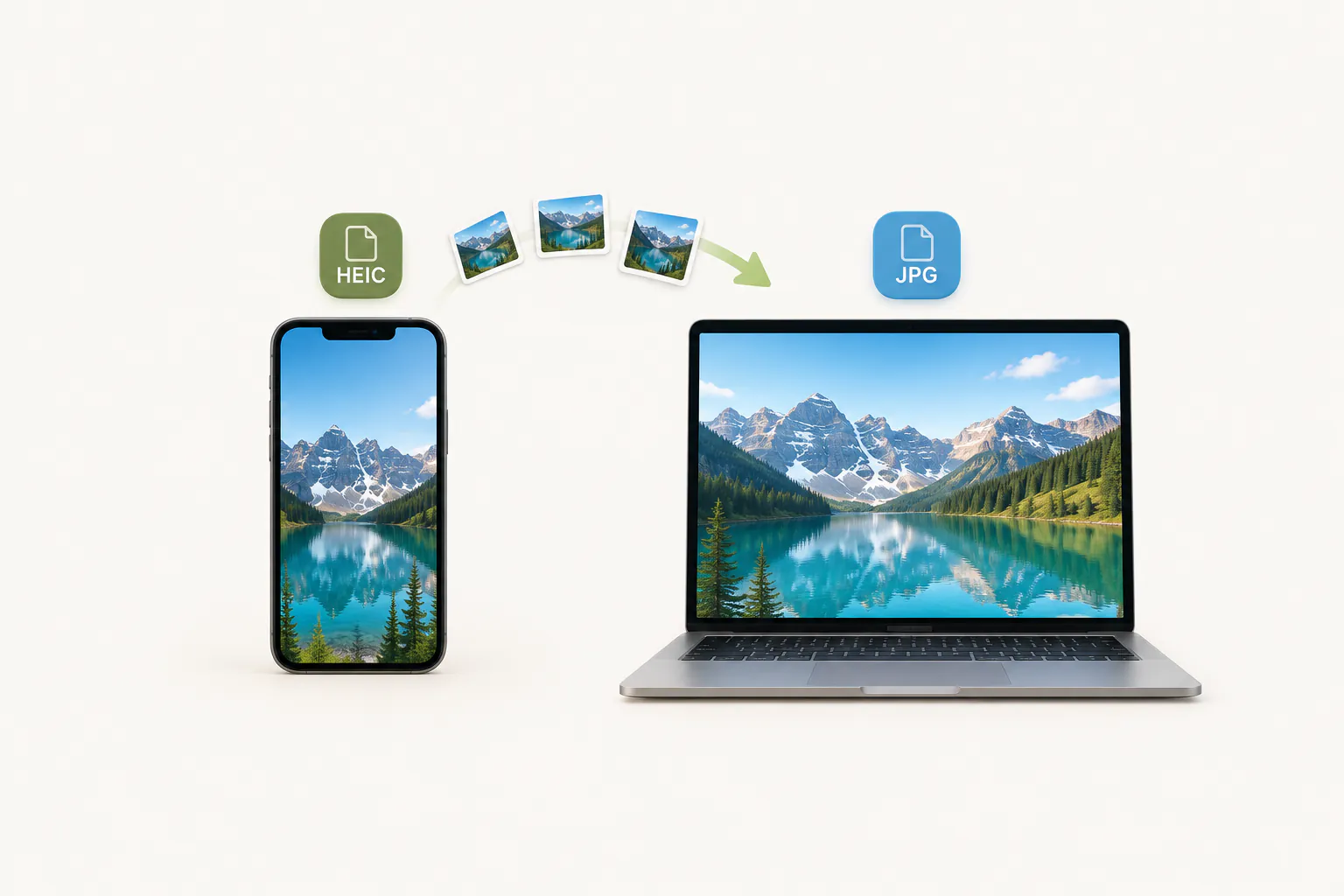
HEIC to JPG
How to convert HEIC to JPG on Windows, Mac, iPhone and Android
18 min read
Read the article
Image formats
JPG, PNG, WebP or HEIC: which image format should you use?
4 min read
Read the article
Image compression
How to reduce image file size: KB, pixels and quality
4 min read
Read the article