JPG, PNG, WebP or HEIC: which image format should you use?
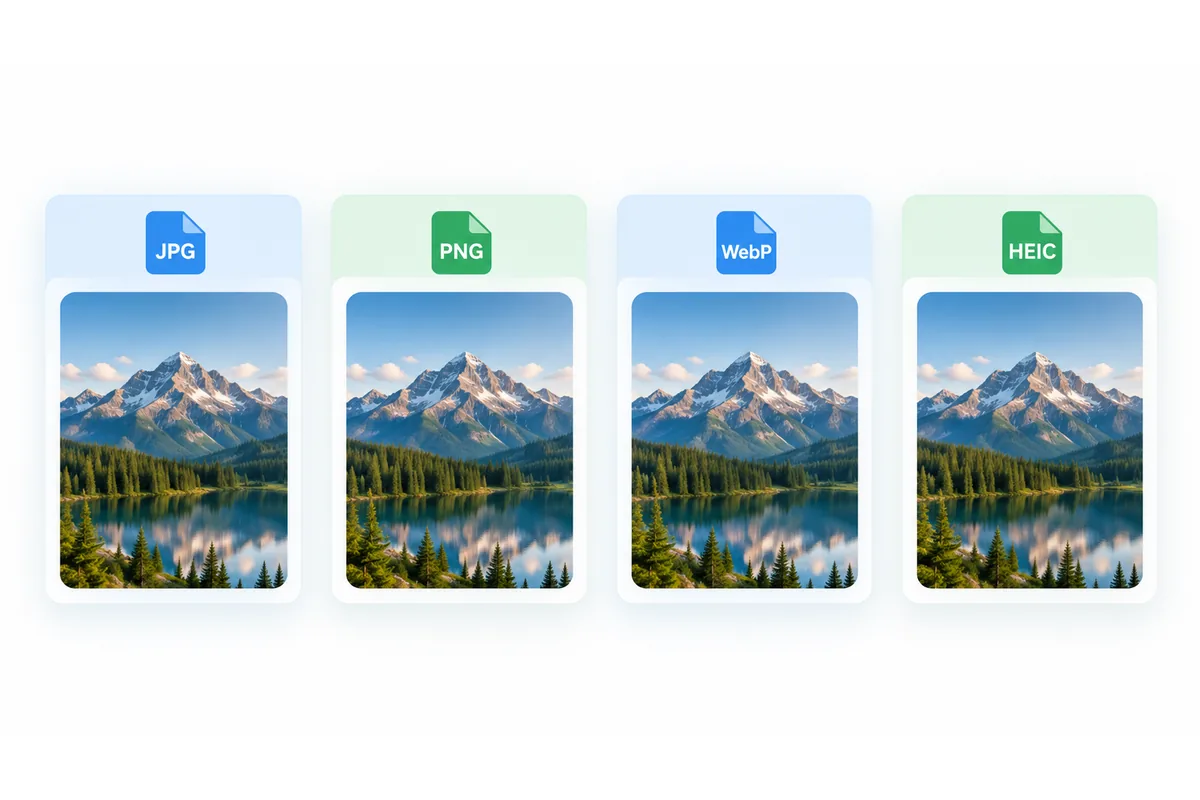
The right format depends on whether you are sharing a photo, preserving a transparent logo or preparing a web image. Changing the filename alone is rarely a conversion.
By Abdul BasitPublished Updated 4 min read
In short
- JPG and JPEG name the same image type.
- PNG supports transparency, but converting a JPG does not remove its background.
- WebP is useful for web images; compare the actual file size.
- HEIC and AVIF are inputs here. Standard image output is JPG, PNG or WebP.
If a form rejects a file format, you usually need to convert the image data. Renaming a WebP file with a .jpg extension does not turn it into JPEG.
Keep the source. Metadata, animation, transparency and special colour information can change during conversion.
JPG and JPEG: the same practical format
JPEG, named for the Joint Photographic Experts Group, is widely used for photographs. Ordinary JPEG encoding is lossy and does not store a transparent background.
If only the extension needs changing, JPEG to JPG can preserve the existing image data. JFIF to JPG likewise keeps compatible JPEG data without another compression pass. Neither operation automatically reduces file size or removes metadata.
PNG: sharp graphics and an alpha channel
PNG stores pixels losslessly and can include transparency. It often suits logos, screenshots and graphics. Detailed photographs can require much more storage than an equivalent JPG.
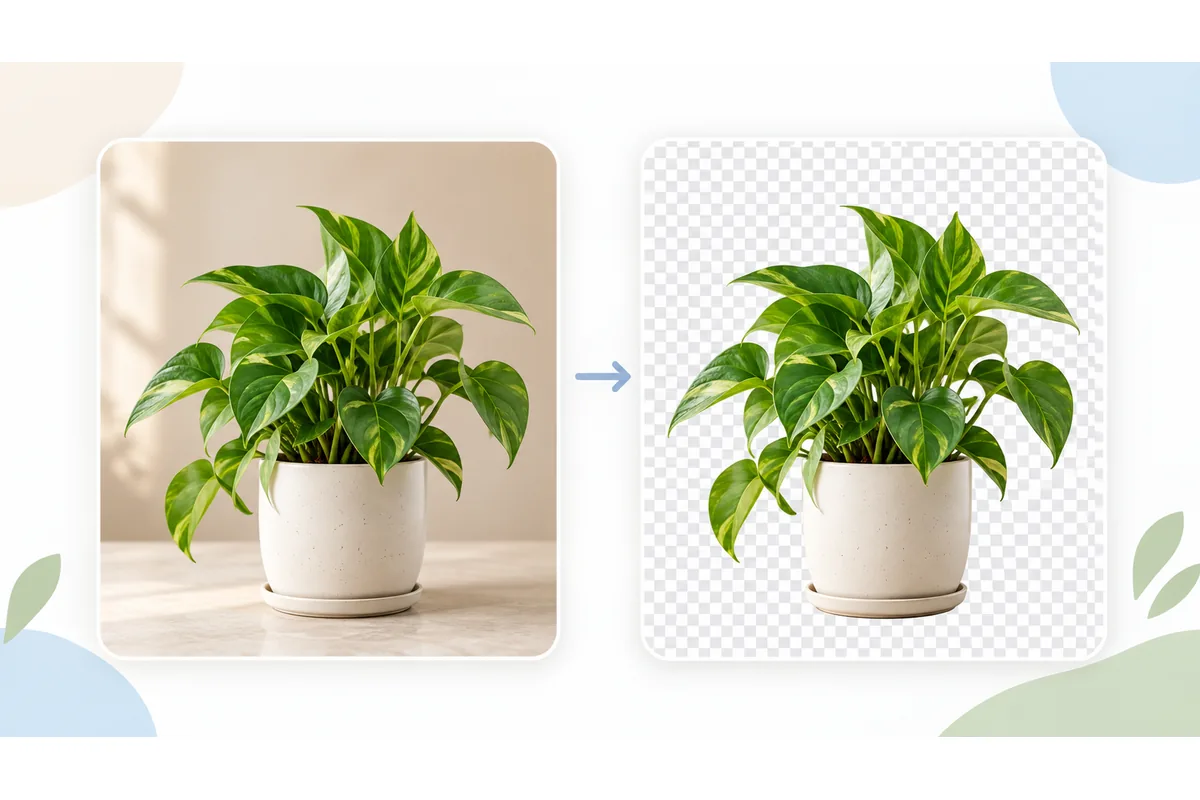
Lossless storage does not make every editing step lossless: resizing and palette reduction change pixels before saving. JPG to PNG cannot recover lost JPEG detail. For a transparent subject, first remove the background; a white area or a painted checkerboard is not transparency.
WebP for websites and compatible applications
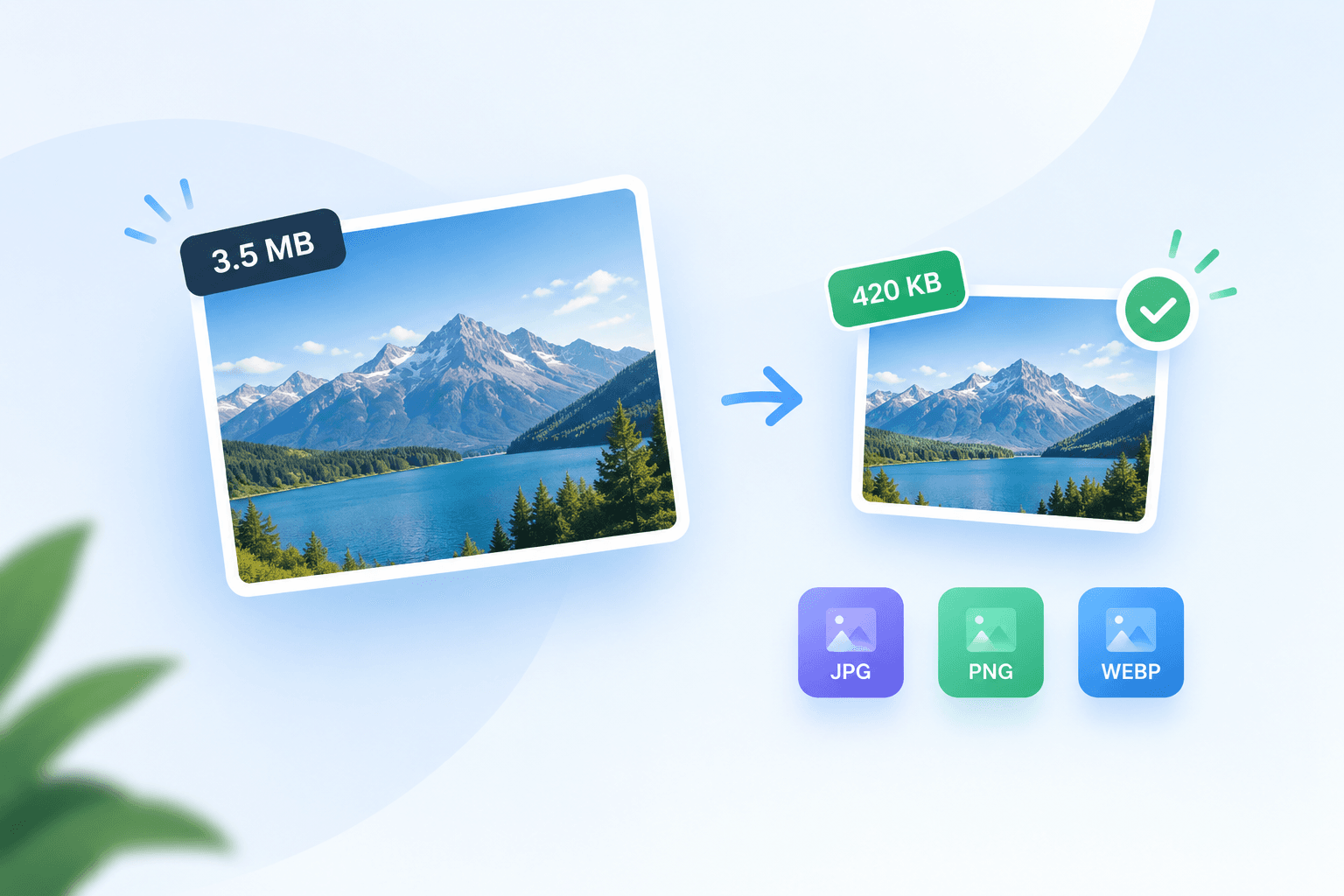
WebP supports photographs and transparent graphics. These tools use a lossy quality setting for WebP output. Compare the result with the original: a well-compressed JPG may already be smaller.
Use JPG to WebP or PNG to WebP for publishing. If another application does not accept WebP, choose WebP to JPG for an opaque photo or WebP to PNG to retain existing transparency.
HEIC from an iPhone and AVIF from the web
HEIC to JPG creates a commonly accepted photo file. For PNG, open your HEIC in Image to PNG. A single exported image does not preserve a complete Live Photo, depth-data package or every HDR feature.
AVIF input depends on browser decoding support. AVIF to PNG can retain transparency; AVIF to JPG produces an opaque image. These tools do not create HEIC or AVIF output.
Choose by task, not by extension alone
| Task | Possible choice | Check |
|---|---|---|
| Photo for a form | JPG | Permitted size and dimensions |
| Transparent logo | PNG or WebP | Alpha channel and edges |
| Text-heavy screenshot | PNG | Legibility and file size |
| Website photograph | JPG or WebP | Actual display and compatibility |
| Scalable simple logo | SVG | Quality of the traced shapes |
| Browser icon sizes | ICO | Legibility at small sizes |
Image to SVG traces shapes; it does not preserve an untouched photograph. Create an ICO packages selected icon sizes and does not produce a macOS ICNS file.
Convert several images and prepare website icons
For batch conversion, select your images in the image converter, choose one output format and process the selection. Check each result before downloading all completed files as a ZIP. Separate transparent graphics from photos if they need different formats: JPG flattens transparency onto white.
For a website icon set, use the favicon generator. It creates favicon.ico with 16, 32 and 48 px entries, PNG icons including Apple Touch and Android sizes, and a ZIP with a web manifest and HTML snippet. Keep the design simple and inspect it at 16 px. Use Image to ICO when you only need an ICO file.
Check the converted copy
- Open it in the application you intend to use.
- Check dimensions, colours, transparency and important details.
- Compare its file size with the permitted limit.
- Compress or resize if necessary, keeping the original.
The compression guide explains the order of work. The background guide shows how to turn a transparent cut-out into a white-background JPG.
Frequently asked questions
- What does JPG mean?
- It is a common extension for JPEG images. JPEG comes from the Joint Photographic Experts Group. For everyday use, the important properties are lossy compression, broad compatibility and no transparent background.
- Is PNG always better than JPG?
- No. PNG is useful for transparency and clear graphics. JPG can be much smaller for photos. A PNG converted from a compressed JPG contains no extra real detail.
- Can conversion repair a damaged JPG?
- Not reliably. The tool needs to decode the file. Try an undamaged copy from the original source or an appropriate recovery process.
- Which format gives me a white background?
- Convert a transparent PNG to JPG here to place the subject on white. Keep a transparent PNG or WebP when you need to choose a different background later.
- Why did converting a JPG to PNG increase its size?
- PNG stores the decoded pixels differently and can need more bytes for a photograph. It cannot undo earlier JPEG compression. Keep JPG for compatible photo uploads, or compare WebP for web use; choose PNG when transparency or sharp graphics matter.
About the author
Abdul Basit
Abdul Basit runs QuickImageFix and writes its guides to image compression, resizing, format conversion and PDF tasks. The guides explain the tools available on this site and the choices that affect your results.
Read the author profile