PDF Tools
Merge, split, rotate and number PDF files, or turn photos and scans into a PDF — free, in your browser, with nothing uploaded.
A PDF looks the same on every device and printer, which is why forms, schools and employers ask for one. These tools cover both sides of the job: making a PDF from the images you already have — phone photos, scans, screenshots — and fixing a PDF you have been sent, whether it needs combining, splitting, turning the right way up, reordering, numbering or stamping.
To make a PDF, start with Image to PDF, which takes every format at once; JPG to PDF and PNG to PDF cover those formats in detail. To work on PDFs you already have, merge PDF files into one, split a PDF into parts, rotate pages, organize the pages, add page numbers or watermark a PDF.
Create, combine and edit PDFs
Turn images into a PDF, or merge, split, rotate, reorder, number and watermark the PDFs you already have — in your browser, with nothing uploaded.
PDF to JPG
Turn PDF pages into JPG images at up to 288 dpi. Pick the pages, then download each JPG or one ZIP. Free, nothing uploaded.
PDF to PNG
Turn PDF pages into lossless PNG images with crisp text, at up to 288 dpi. Choose the pages and download each PNG or a ZIP.
Image to PDF
Combine JPG, PNG, HEIC and other images into one PDF.
JPG to PDF
Turn JPG photos and scans into a PDF with no quality loss.
PNG to PDF
Turn PNG screenshots and graphics into a sharp, lossless PDF.
Merge PDF
Combine several PDFs into one file, in the order you choose.
Split PDF
Pull out the pages you need, or break a PDF into separate files.
Rotate PDF
Turn pages the right way up and save them that way.
Organize PDF pages
Delete pages you do not need and put the rest in the right order.
Add page numbers to PDF
Number the pages of a PDF, in the corner you choose.
Watermark PDF
Stamp text across every page — DRAFT, CONFIDENTIAL, or your own.
Which PDF tool do you need?
Send photographed documents as one file
Combine the photos with Image to PDF, in the order the pages should appear.
Turn JPG photos or scans into a PDF
Use JPG to PDF: the JPGs go into the PDF untouched, with no quality loss.
Combine several PDFs into one
Merge PDF joins them in the order you set, with every page kept as it was.
Send only some pages of a PDF
Split PDF pulls out the pages you pick, or breaks the file into separate PDFs.
Fix pages that are sideways or upside down
Rotate PDF turns them upright and saves them that way.
Remove or reorder pages
Organize PDF pages removes the pages you don’t want and moves the rest, then saves a new copy.
Number or mark a document before sending it
Add page numbers, or stamp DRAFT or CONFIDENTIAL across every page with Watermark PDF.
Keep the PDF under an upload limit
Compress the photos or resize them before converting — a PDF is about the size of the images inside it.
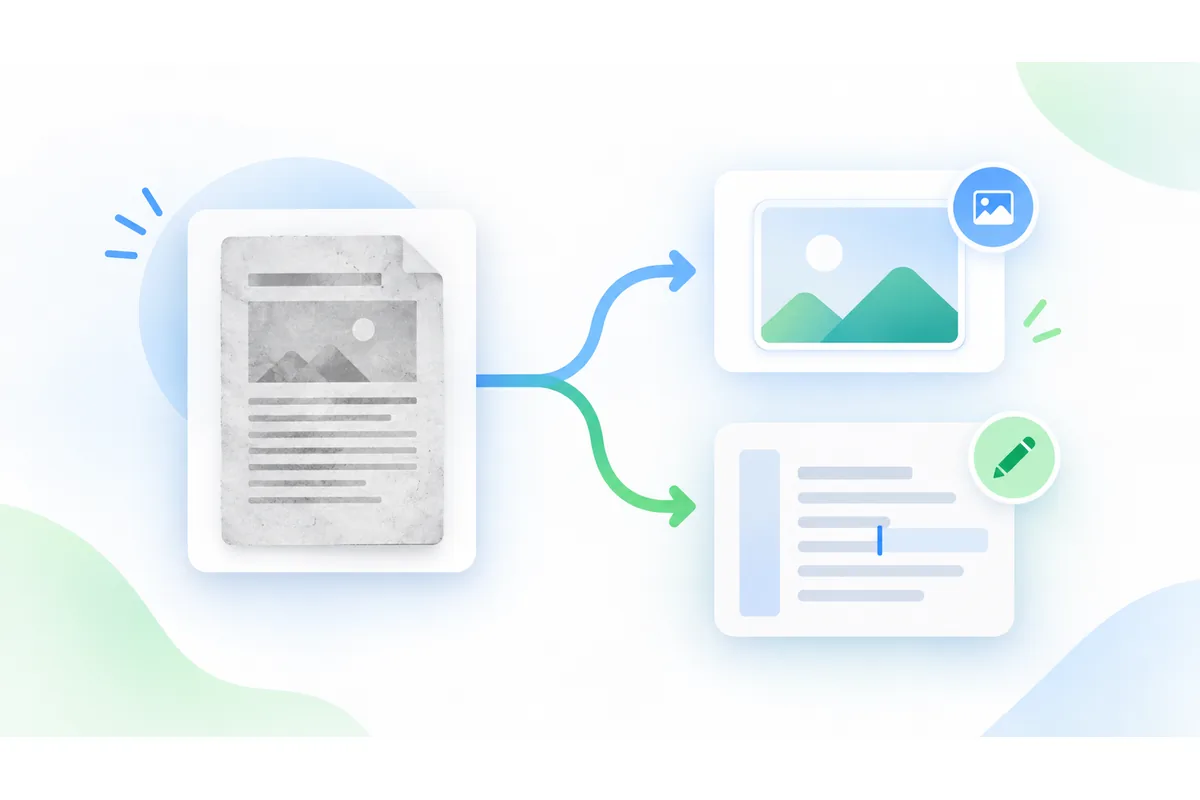
Get images or text from a PDF
The PDF and OCR guide explains whole-page rendering, resolution, page ranges and plain-text extraction.
How the PDF tools work
Everything happens in your browser: images are read on your device, placed on A4, Letter or image-sized pages and written into a PDF you download, and a PDF you already have is opened, changed and saved on your device too. Nothing is uploaded, so private documents such as ID cards, contracts and bank statements stay with you.
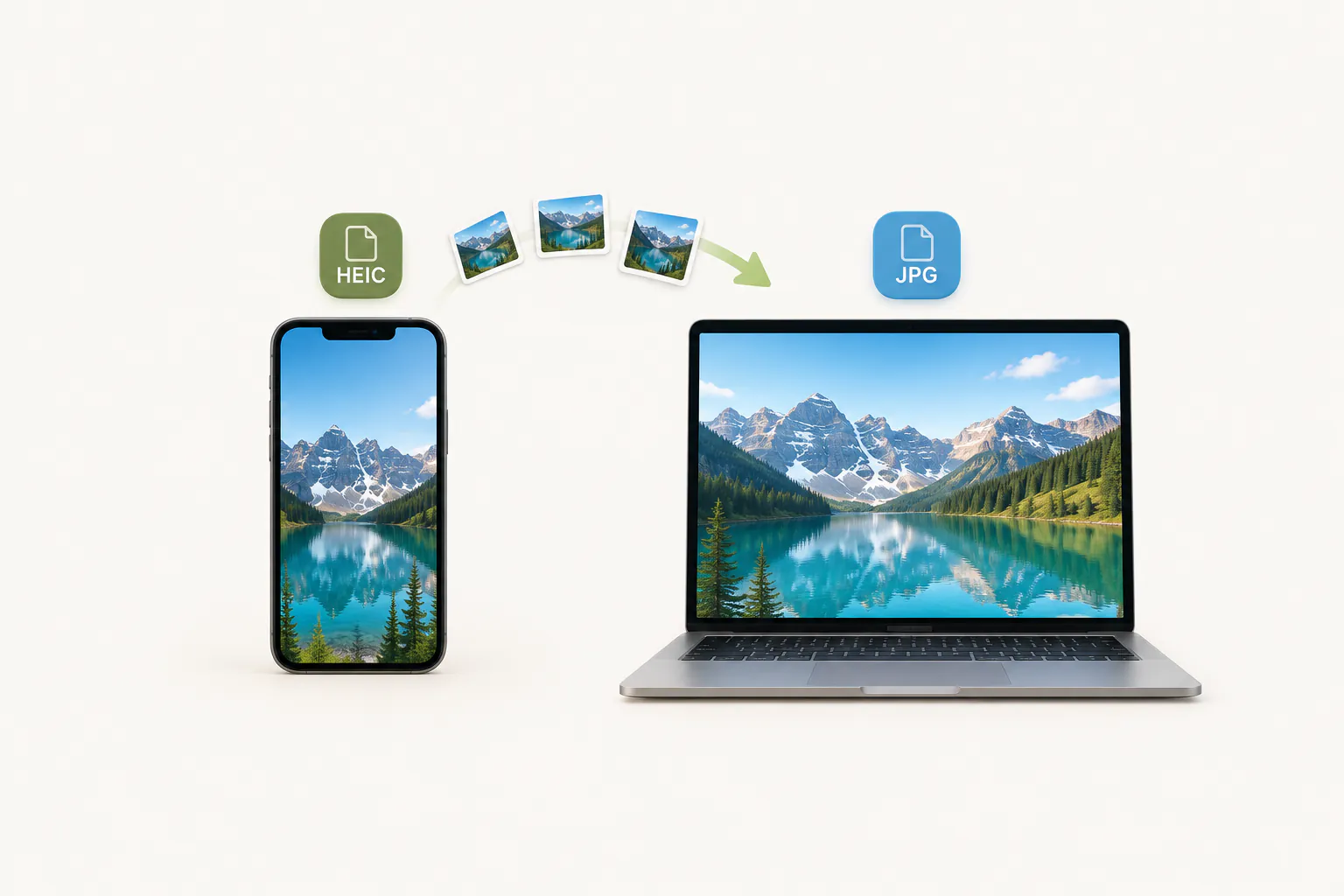
iPhone photos in HEIC format are read directly, and sideways phone photos are turned upright before they go into the PDF. To prepare images first, the image tools can crop, resize and compress them.
The one kind of PDF these tools cannot open is a password-protected one: remove the password in the application that set it, then try again.