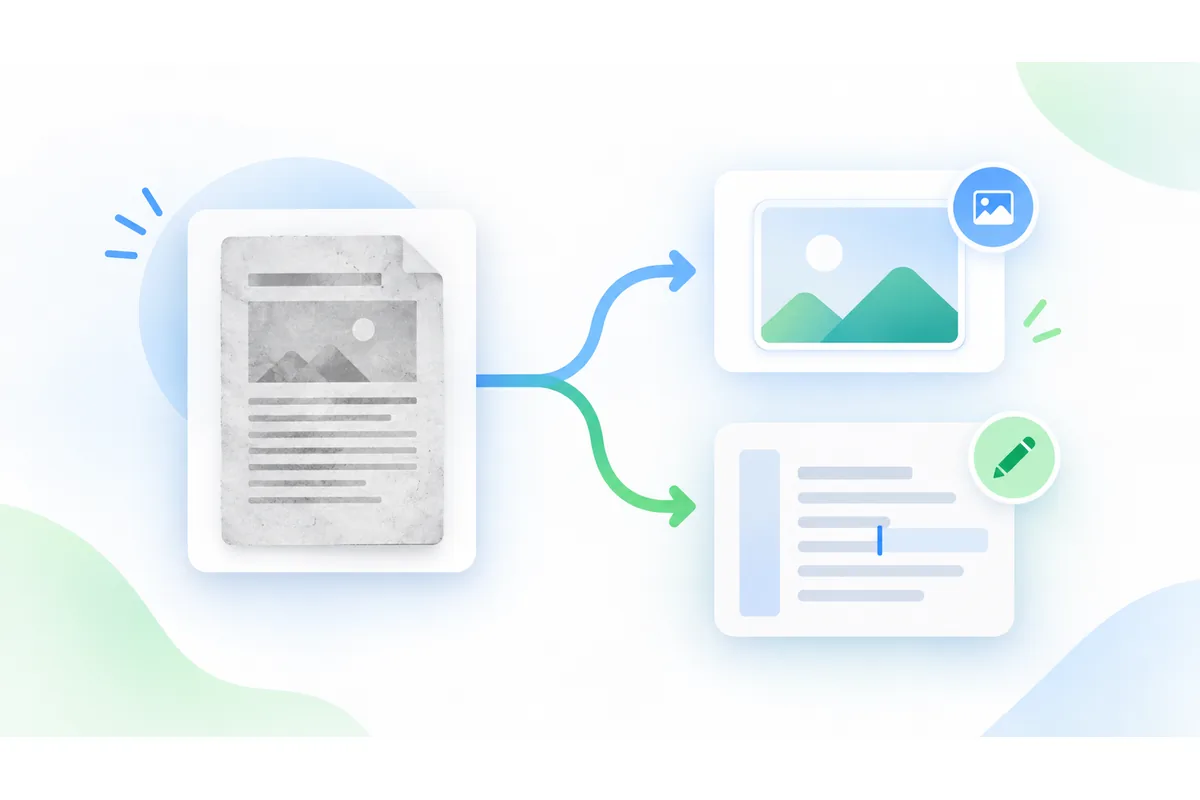
Convert PNG Screenshots to PDF
Turn PNG screenshots, diagrams and graphics into a PDF that stays pixel-sharp — lossless, several per file. Free, in your browser.
Your file
Why use this tool
- No file size limit
- Nothing is uploaded
- No signup needed
PNG is the format of screenshots, diagrams, charts and designs: images with text and hard edges that must stay crisp. Converting them to PDF makes them easy to print, attach and share as one document, and this PNG to PDF converter keeps them lossless along the way.
Add one PNG or many, put them in order, choose the page layout and download a single PDF. Nothing is uploaded, and there is no account, watermark or limit.
How to convert PNG to PDF
Add your PNG files
Drag the .png files into the box, or click to pick several at once.
Arrange the pages
Each PNG becomes a page. Move pages with the arrows and remove any you do not need.
Convert and download
Choose a page size — Fit to image suits screenshots — then press Convert to PDF and download.
Lossless PNG to PDF
PNG images go into the PDF losslessly: every pixel of a screenshot, every line of a chart and every letter of small text is kept exactly. Nothing is re-compressed to JPG on the way, so there is no blur or fringing around edges.
Transparent areas stay transparent and simply show the white of the page, so a logo or cut-out with a see-through background prints cleanly. To turn PDF pages back into lossless images, use PDF to PNG.
Screenshots: use Fit to image
A screenshot rarely has the shape of a sheet of paper. With Fit to image, every page takes the size of its screenshot, so there are no wide white bands and the PDF reads like the screen it came from. Choose A4 or Letter instead when the PDF is going to be printed.
PNG compared with PDF
What changes when your PNGs become a PDF.
| PNG files | One PDF | |
|---|---|---|
| Quality | Lossless | Lossless — PNG data kept |
| Transparency | Yes | Shown over the white page |
| Several images | Separate files | One document, pages in order |
| Printing and sharing | Varies by app | Consistent everywhere |
When to convert PNG to PDF
Screenshots for a report or ticket
A series of screenshots becomes one PDF that reads in order.
Charts and diagrams
Graphics stay crisp in a PDF you can attach to an email or print.
Designs and mock-ups
Share design exports as a single, easy-to-open document.
Tickets, passes and confirmations
Saved screenshots of bookings or passes, gathered into one printable PDF.