PDF to images or text: choose the right conversion
A picture of a PDF page, an original photograph embedded in it, and editable text are three different results. Choose the operation that produces what you need.
By Abdul BasitPublished Updated 4 min read
In short
- PDF-to-JPG and PDF-to-PNG render the whole page.
- Select only the pages and resolution you need.
- Converting a scanned PDF to an image does not add searchable text.
- For scan text, export a page as PNG and then use OCR with the correct language.
A PDF may contain text objects, vector graphics and photos, or only scanned page images. First try selecting the text in a PDF viewer: it may already be available to copy.
The tools process selected files locally. They handle particular page and image tasks; they are not a full PDF text editor, secure redaction system or digital-signature service.
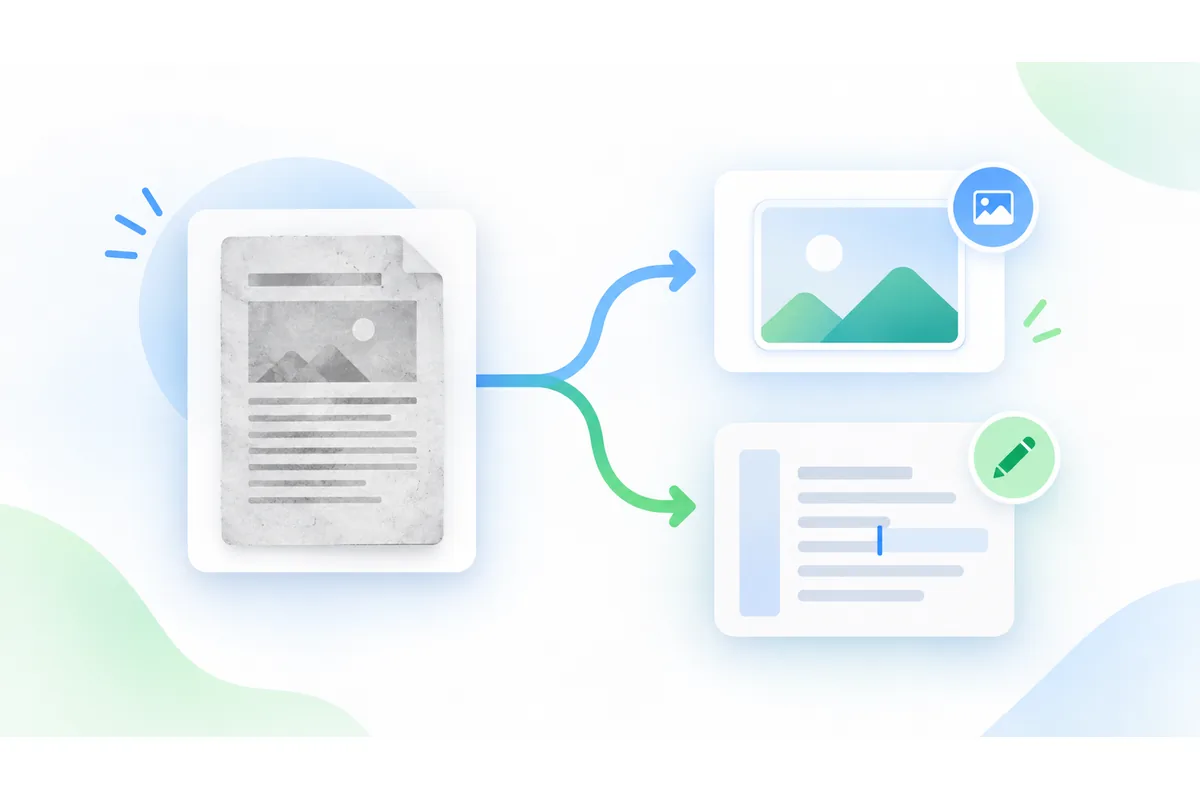
Decide what the output needs to contain
| Goal | Suitable operation | What it does not create |
|---|---|---|
| Whole page in a photo format | PDF to JPG | An unchanged embedded original photo |
| Text or graphics page as an image | PDF to PNG | A searchable text layer |
| Copyable text from a scan | PNG export, then OCR | A layout-preserving Word document |
| Only some document pages | Split PDF | A raster image of the page |
If you can keep PDF, avoid unnecessary rasterisation. Split PDF or Organise PDF pages can produce the required document without turning its page content into pixels.
Choose JPG or PNG for the page
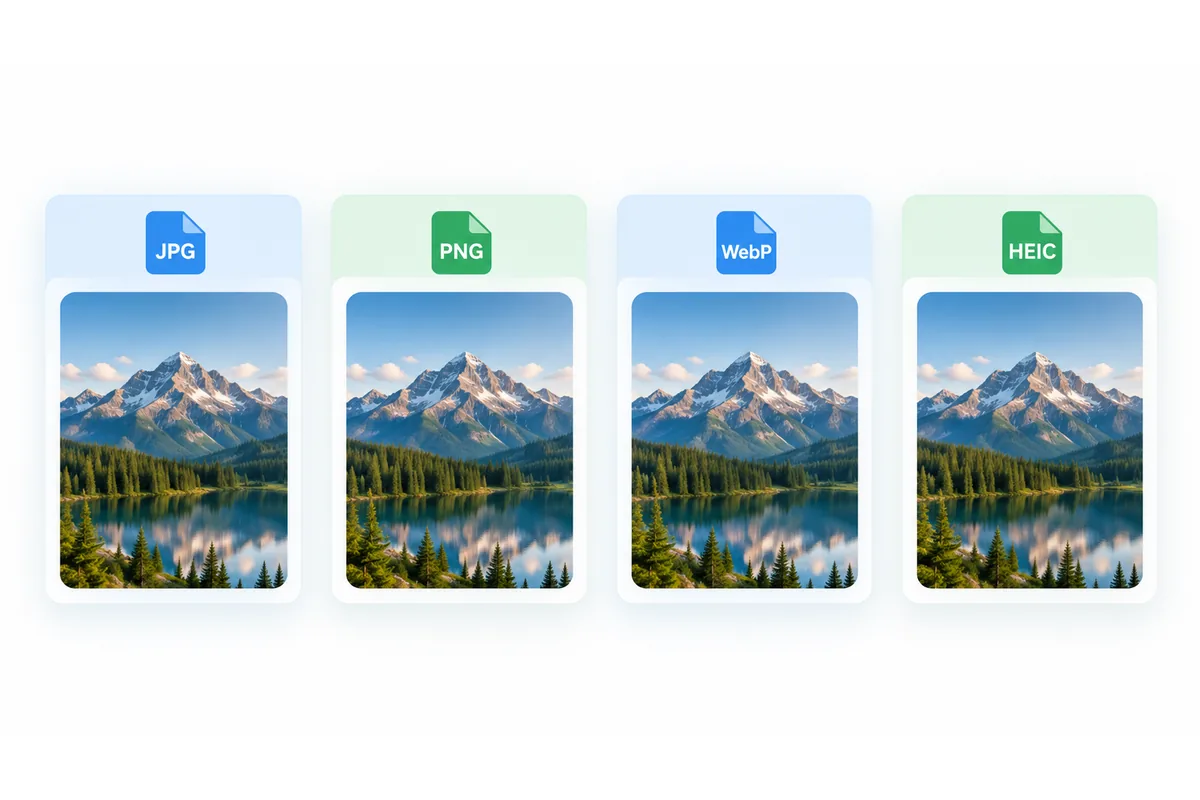
PDF to JPG often suits photo-heavy pages and compact sharing. JPEG compression can alter small letters and sharp edges. PDF to PNG avoids that lossy encoding step but may take more storage.
Both tools render the entire page onto white and create one image per selected page. They do not extract an embedded photograph at its original resolution or compression.
Choose a useful resolution
The available settings are 72, 144, 216 and 288 dpi. A small preview may need fewer pixels than small text or an OCR input. Test one page before exporting a large selection.
Doubling the resolution roughly quadruples the pixels, increasing memory use and processing time. Rendered pages are limited to 16 million pixels, so large paper sizes may need a lower dpi setting.
Higher export resolution cannot restore detail missing from a blurry scan. A better source image can help more than increasing dpi.
Select pages and preserve their order
Enter 1-3, 5 to select four pages. Enter 5, 1 to export them in that order. A blank selection means all pages; every selected page must exist.
Each run supports at most 50 selected pages. Split longer jobs into smaller ranges and download the results before continuing. Download images separately or together as a ZIP. Pages are not stitched into one image.
Read text from a scanned page
- Check whether the PDF already has selectable text.
- If it does not, export the required page as a sufficiently clear PNG.
- Open Image to text and select the PNG.
- Choose the language used in the image, such as English for an English document.
- Run OCR and proofread accents, names, numbers and line breaks.
- Copy the corrected result or download TXT.
OCR recognises characters; it does not validate their meaning. Tables and columns may emerge in the wrong reading order. Output is plain text, not a formatted Word file or a new searchable PDF layer.
Fix blurry PDF exports and OCR mistakes
Test one page before processing the whole document. If small print is hard to read, try 216 or 288 dpi instead of 72 or 144 dpi. Increasing output resolution cannot recreate detail missing from a blurry scan.
If characters are misread, check page orientation and the recognition language. Export only the needed page, crop the image to the text region and run OCR again. Compare names, dates and numbers with the original; a confidence percentage is not a guarantee of accuracy.
Keep originals and check confidential details
Local processing avoids uploading the document through these tools. It does not establish that a file is free of sensitive metadata or suitable to send. Keep the original and share only the required content.
Password-protected PDFs cannot be opened here. A PDF watermark is a visible label, not encryption. Use Images to PDF to assemble image pages, and the format guide to choose an image type.
For upload limits after export, see the image compression guide.
Frequently asked questions
- Can I convert PDF directly to TXT here?
- OCR accepts image files. For a scan, export the PDF page as PNG first. If the PDF already contains selectable text, copying it in your PDF viewer may be simpler.
- Is PDF to PNG lossless?
- PNG saves the rendered pixels without lossy image compression. Rendering still converts text and vectors into a finite pixel grid, so it is not an identical copy of the PDF structure.
- Why can I no longer select text after PDF to JPG?
- The JPG contains pixels instead of text objects. Keep the PDF for document functions, or use OCR when only an image source is available.
- Can I process more than 50 pages?
- Yes, in separate runs of no more than 50 selected pages each. Use manageable ranges and download each set before continuing.
- Can I turn a scanned PDF into an editable Word file here?
- Export the needed page as PNG, extract its text with OCR and paste the checked text into Word. The download is TXT, not DOCX. Tables, columns and page layout need manual formatting; this workflow does not add a searchable layer to the PDF.
About the author
Abdul Basit
Abdul Basit runs QuickImageFix and writes its guides to image compression, resizing, format conversion and PDF tasks. The guides explain the tools available on this site and the choices that affect your results.
Read the author profile