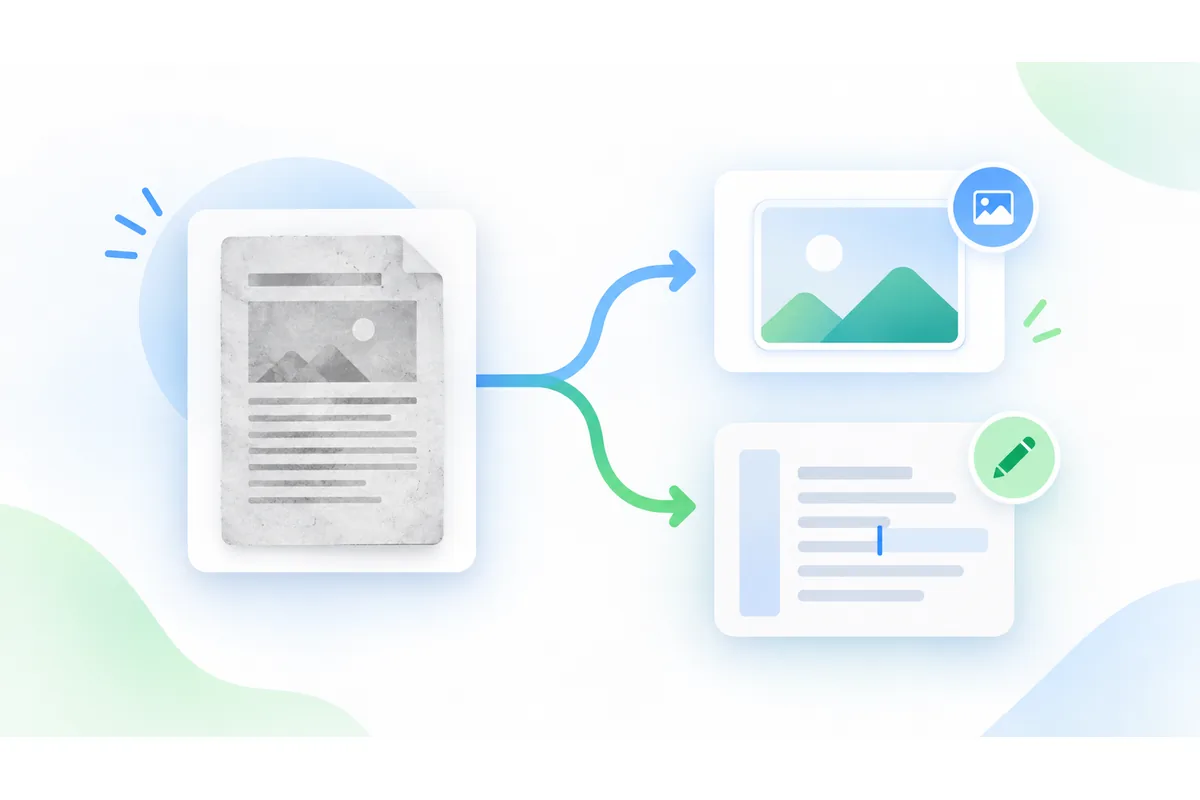
Merge PDF files
Combine several PDFs into one document, in the order you choose. Nothing is uploaded — the merge happens in your browser.
Your file
Why use this tool
- No file size limit
- Nothing is uploaded
- No signup needed
A merge puts the pages of several PDFs end to end in one file. It is the job behind most of the awkward moments in paperwork: a scanned contract that arrived in three emails, an application that wants one attachment, a report whose cover page lives in a different file from its body.
The pages are copied across as they are. Text stays selectable, links keep working, and a page that was sharp before is exactly as sharp afterwards — nothing here turns a page into a picture of itself, which is the usual reason a merged file looks worse than what went into it.
How to merge PDF files
Add your PDFs
Drop them on the box above, or click to pick them. You can add more at any point, and each one shows its page count so you can see what you are combining.
Put them in order
Use the arrows to move a file up or down. The finished PDF follows this order from top to bottom. Remove anything you added by mistake with the ×.
Merge and download
Press Merge PDFs. One file comes back, named after the first document, ready to download.
The order is the whole job
Merging is less about the files than about the sequence. A signed agreement usually wants the contract first and the signature page last; a claim wants the form, then the receipts, then the photographs. Getting that wrong means whoever opens it has to hunt.
The list above is the running order, top to bottom, and the finished document follows it exactly. Move a file with the arrows and the result changes with it — there is no separate confirmation step where the order can be lost.
If you need pages from inside a document rather than all of them, split it first, then merge the parts you want. The two tools are designed to be used together.
Nothing is uploaded, so nothing is queued
Most merge tools want your files on their server. That means an upload, a wait, and a copy of your document somewhere you cannot see, which is an uncomfortable arrangement for a contract or a medical record.
This runs entirely in your browser. The files never leave your device, so there is no upload bar, no queue behind other people's jobs, and no size limit beyond what your own machine can hold in memory.
It also means the tool works offline once the page has loaded, which is occasionally useful on a train or a bad hotel connection.
What merging does not change
Page size and orientation are kept per page. Merging an A4 report with a landscape scan gives one document containing both, each page the shape it always was, rather than forcing everything onto one paper size.
Bookmarks and form fields are not carried across. This copies pages, which is what a merge needs to be reliable; a document with interactive form fields will keep its appearance but not its fillable boxes.
Password-protected PDFs cannot be merged here. The password has to be removed first, in whichever application made the file. Before sending the merged file, rotate any sideways pages, add page numbers or stamp a watermark across it.
What survives a merge
What you can expect to find in the finished document.
| Kept | Not kept | Why |
|---|---|---|
| Text, fonts and vector artwork | — | Pages are copied whole, never re-rendered, so nothing is re-compressed. |
| Page size and rotation, per page | — | Each page keeps its own shape, so mixed documents combine cleanly. |
| Links inside a page | Bookmarks and form fields | Copying page objects preserves appearance; the document-level structures around them are not carried across. |
When people merge PDFs
An application that wants one file
Passport, proof of address and a bank statement, combined into the single attachment a form insists on.
Scans that arrived in pieces
A scanner that writes one PDF per page, put back together in the right order.
A report and its appendices
Body, figures and data tables from different sources, delivered as one document.
Invoices for an expense claim
A month of receipts in one file, so the claim is one attachment rather than fifteen.